
Campaign Page Settings
Set the campaign page name and its public URL: use the system default Campaign Code, or a custom path that fits your brand's URL structure.
Open "Page Settings" in the page editor to set the campaign page name and the URL where the campaign page will be published.
📝 Campaign Page Name
- For identification in the AMP dashboard only. It is not shown on your website.
- Required, up to 100 characters.
🔗 URL Setting Method
There are 2 ways to set the public URL of a campaign page. Choose the one that fits your needs:
| Method | URL Structure | Best For |
|---|---|---|
| System Default Path | Store URL + Campaign Code | General campaign pages that don't need a specific URL |
| Custom URL | Store URL + Custom Path | ● Keeping your brand's existing URL structure ● Letting a new campaign page take over a URL that is already indexed by search engines or has built up SEO value |
System Default Path
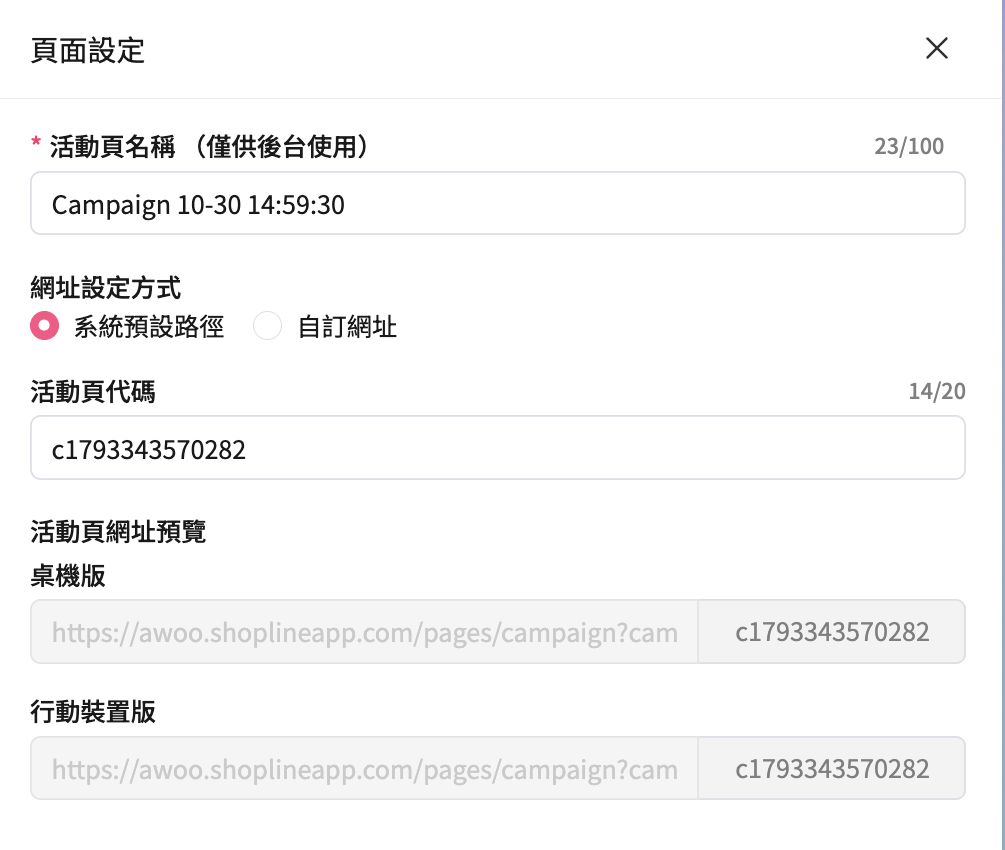
- The campaign page URL is built from the Campaign Code.
- The Campaign Code can be up to 20 characters. The system generates one by default, and you can edit it.
- "Campaign Page URL Preview" shows the full URLs for desktop and mobile.
After a campaign page is unpublished, its Campaign Code can no longer be used by another new campaign page. See Save, Preview, Publish, and Unpublish Pages for details.
Custom URL
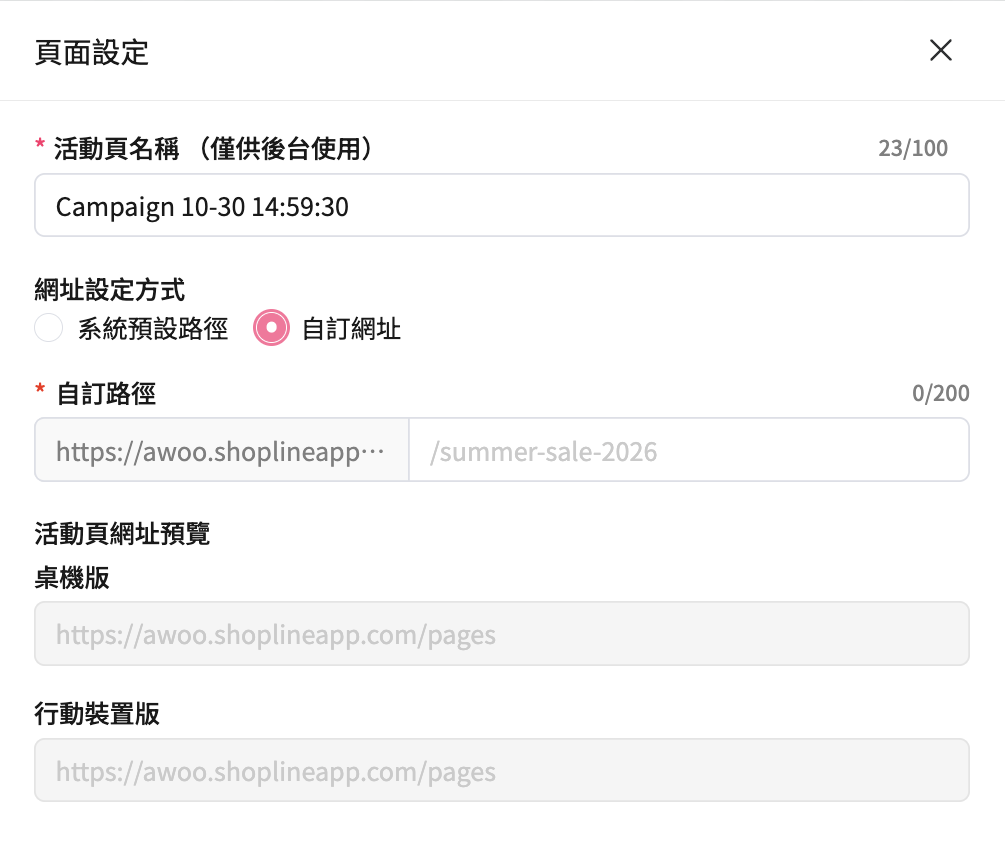
- Enter the path you want in "Custom Path" (up to 200 characters). The system combines it into full desktop and mobile URLs and shows them in "Campaign Page URL Preview".
- Multi-level paths are supported, such as
/campaign/summer-sale. - The system checks the URL format and duplicates: different campaign pages cannot use the same full URL.
Please note:
Custom URLs can only be used after the related website-side and system settings are completed. If the option shows as unavailable, please contact your account manager.
Custom Path Rules
- Must start with
/. - Each path segment can contain English letters, numbers, hyphens
-, and underscores_. - Full URLs, spaces, query parameters (
?), anchors (#), Chinese, Japanese, and any other characters that require encoding are not supported. - After saving, the system converts all letters to lowercase and removes any trailing
/.
| Custom Path Entered | Result |
|---|---|
/summer-sale-2026 | ✅ Valid |
/campaign/summer_sale | ✅ Valid (multi-level path) |
/Summer-Sale/ | ✅ Valid, saved as /summer-sale |
summer-sale | ❌ Does not start with / |
/sale?id=1, /sale#top | ❌ Contains a query parameter or anchor |
/夏季特賣, /summer sale | ❌ Contains Chinese characters or a space |
🔄 Changing or Switching the URL
After a campaign page is created, you can still change its public URL, and switch between "System Default Path" and "Custom URL".
Please note:
- After you switch the URL setting method or change an existing URL, the original URL stops working. Due to caching, the old URL may take up to about 5 minutes to stop working completely.
- The system does not redirect the old URL to the new one automatically. To keep the traffic and SEO value of the old URL, set up a 301 redirect on your website.
FAQ
➤ Can a new campaign page reuse a URL that is already indexed by search engines?
Yes. There are 2 ways to do this:
- Use "Custom URL" and set the custom path to the page's original path, so the new campaign page uses that URL directly.
- Give the new campaign page a new URL, and set up a 301 redirect on your website from the old URL to the new campaign page.
Which paths you can use depends on your website's settings. If you have any questions, please contact your account manager.
➤ After I change the URL, will the old URL redirect to the new one automatically?
No. The old URL stops working within about 5 minutes. To keep its traffic, set up a 301 redirect on your website.
Updated about 19 hours ago