
Advanced Component: Custom Code
The 'Custom Code' component allows you to insert HTML, CSS, and JavaScript code into a specific section of your campaign page to customize content presentation or integrate third-party application services.
Syntax Effects and Rendering Status
What the Custom Code Component Can Do
✅️ Embed posts from Facebook, Instagram, Threads, Twitter (X), etc.
✅️ Embed questionnaires and forms from Google Forms, SurveyMonkey, TypeForm, etc.
✅️ Embed any iframe syntax.
✅️ Create advanced layout effects that existing editor components cannot achieve (requires frontend programming knowledge; not recommended for non-technical users).
⚠️ Exporting to Email HTML: Note that only the HTML tab is supported for export; the CSS and JavaScript tabs are not supported.
What the Custom Code Component Cannot Do
❌️ Write JavaScript in Custom Code Component A to act upon Custom Code Component B or other components.
→ Code written in a specific component only affects that component; effects cannot be applied across different components.
❌️ Embed SDKs.
→ As mentioned above, since the code only applies to the component itself, it is not suitable for SDK installation. Please use Google Tag Manager or aaio to install SDKs for the entire campaign page or website.
| Location | Rendering Status | Other Notes |
|---|---|---|
| AMP Backend Editor Canvas | ❌ Not Rendered | Only a prompt box will be displayed to show the configuration status; direct preview is not available. |
| SDK Online Store Campaign Page | ✅ Rendered | Rendered on both the preview page and the live page. |
| Email HTML Export Results | ⚠️ HTML Part Only | ● The system will only export and render code from the HTML tab; code from the CSS and JavaScript tabs will not be exported. ● No processing or conversion for email clients is performed when exporting HTML code. If rendering errors or layout issues occur in email (e.g., due to iframe embedding), the customer must handle these manually. |
How to Operate
-
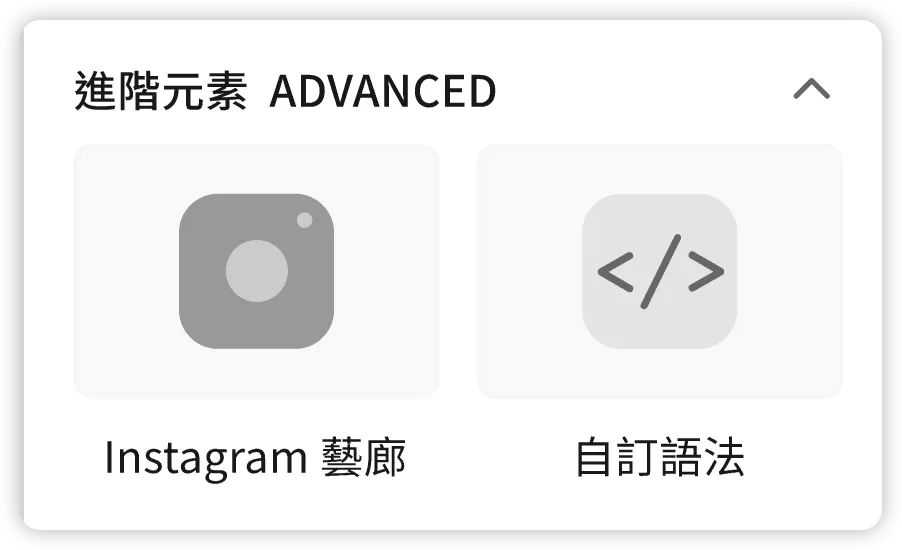
In the left component library of the Campaign Star editor, find the "Custom Code" component under the Advanced Elements section.
-
Drag the component onto the canvas. Since the code is empty, a blue prompt box will appear to guide you.

-
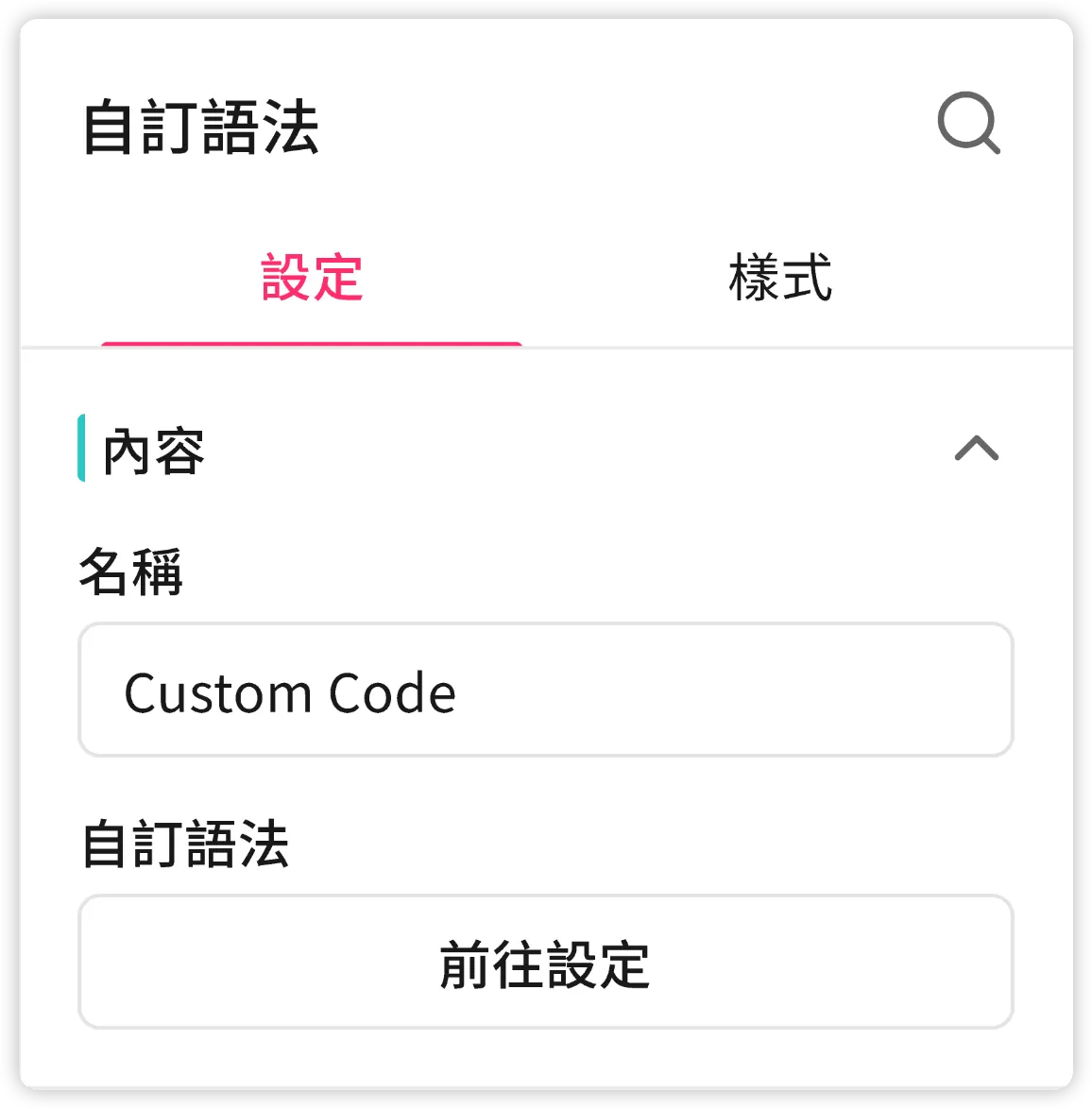
Click to select the component and configure details in the right panel:
-
Name: Used to distinguish between different Custom Code components.
- Default is "Custom code," but can be customized (e.g., "Google Forms - Prize Quiz").
- Maximum 30 characters; cannot be empty.
-
Custom Code: Click the "Go to Settings" button in the component panel or click the prompt box on the canvas to open the code editing area.
-
Enter code into different tabs based on the programming language.
-
Do not include
<style></style>tags in the CSS tab. -
Do not include
<script></script>tags in the JavaScript tab.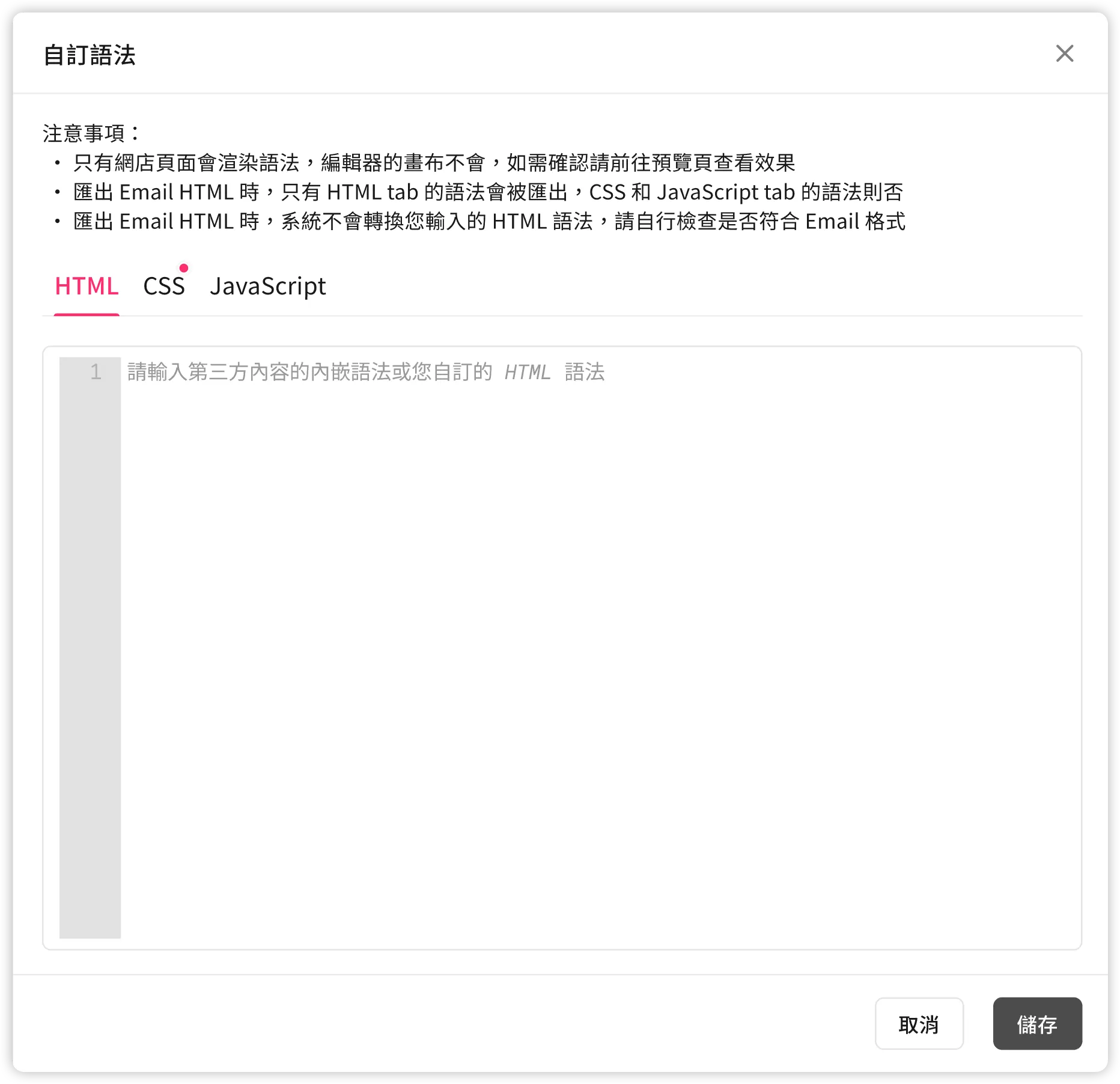
-
-
-
After editing the code and clicking "Save," the prompt box on the canvas will turn gray, guiding you on how to verify the effects.

-
Click the "Preview" or "Publish" button in the top-right corner of the editor to see the actual rendering results on your store page.
Usage Example: Embedding a Facebook Post
-
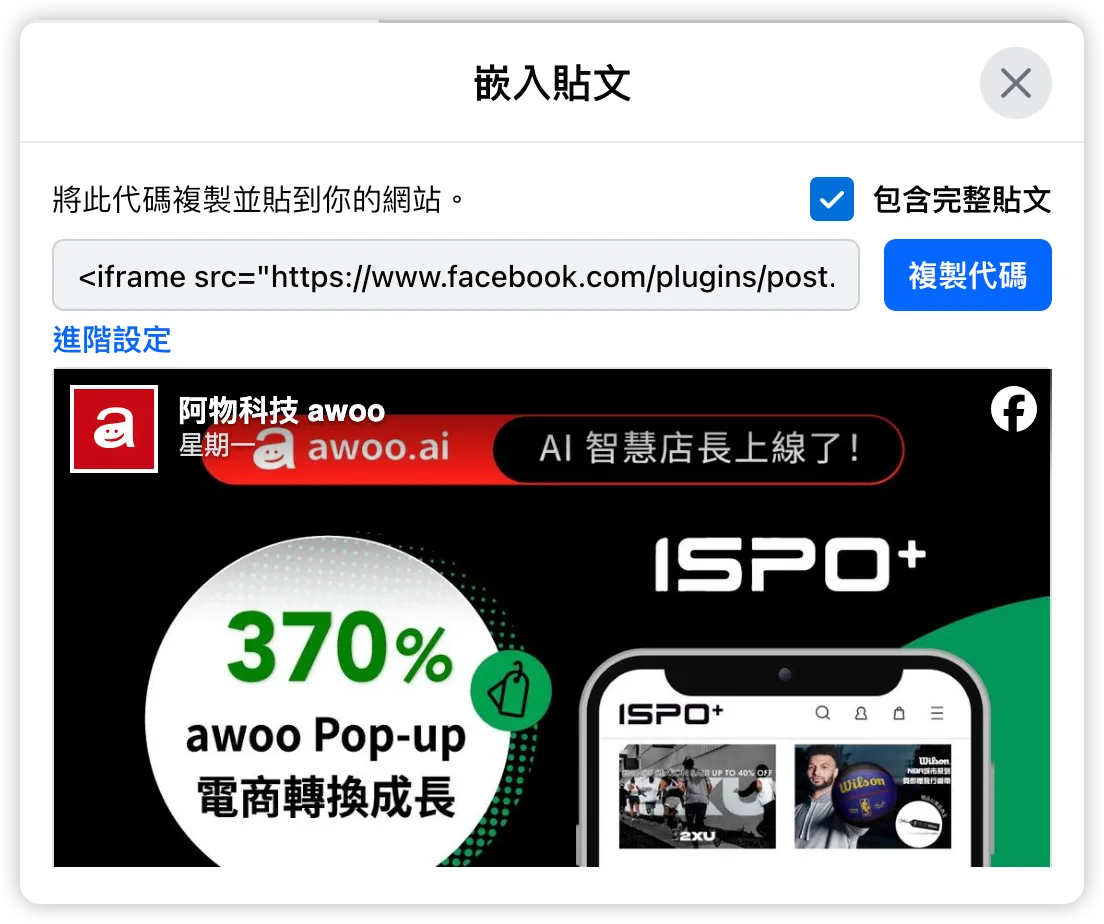
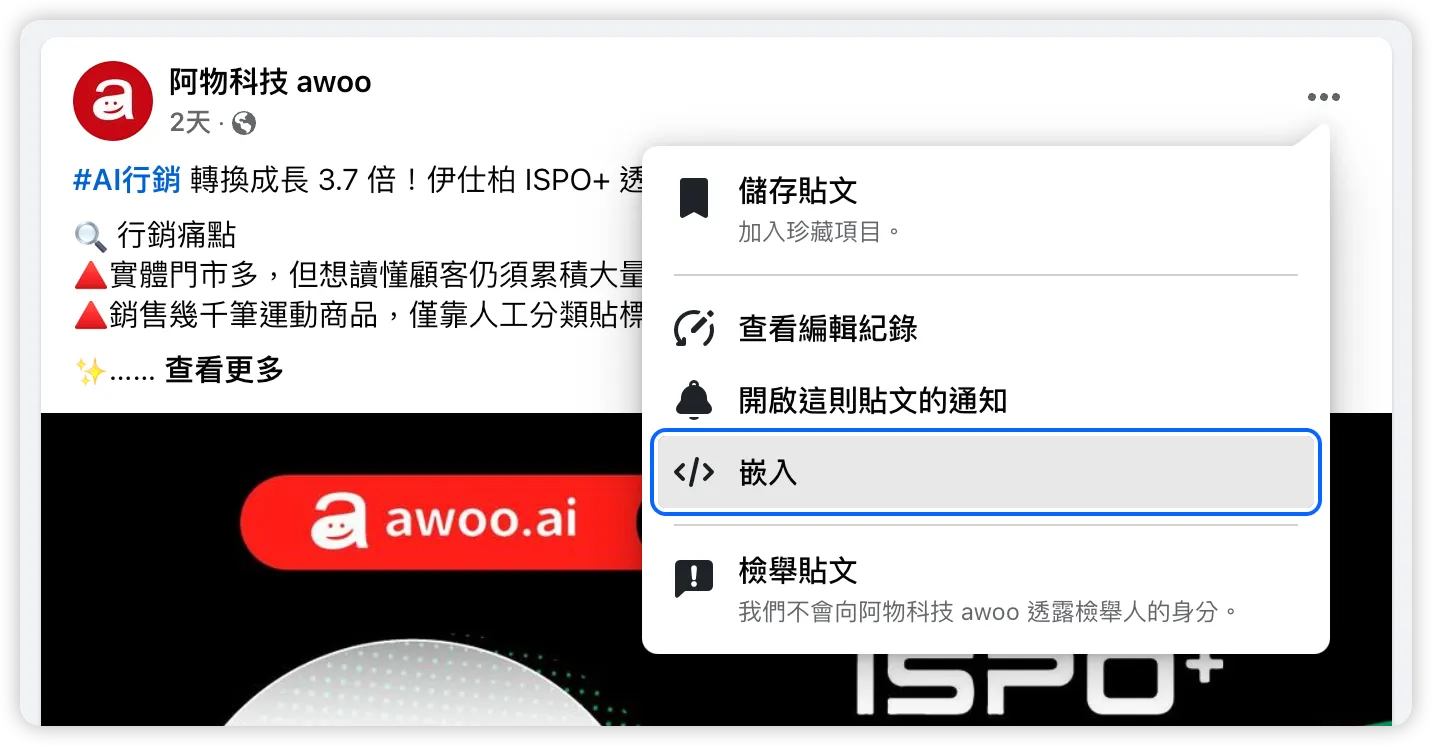
Find the target post on Facebook and open the "Embed" feature.
https://www.facebook.com/awoo.intelligence/posts/960486092782582
-
Click "Copy Code."
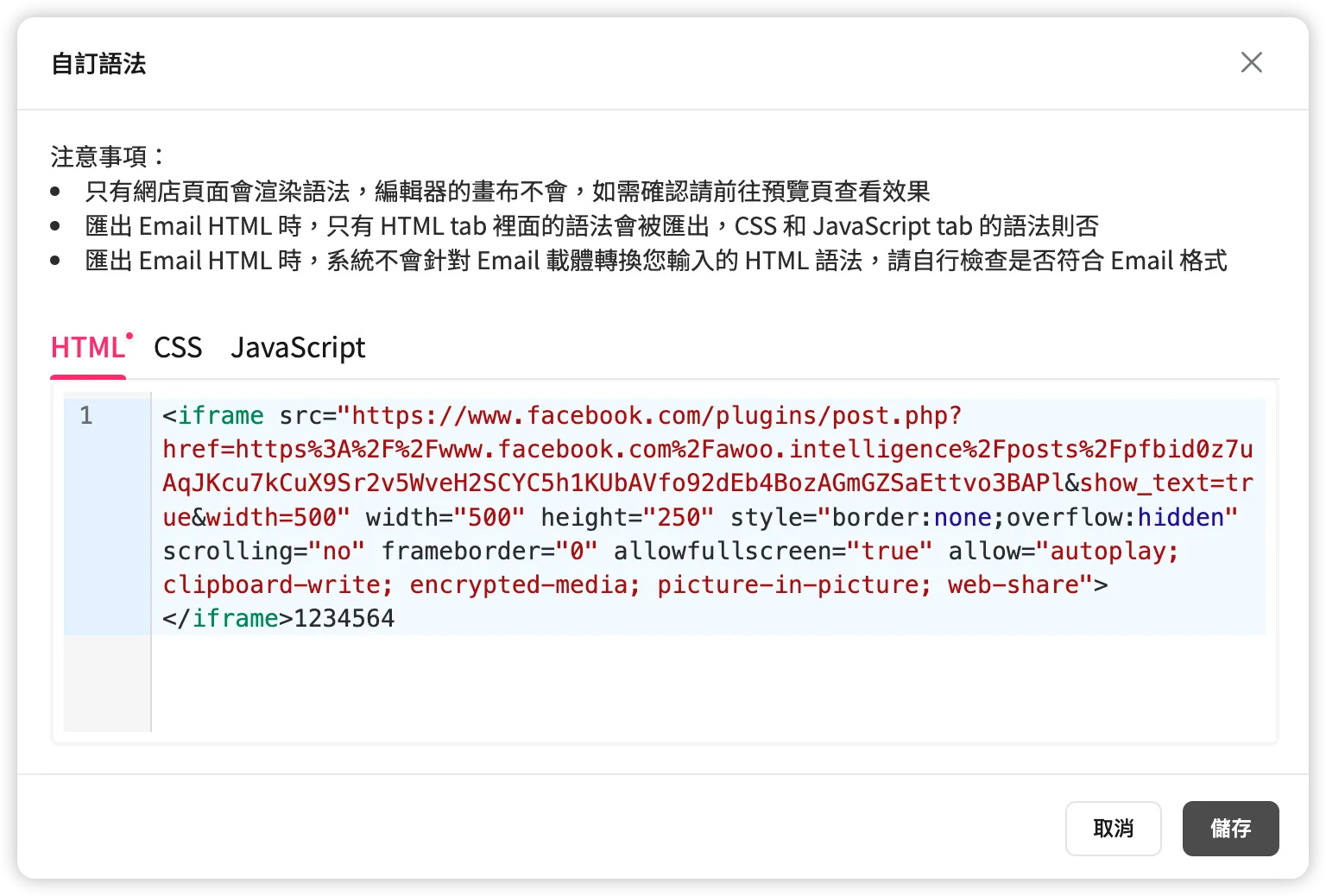
<iframe src="[https://www.facebook.com/plugins/post.php?href=https%3A%2F%2Fwww.facebook.com%2Fawoo.intelligence%2Fposts%2Fpfbid0z7uAqJKcu7kCuX9Sr2v5WveH2SCYC5h1KUbAVfo92dEb4BozAGmGZSaEttvo3BAPl&show_text=true&width=500](https://www.facebook.com/plugins/post.php?href=https%3A%2F%2Fwww.facebook.com%2Fawoo.intelligence%2Fposts%2Fpfbid0z7uAqJKcu7kCuX9Sr2v5WveH2SCYC5h1KUbAVfo92dEb4BozAGmGZSaEttvo3BAPl&show_text=true&width=500)" width="500" height="250" style="border:none;overflow:hidden" scrolling="no" frameborder="0" allowfullscreen="true" allow="autoplay; clipboard-write; encrypted-media; picture-in-picture; web-share"></iframe> -
Paste it into the "HTML" tab of the Campaign Star Custom Code editing area and click "Save."
-
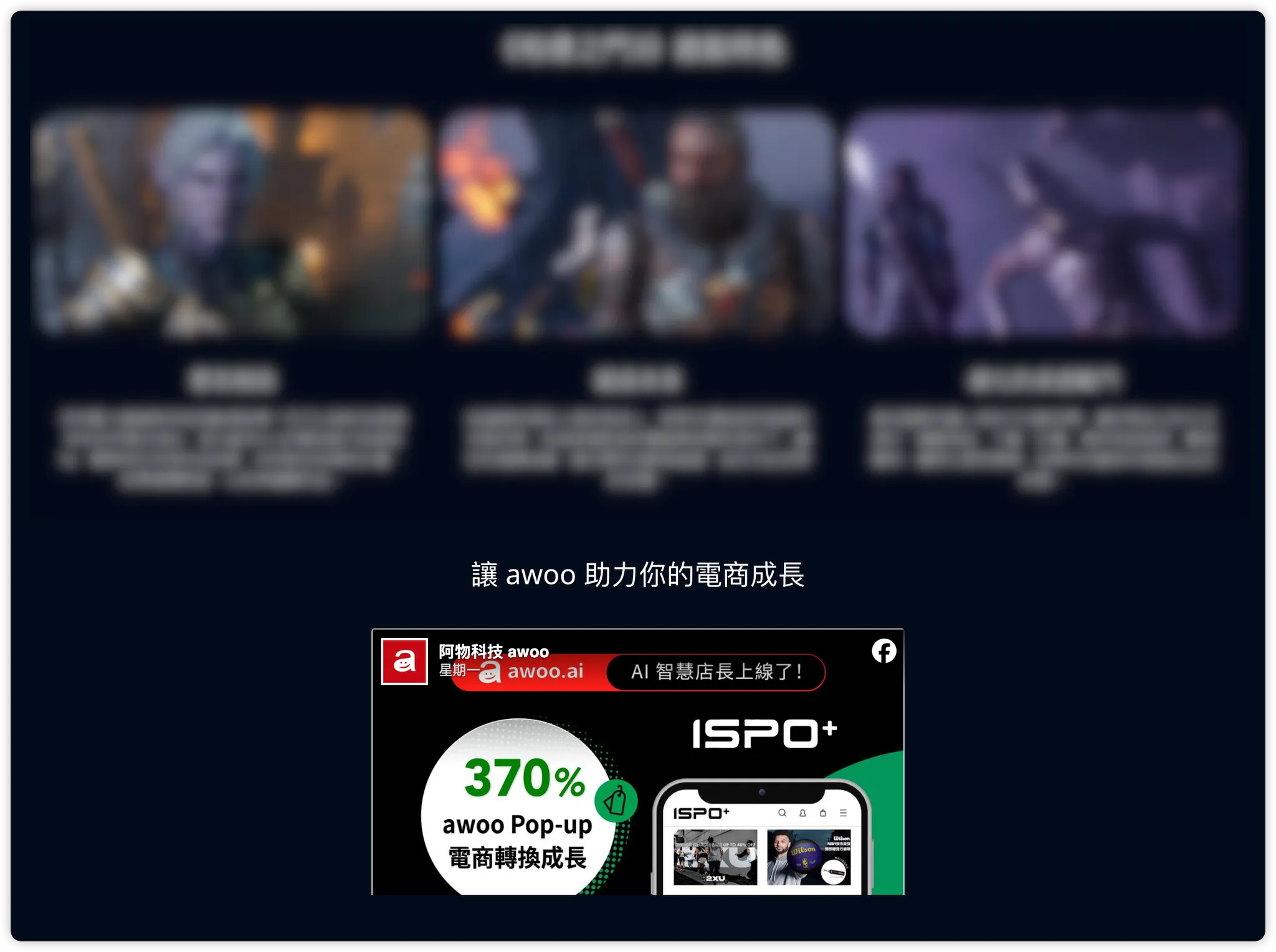
Click the "Preview" button to check the rendering on your store campaign page.
Other Considerations
-
If the content width or height is compressed causing a scroll bar to appear:
- Use the "Width" and "Height" controls under the [Layout] section in the right-side component panel [Settings] tab to manually adjust the size for Desktop and Mobile views.
- If the display area remains unchanged or too small after adjusting the panel settings, the size may be controlled by the syntax itself. Try entering
width:orheight:styles directly within the custom code editing area to control the rendered results.
-
Actions like adding, duplicating, or deleting the Custom Code component, or setting changes in the right panel, support undo/redo functionality.
However, undo/redo is not supported within the code editing area itself. Once you click "Save" and close the input area, you cannot revert to previously written code, similar to how the CSS Editor on the left of the editor functions.
-
In the scenario of "achieving advanced layouts not supported by existing components," awoo assumes no responsibility if your custom code accidentally breaks the campaign page.
Updated 8 months ago