
Hide Elements on Specific Devices
Learn how to control element visibility across different device types (desktop and mobile) to create device-specific layouts for your campaign pages.
💡 Use Cases
Sometimes campaign page content needs specialized adjustments based on different device types, with the intention of showing only one version per device. For example:
- Desktop view: Horizontal Banner - Slogan on the left, illustration on the right.
- Mobile view: Vertical Banner - Slogan on the top, illustration on the bottom.
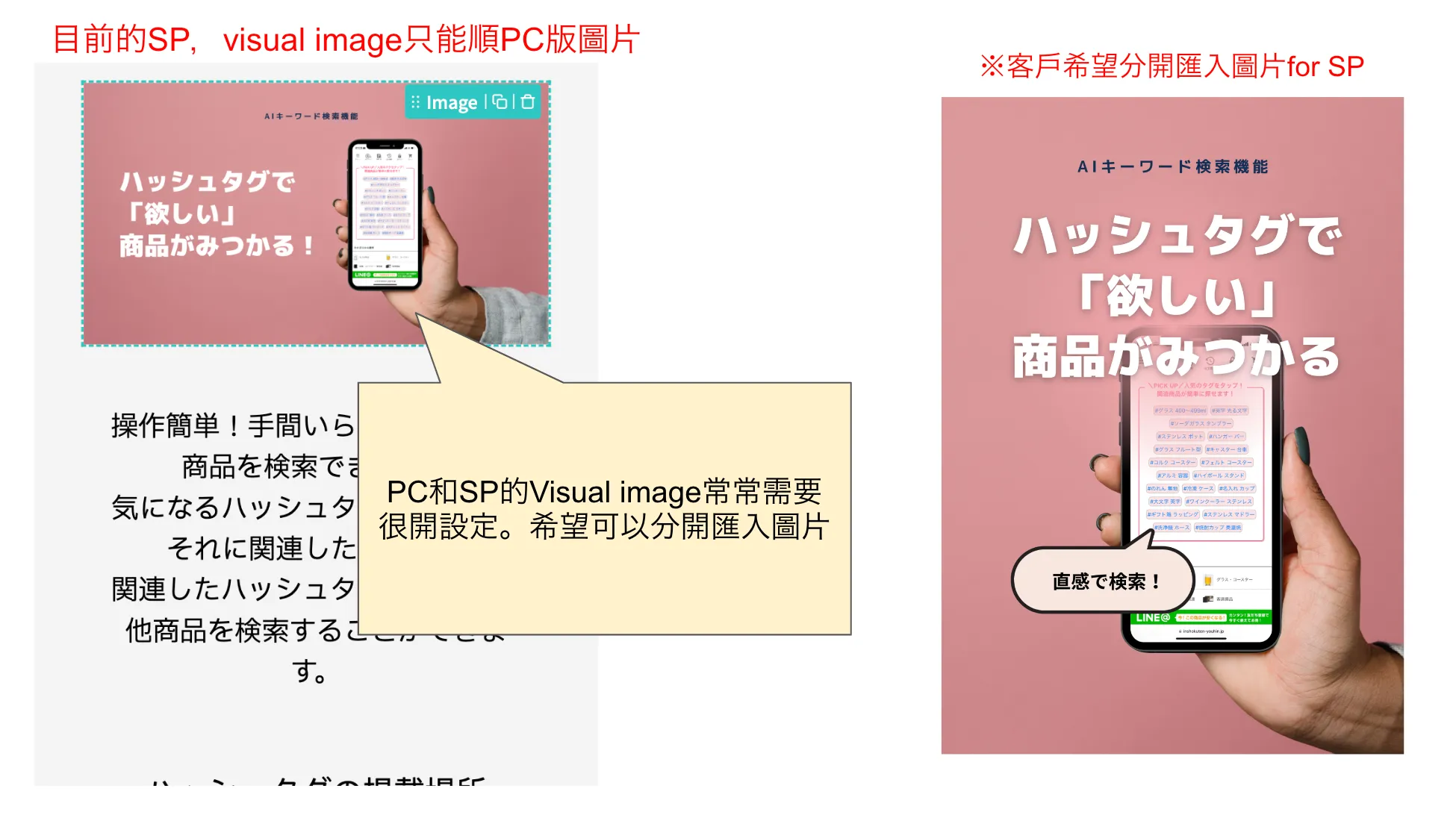
This is where the "Visibility" control comes in handy.
🛠️ How to Use
- Under the [Settings] tab in the component settings panel, find [Visibility]. You can customize whether to hide the component in a specific device view.
- The default value is disabled = component is not hidden.
- Once enabled, the component will not be visible in the following three locations:
- The page editor canvas in the AMP backend.
- The SDK online store page.
- Email HTML export results (※ Assuming "Hide on mobile view" is enabled).
- To prevent a component from becoming completely inaccessible on the editor canvas, the system prohibits hiding a component on both desktop and mobile views simultaneously; you can only choose one to hide.
- Components that support "Visibility" settings include:
| Type | Component Items |
|---|---|
| Structure Components | ・Section ・Row ・Column |
| Basic Components | ・Heading ・Text ・Button ・Image, Image box ・Video ・Divider |
| E-commerce Components | ・Category list ・Product list |
| Advanced Components | ・Instagram gallery ・Custom code |
Please note:
For composite components like Category list, Product list, and Instagram gallery, only the top-level component supports "Visibility" settings. Internal child components (e.g., Category image, Product title, Instagram post) do not support individual visibility settings.
If you want to control whether internal child components are shown or hidden on different device types, please go to the parent component's settings panel > [Settings] tab and find the [Display Settings] checkboxes (e.g., Show pagination, Show category buttons, Show load more button) to check or uncheck them.
Updated 8 months ago