
Advanced Component: Instagram Gallery
💡 Use Cases
The Instagram Gallery component (hereinafter referred to as Instagram gallery) in the page editor allows consumers to browse Instagram post media related to the campaign theme. This enhances the visual effect of the page, builds brand or product trust among e-commerce site consumers, and boosts sales and conversion rates.
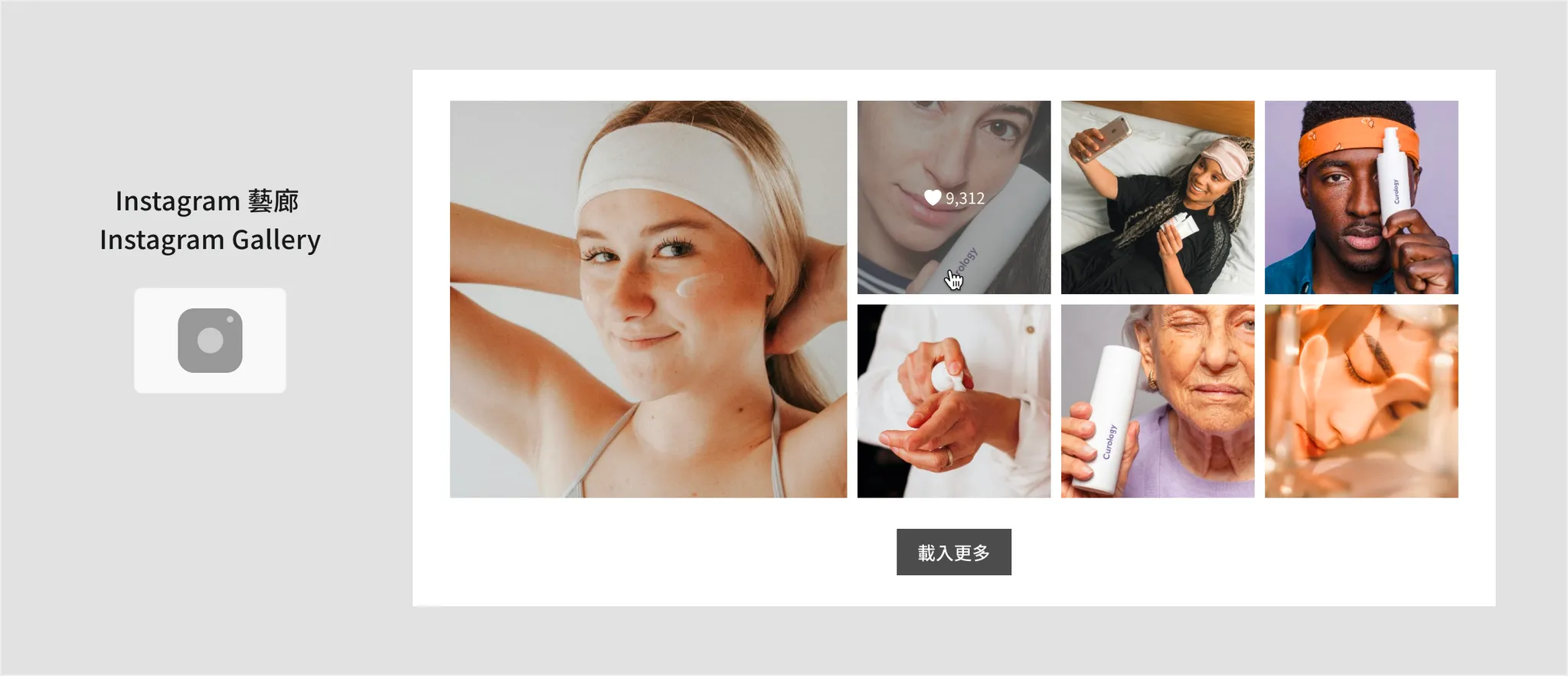
🔰 Basic Introduction
-
An Instagram gallery component consists of individual post slots:
- Each Instagram gallery can only correspond to 1 Visual UGC album.
- Each album can contain up to 50 posts.
-
Detailed Component Architecture:
Section
Instagram gallery
Instagram Post
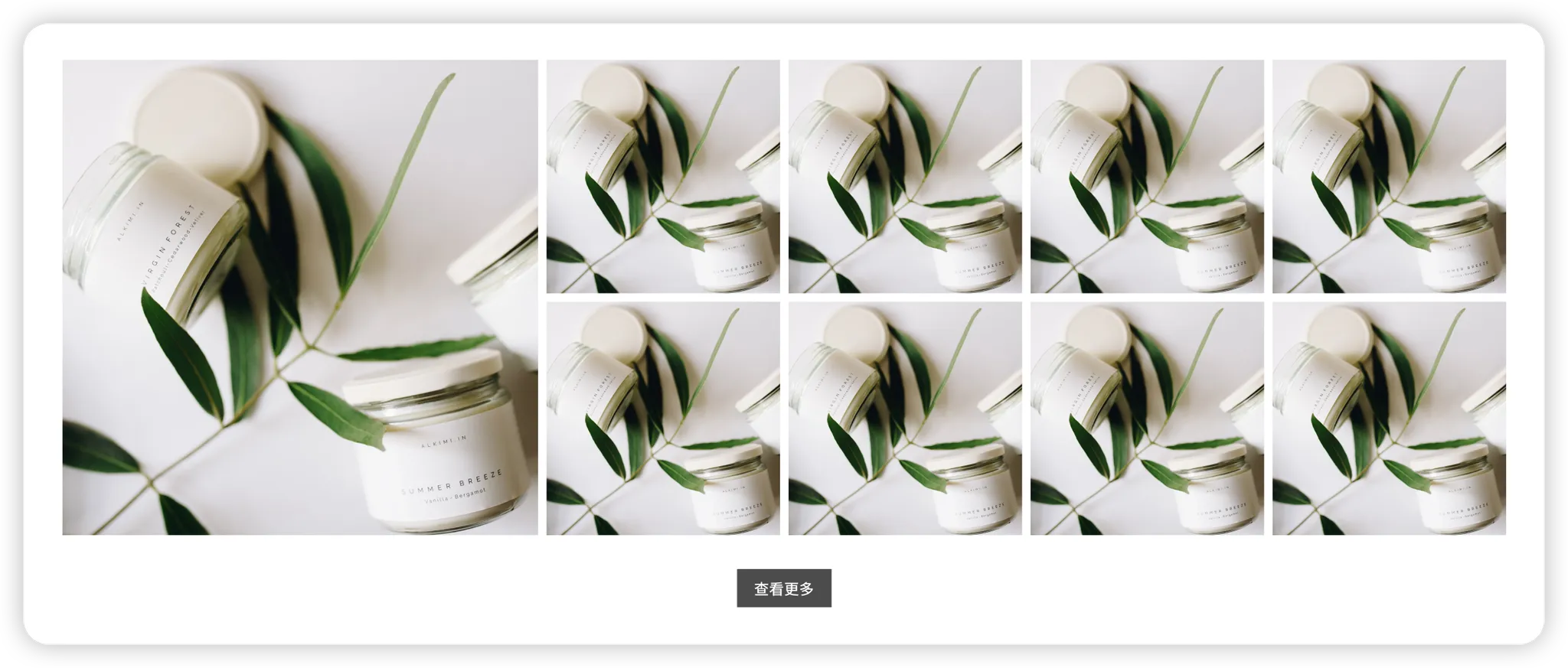
Inline view – default state
Inline view – hover state
Lightbox view – click state
Load more button
Inline view:
Lightbox view:
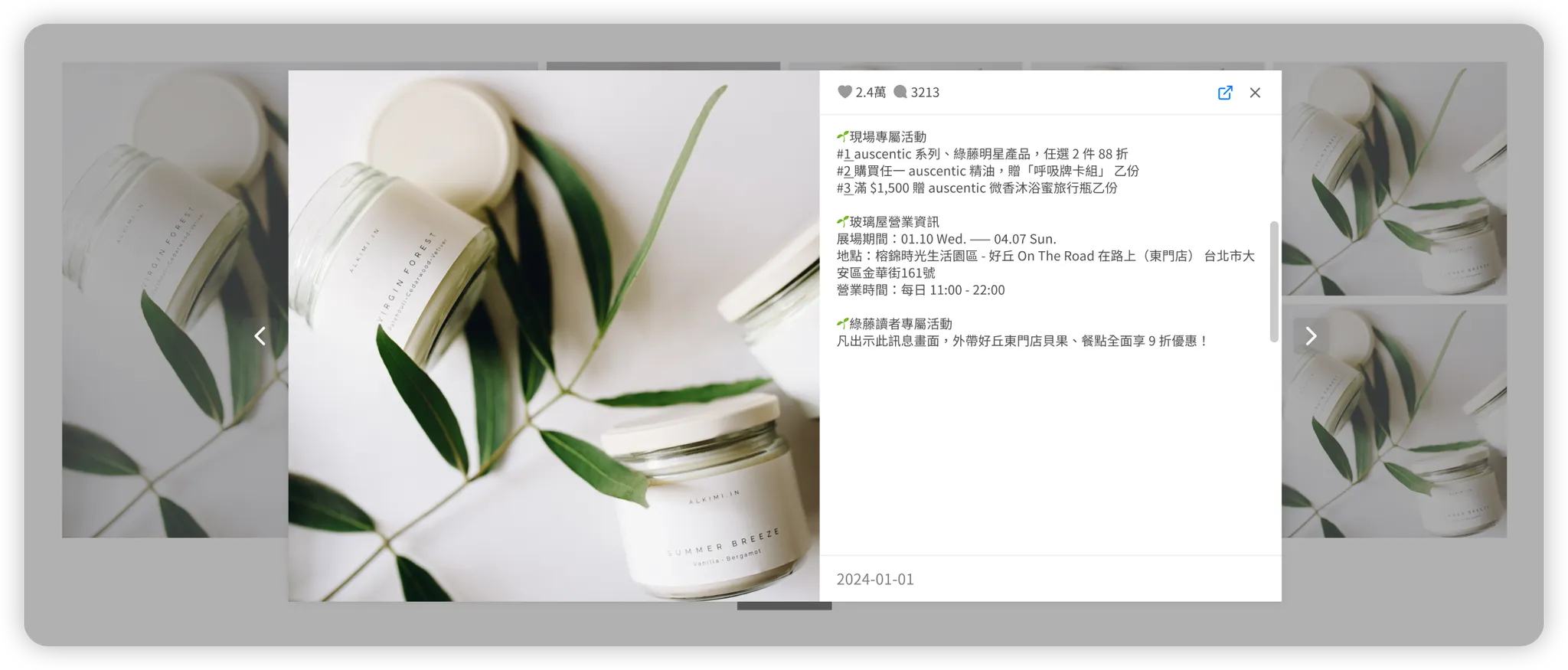
-
Linked Editing Effect:
Modifying the component style of a single post slot will automatically apply those changes to the entire Instagram gallery, saving time on repetitive editing. -
Content Settings:
- You can only select 1 existing Visual UGC album to set the post content (i.e., the album is the minimum unit).
- Does not support selecting individual posts directly from the Visual UGC media source pool.
-
Instagram gallery content is Dynamic:
When saving the page in the editor, only the source album of the gallery is stored. The SDK campaign page then dynamically renders and automatically updates specific post content in real-time based on that source.
📔 Album Source Settings
After selecting the Instagram gallery layer, you can configure the album source for the underlying posts in the right panel.
▍Configuration Method
-
Specify Source Album: Only 1 Visual UGC album can be assigned.
-
Set Post Sorting Logic:
- For unpinned regular posts:
Sorting is automatically determined based on the values in the Sorting Rules dropdown; manual drag-and-drop to change order is not supported. - For pinned top posts:
Within the pinned posts section, you can manually drag and drop to change the order.
- For unpinned regular posts:
-
Set Post Content:
Click "Go to Settings" to expand the "Album Content Settings" drawer to perform operations on the post list.- Pin / Unpin: An album can have up to 10 pinned posts.
- Drag to reorder pinned posts.
- Show / Hide: Once hidden, the post still exists in the album, but the Campaign Builder campaign pages (backend editor canvas & online store SDK pages) will not display it.
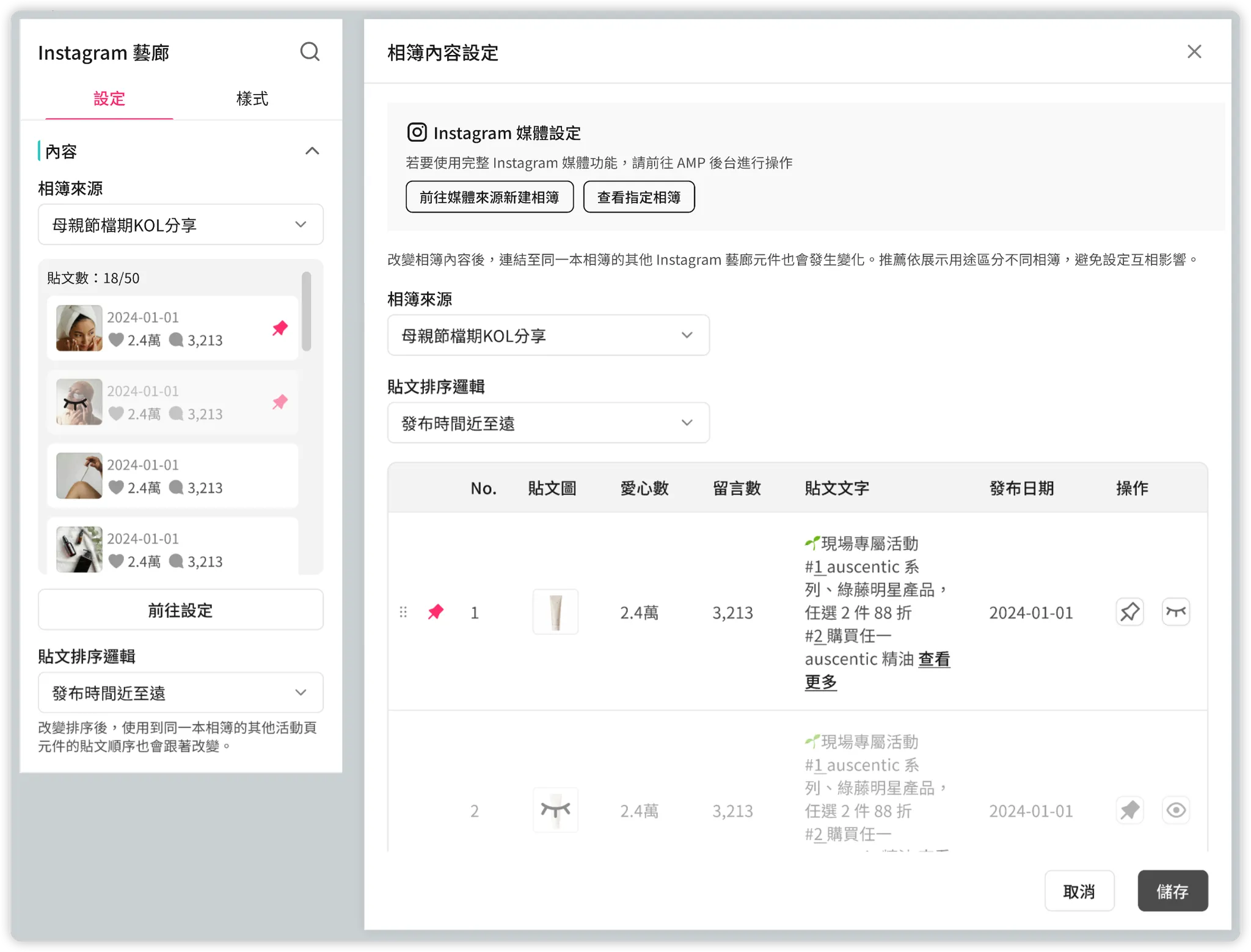
▍Error Status Reminders
If no Visual UGC album exists under your online store...
-
Case 1: [Instagram account not bound] or [Account bound but authorization expired]
You will be unable to access the Instagram gallery component panel and will be guided to [Visual UGC > Account Management] to bind an account.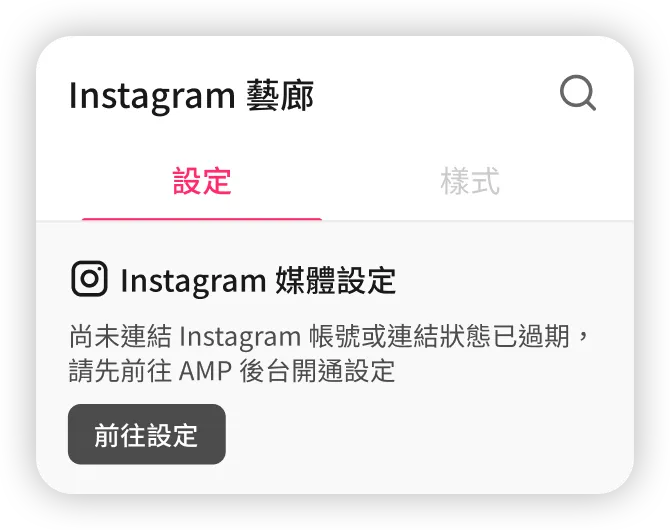
-
Case 2: [Instagram account bound]
The Instagram gallery component panel can be accessed, but you will be guided to [Visual UGC > Media Sources] to create a new album (since the minimum configurable unit is an "Album").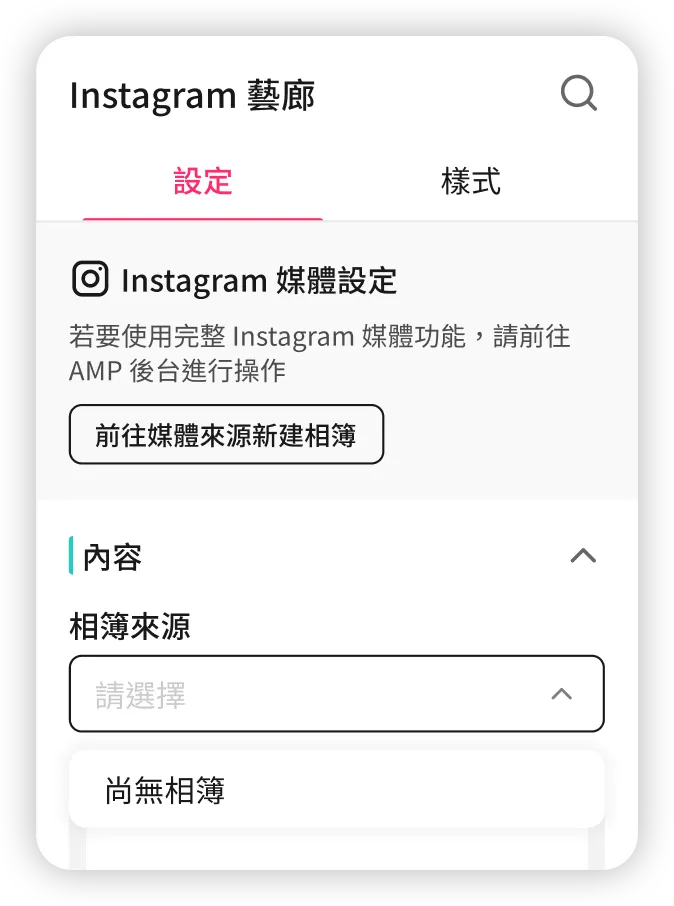
🎨 Style and Interaction Settings
▌ Entire Gallery
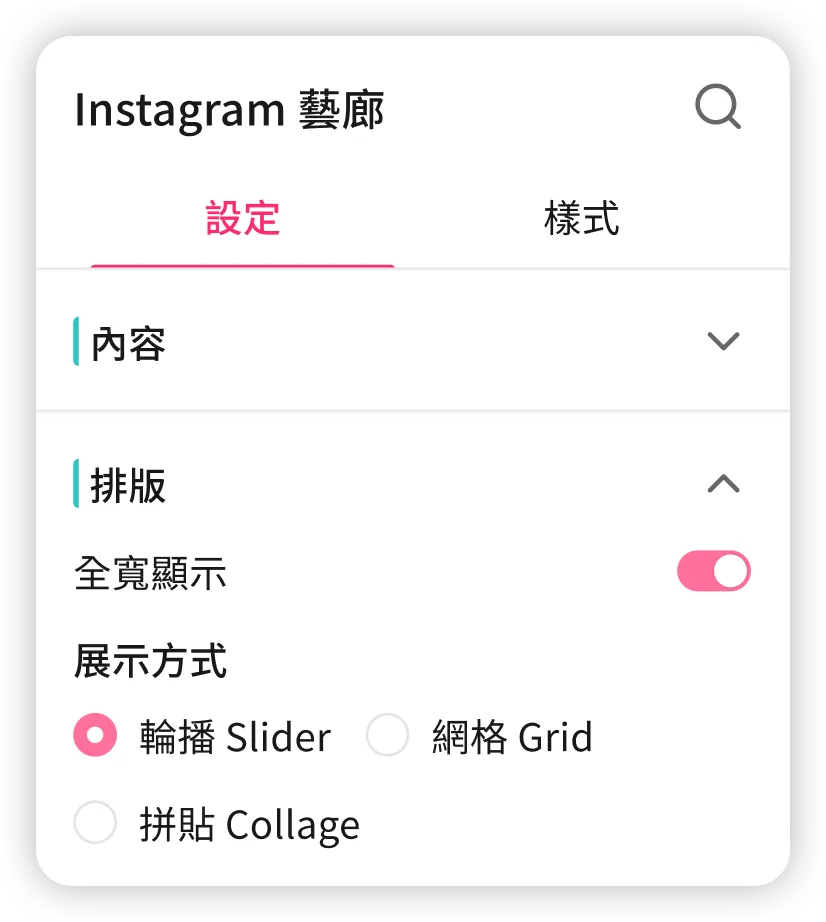
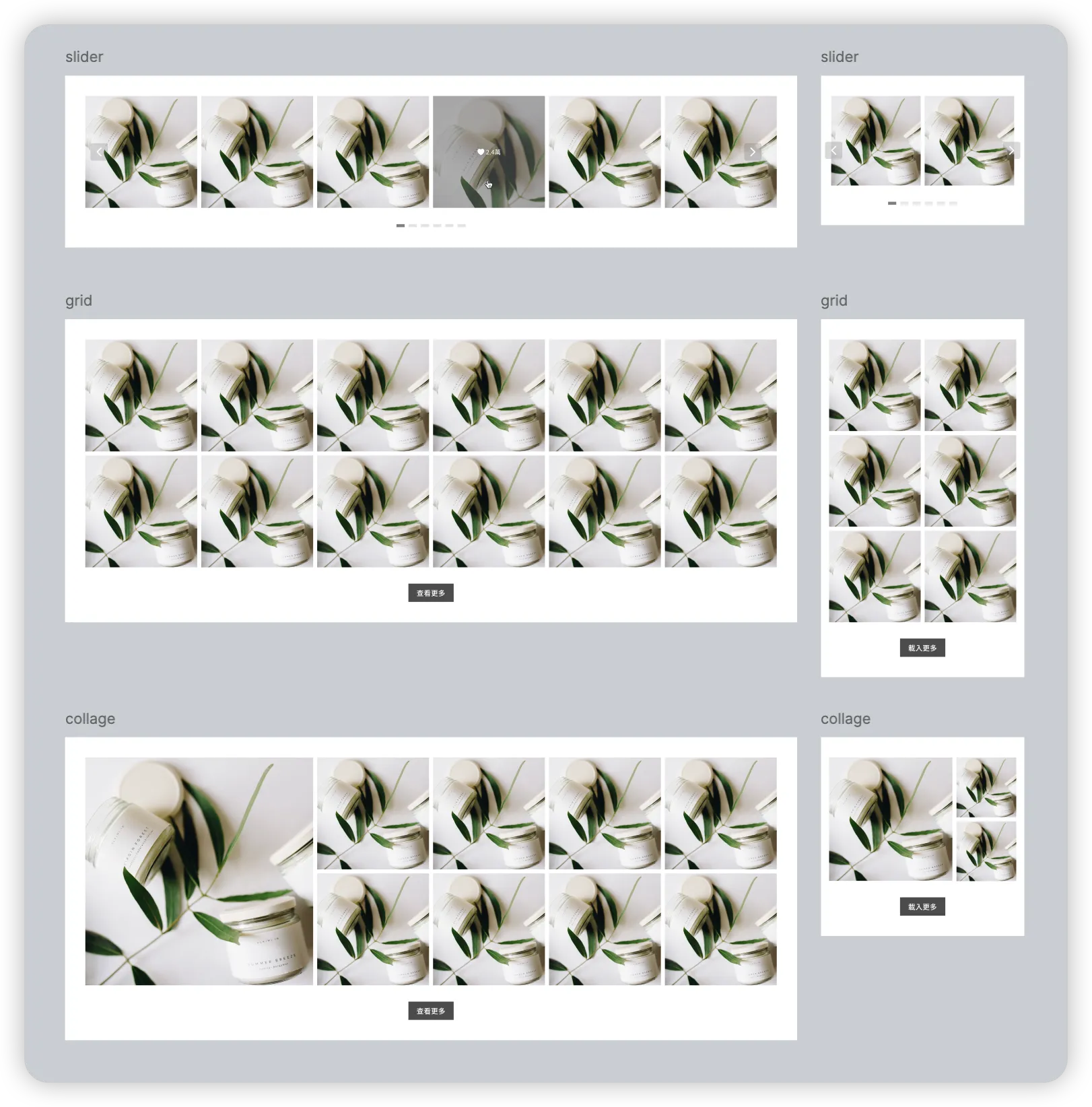
After selecting the Instagram gallery layer, you can adjust the display mode for the entire set of posts under the [Settings tab] in the right panel:
-
Slider
-
Grid
-
Collage
New✨- Uses a group of "1 Large + N Small" posts; one large post slot = 2x2 small post slots.
- If there are not enough posts to be displayed in collage format, that group will fall back to the grid format.
▌ Single Post: Default State
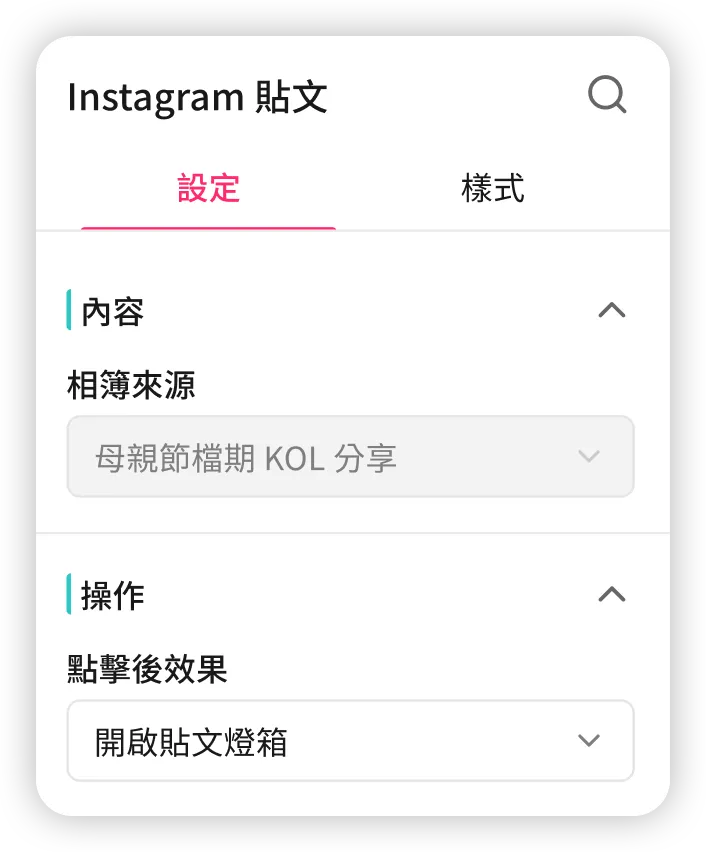
After selecting an Instagram post layer, you can adjust the effect of clicking the post under the [Settings tab] in the right panel:
-
Open Post Lightbox
👉 Default
Only with this effect selected can you configure the "Click" state style for a single post. -
Go to Instagram Post Page
-
No Effect
▌ Single Post: Hover State
After selecting an Instagram post layer, you can adjust the post design for the "Hover" state under the [Style tab] in the right panel:
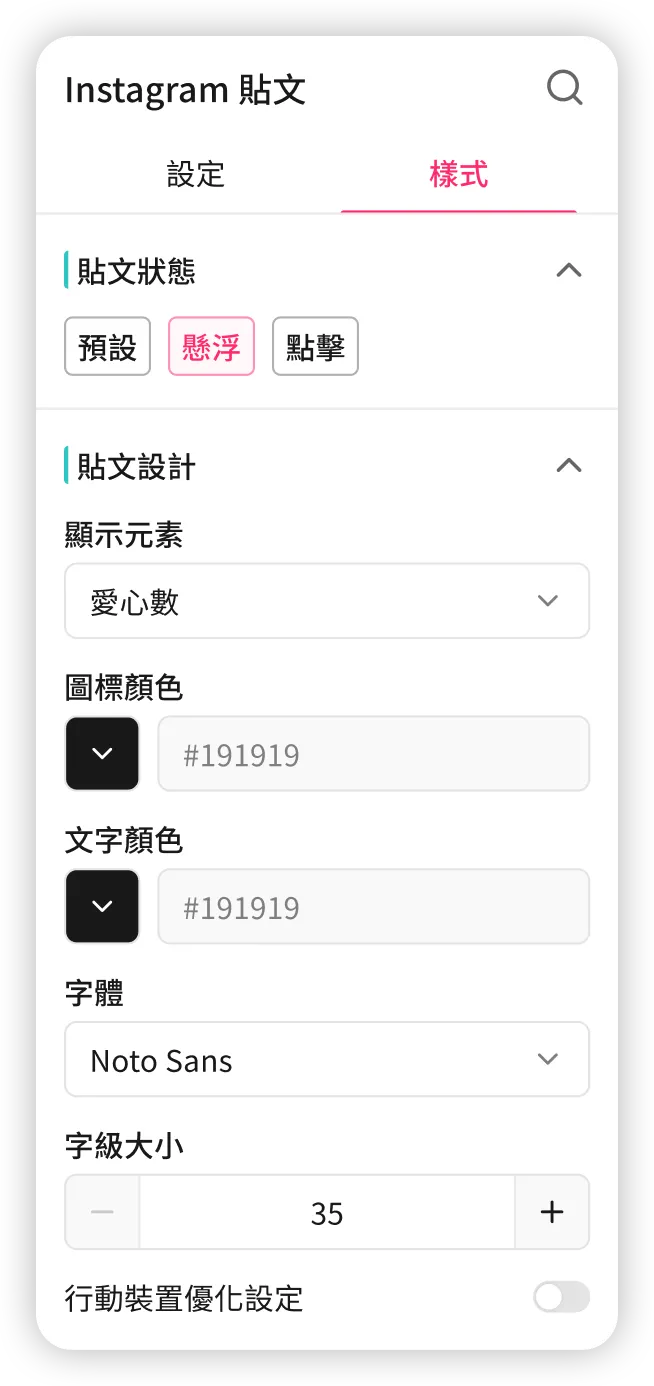
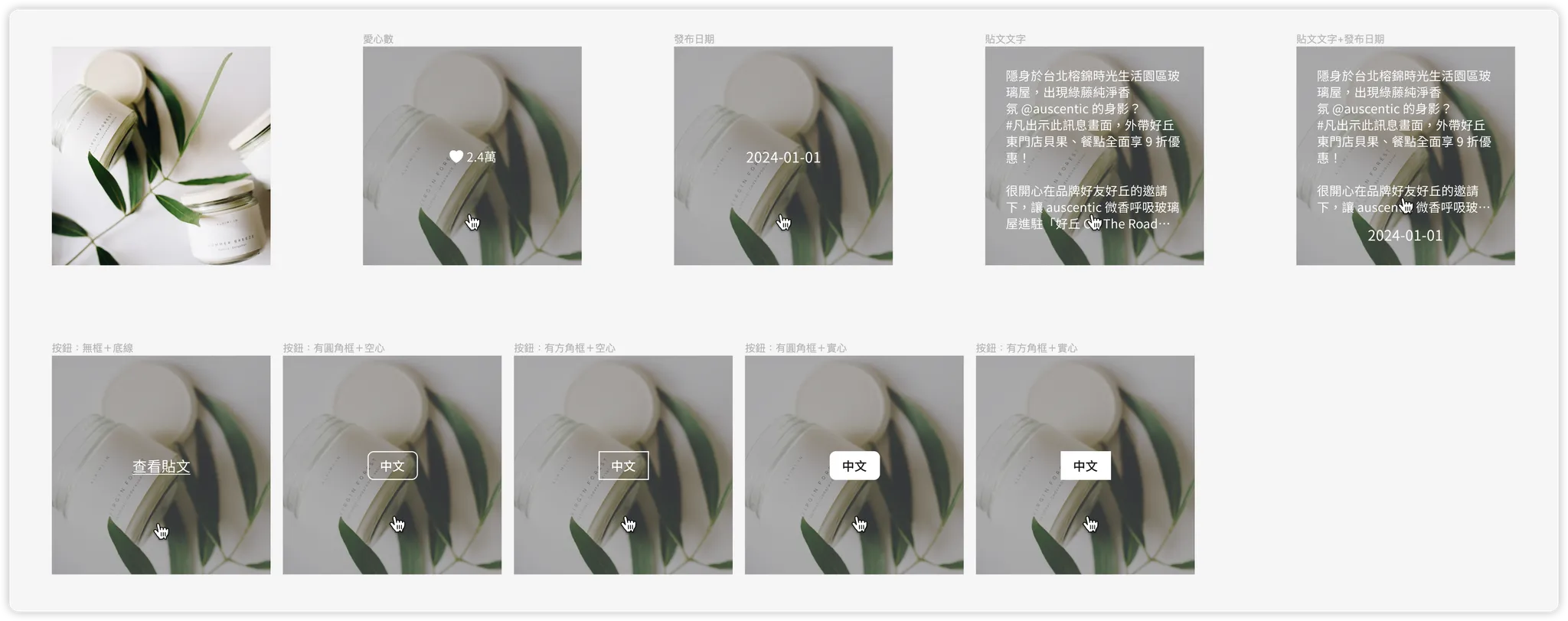
6 options for "Display Elements" are supported; selecting one excludes the others:
- None
- Likes Count
- Post Text
- Publish Date
- Post Text + Publish Date
- Button (available in 5 sub-styles)
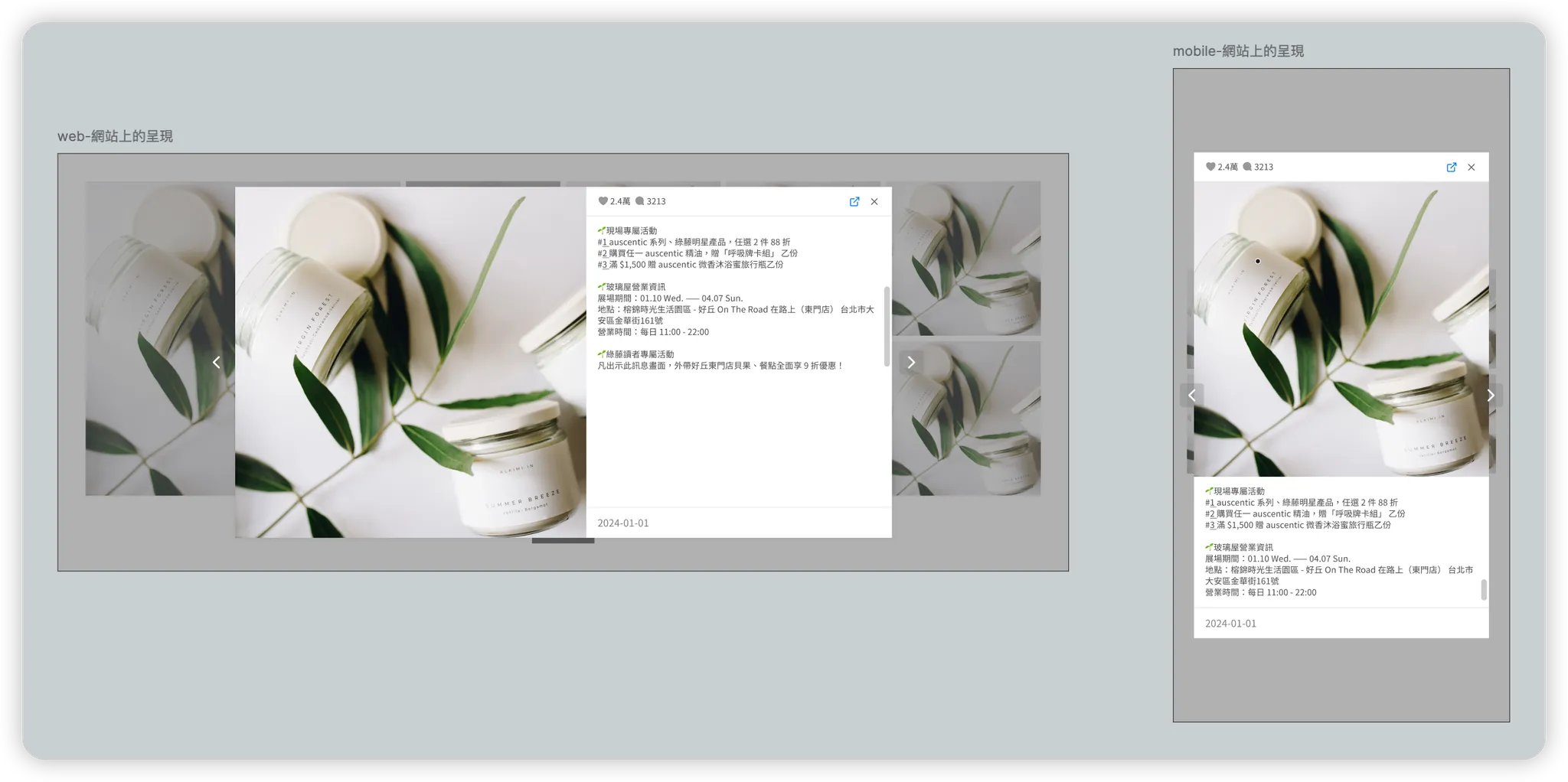
▌ Single Post: Lightbox Open State (Click)
After selecting an Instagram post layer, if the click effect is set to "Open Post Lightbox", you can adjust the lightbox design under the [Style tab] in the right panel:
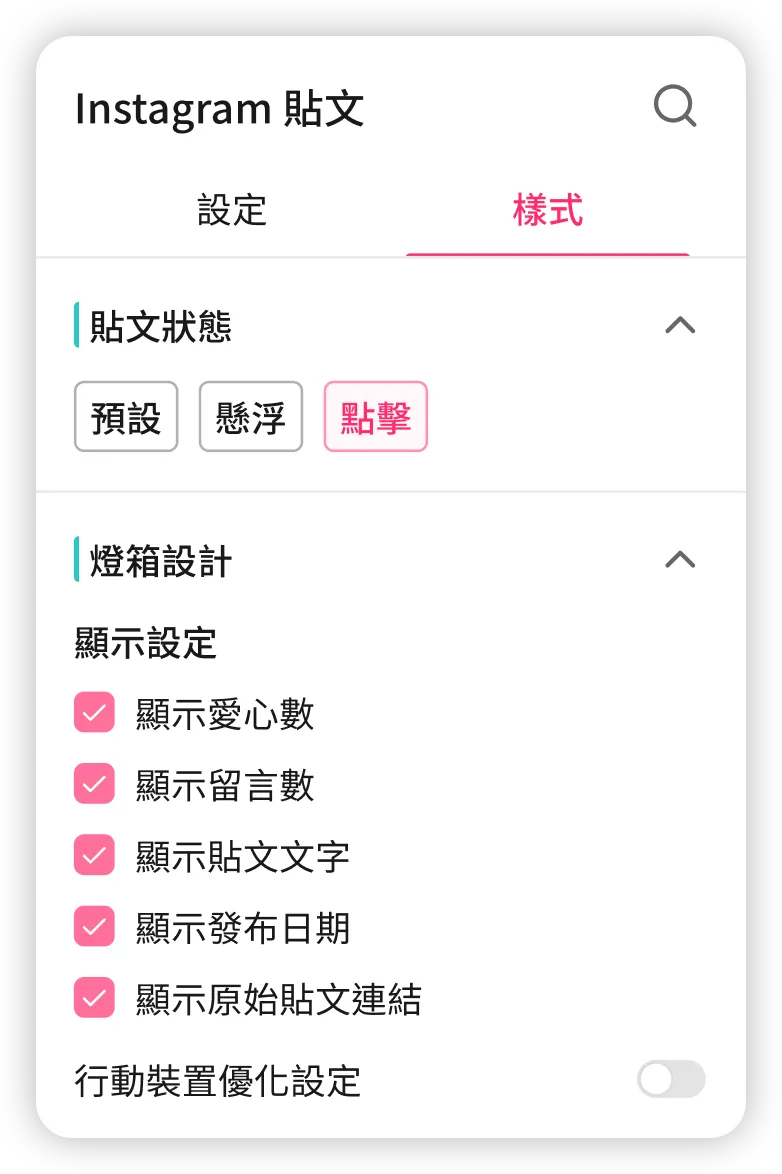
Supports 5 "Display Element" settings; multiple items can be enabled simultaneously.
💬 FAQ
➤ If I unbind my Instagram account, will the previously created Instagram gallery components still exist?
Yes. Even if you unbind your Instagram account, the created albums and the underlying Instagram posts will still exist. Therefore, these albums can still be displayed on Campaign Star campaign pages. However, if you manually delete the source album of a component, the component will enter an error state.
➤ If I delete the source Visual UGC album, will the already created Instagram gallery components still exist?
Yes. However, since the source album cannot be found, the component will display an error state:
-
On the backend editor canvas: The entire Instagram gallery component displays an error message.

-
On the SDK online store page: The entire Instagram gallery component displays an error message.

➤ Why can't I see the Instagram gallery component in the exported Email HTML?
This feature is currently not supported, so it is normal that the Instagram gallery component is not visible in the exported Email HTML.
Updated 8 months ago