For AI agents: visit https://awoo-docs.readme.io/llms.txt for an index of all pages formatted in Markdown and endpoints in OpenAPI. Append .md to any documentation page URL to get its markdown version.
The Layer Tree allows you to easily understand the canvas component hierarchy, drag or manage individual components, enhancing your editing control and speed!
🚪 Access
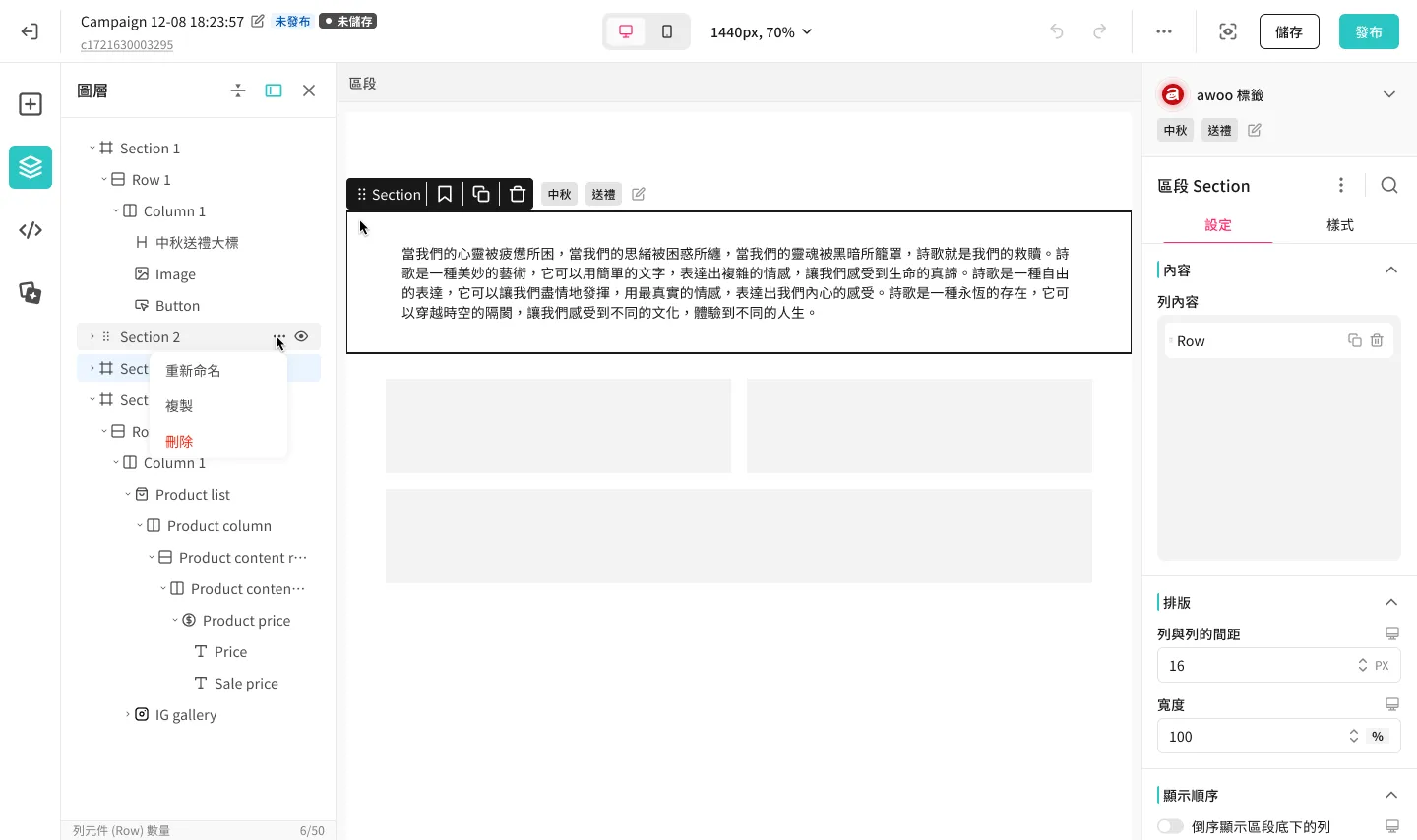
In the editor's left toolbar, click the Layer Tree icon to expand the panel and view the structure of the current page.
👆 Quick Drag-and-Drop
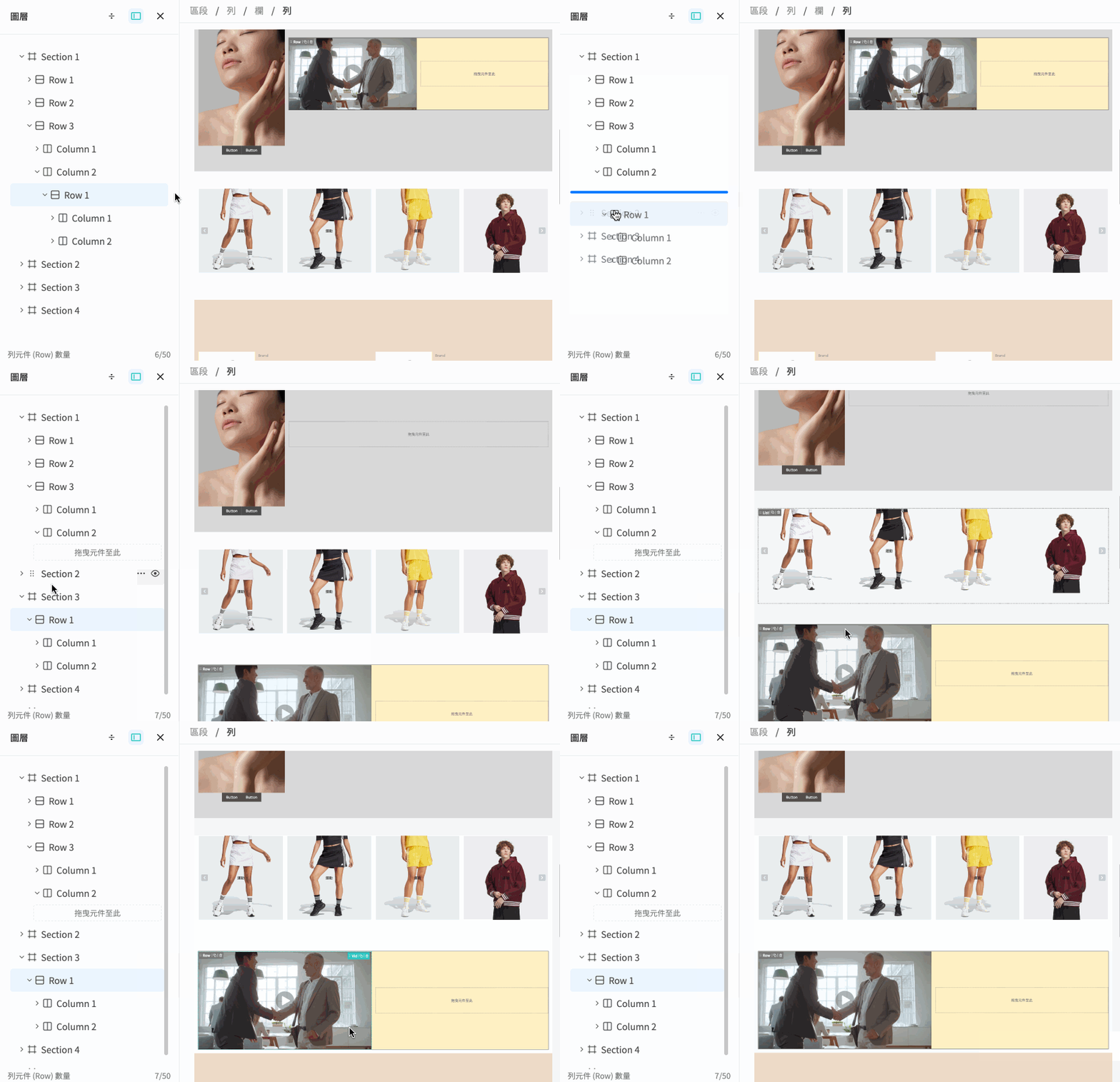
Click and hold a component within the Layer Tree to drag it to any supported location.
For example: Drag a nested Row (yellow background) between Section 2 (white background) and Section 3 (brown background) to turn it into a brand-new Section.
👍
Best Practice:
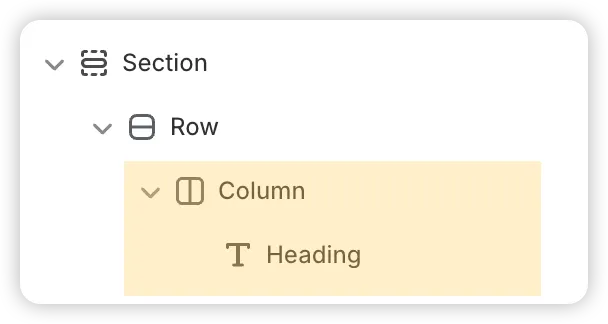
Unless there is a specific need for nested layouts, it is recommended to keep the page structure as a clean, single-layer design. For example:
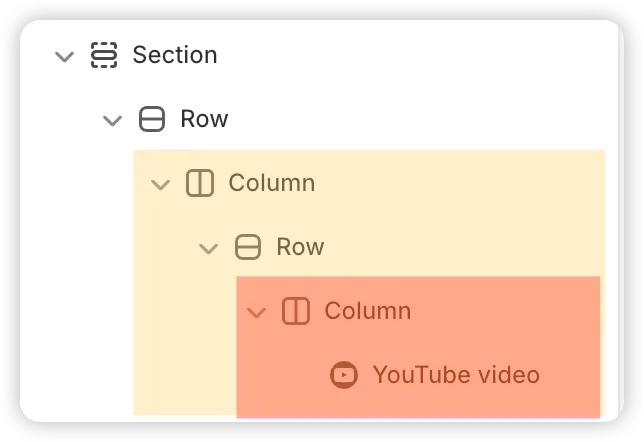
This effectively prevents components from being placed too deep, reducing the likelihood of drag-and-drop performance issues later on.
Recommended Structure
Nested Structure
✏️ Custom Naming
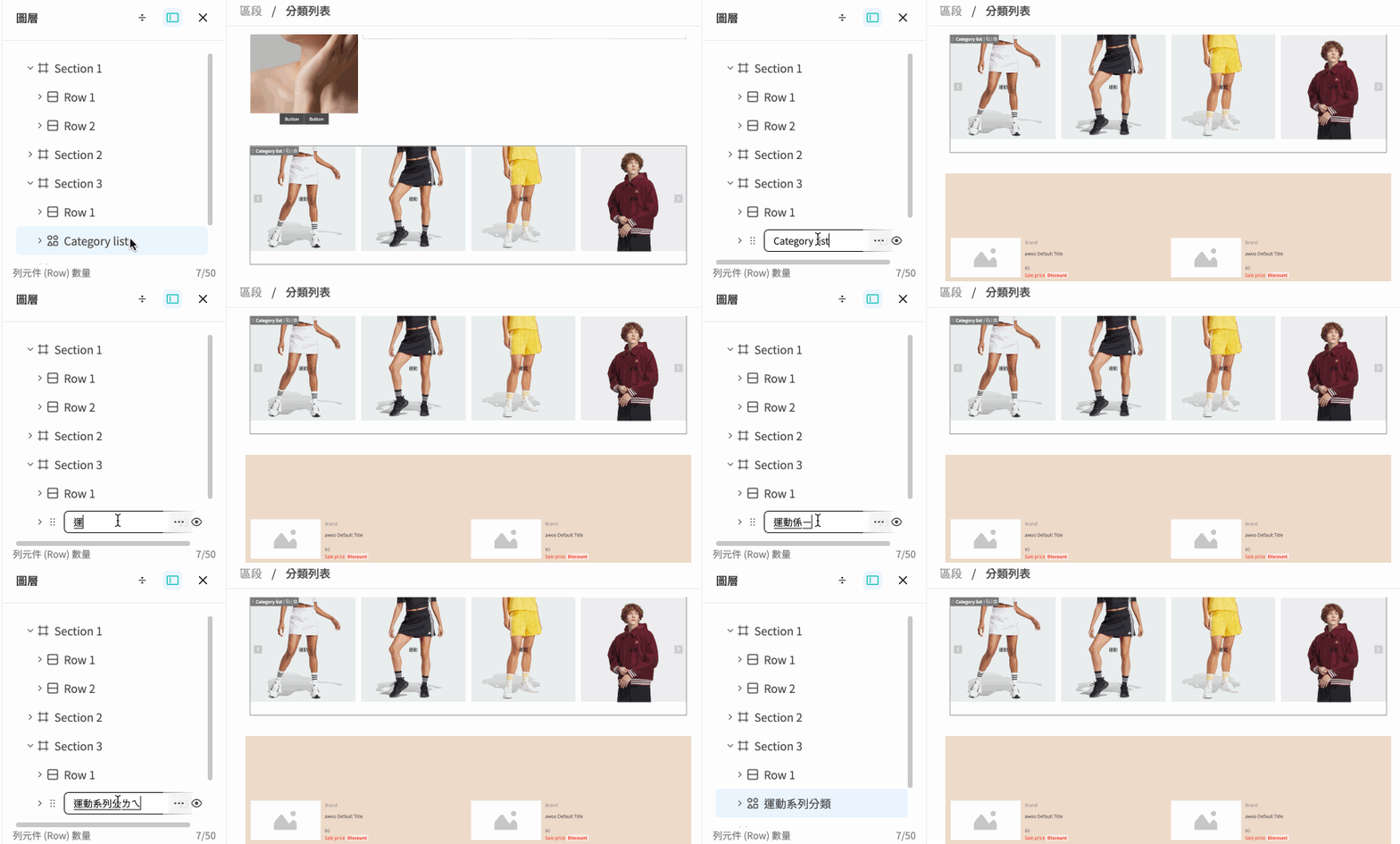
Double-click the component name in the Layer Tree or open the "More Actions" menu to rename a component. This helps you quickly identify important design elements.
For example: Change "Row 3" to "CTA Banner" or "Category list" to "Sports Collection Category."
❗️
Notes:
Section component naming has specific rules because it relates to Anchor Link functionality: You can only enter half-width alphanumeric characters, hyphens (-), and underscores (_), and names must be unique.
Other component types can be named using Chinese, Japanese, spaces, and special symbols, and names can be duplicated.
🛠 Other Actions
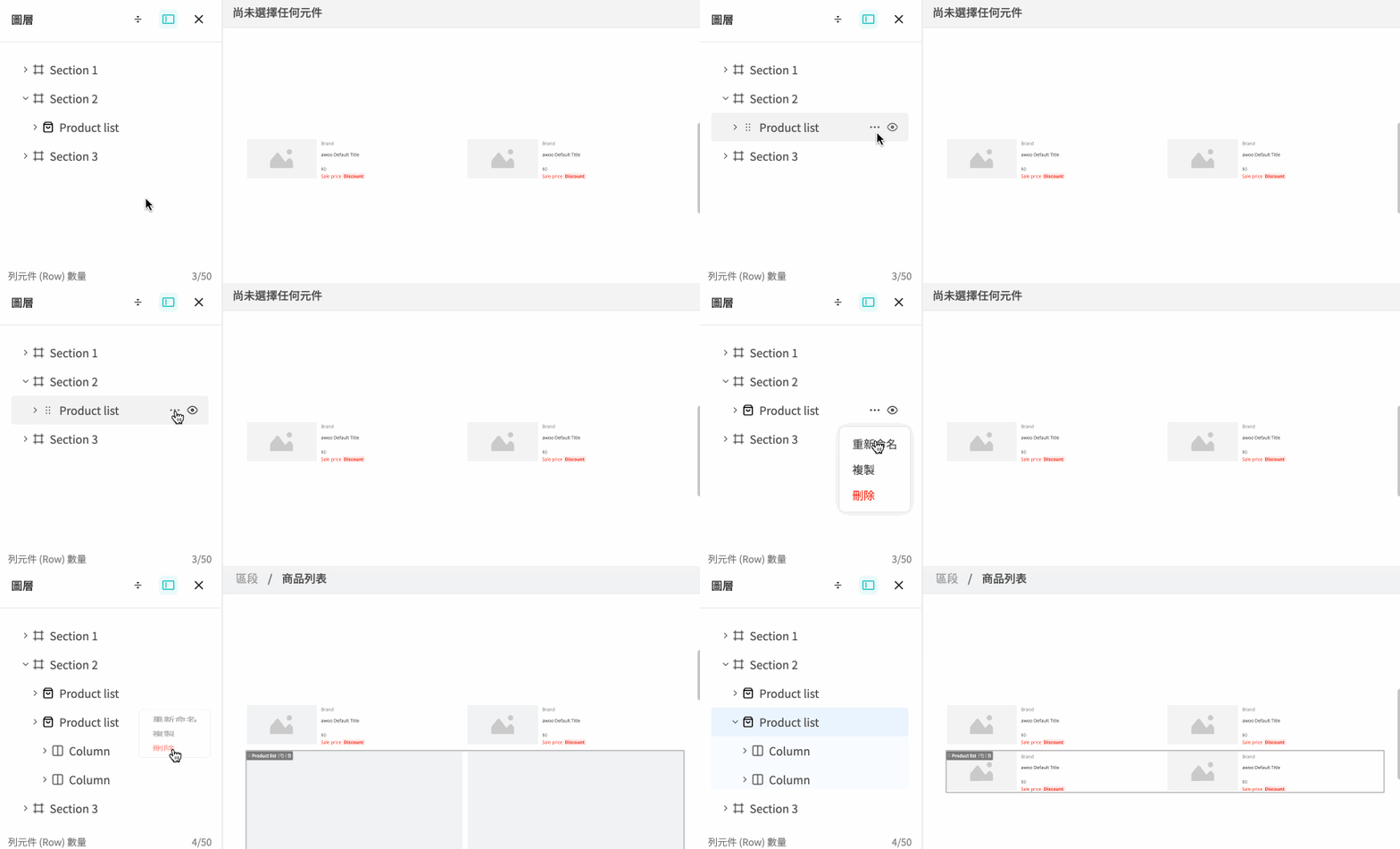
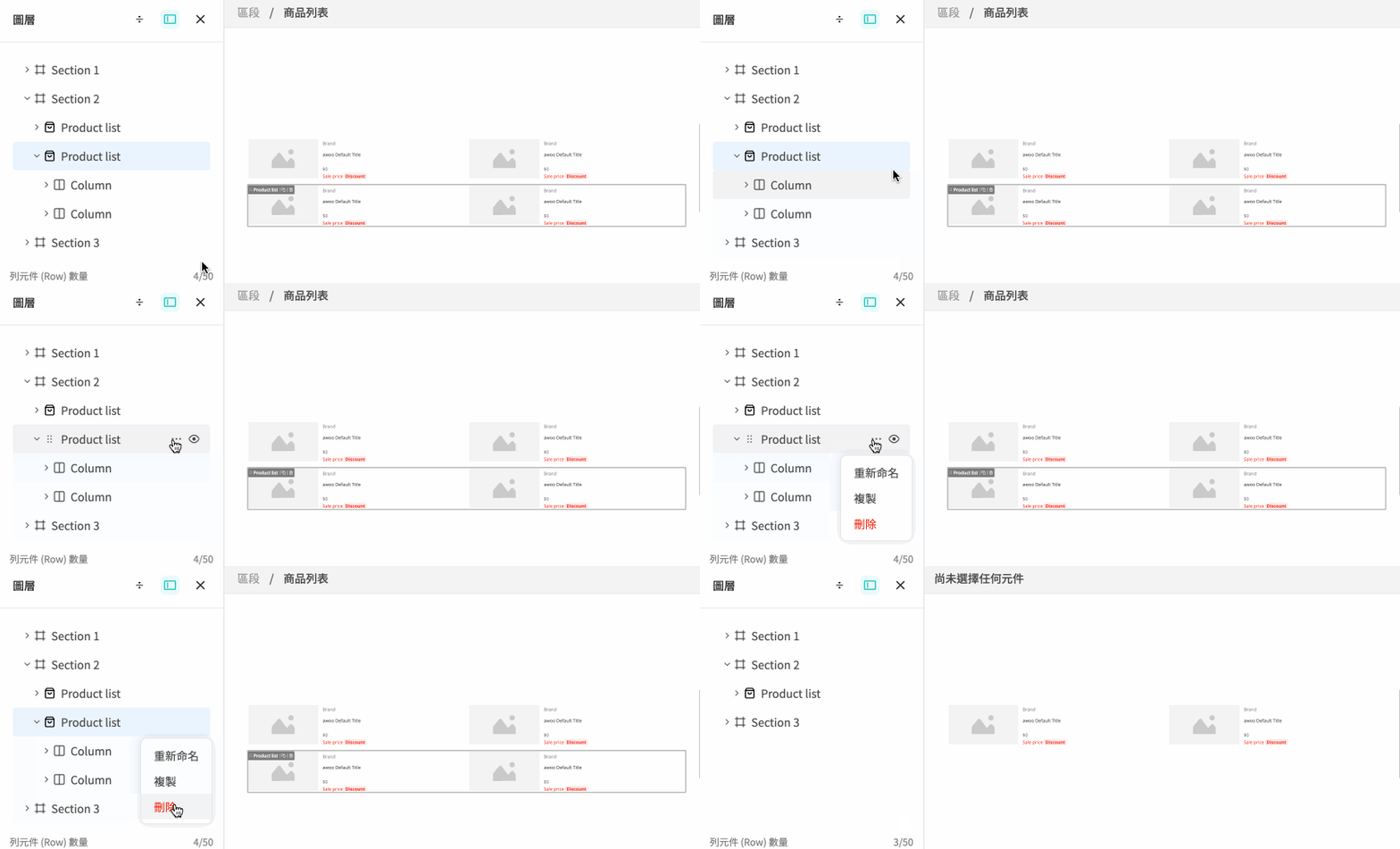
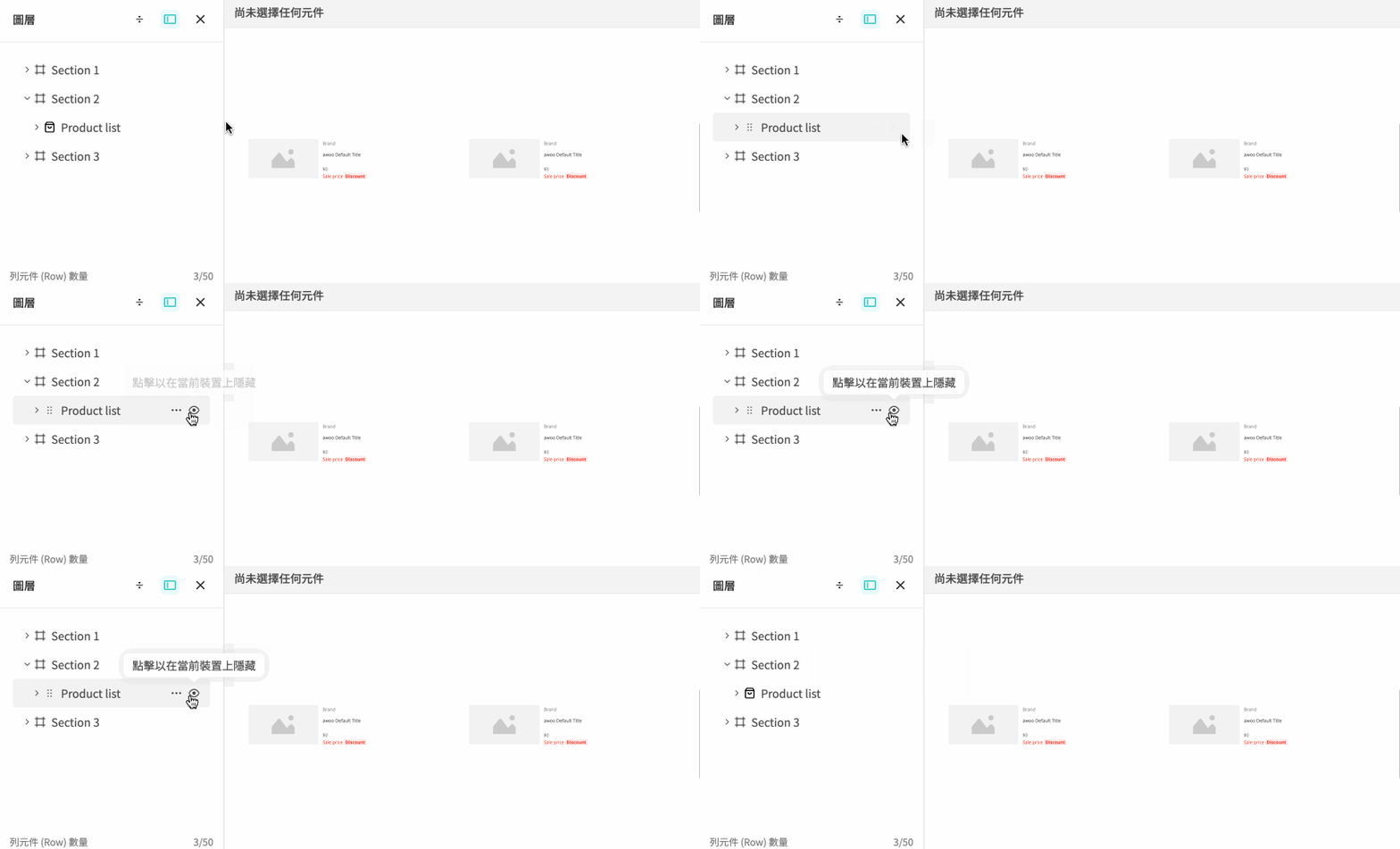
In the Layer Tree, you can also duplicate, delete, or show/hide components.
For example:
Duplicate an existing Product list
Delete the newly duplicated Product list
Hide or show the Product list in the current device view
❗️
Notes:
For composite components (Product list, Category list, IG gallery), if you want to hide or show child components for a specific device type, you must use the checkboxes under the [Display Settings] section in the parent component's right-side [Settings] tab (e.g., "Show Product Brand," "Show Category Button," "Show Load More Button"). Individual visibility control for child components is not supported via the Layer Tree.
For Product list and IG gallery composite components, if you want to remove specific content items, you must control the total number of items or the assigned content within the parent component's [Settings] tab. Individual deletion of items via the Layer Tree is not supported.