
Custom Section and Template Library
Custom Section Templates
Create a brand-exclusive template library to save time and effort through reuse.
How to Use
-
Create a New Custom Template
-
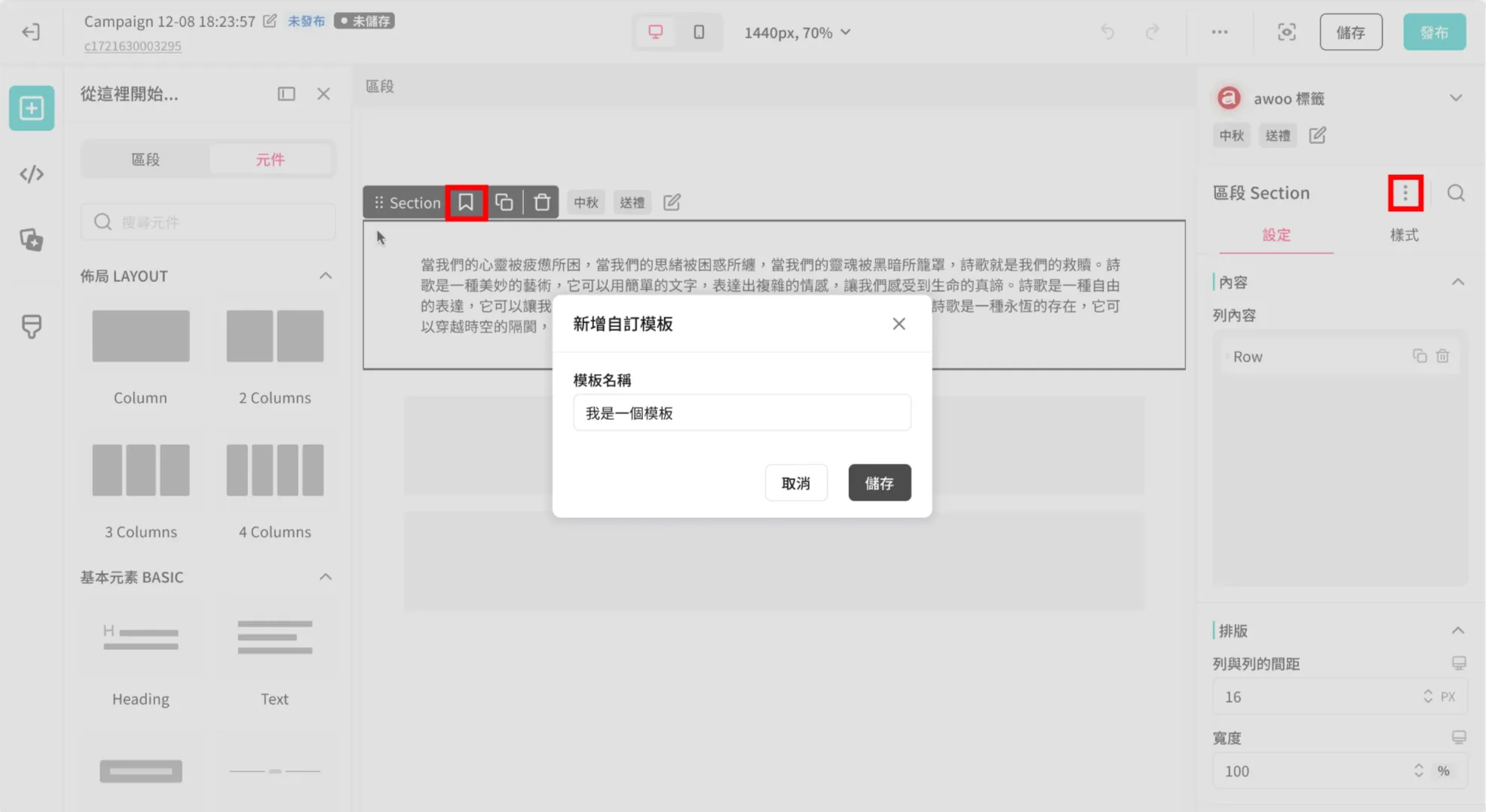
You can add a custom template by selecting "Save as Section Template" from the Section's canvas component frame or the right-side settings panel.
-
The name is limited to 1–50 characters and must be unique.
-
Each store can have a maximum of 50 custom Section templates.
-
-
Manage Custom Templates
-
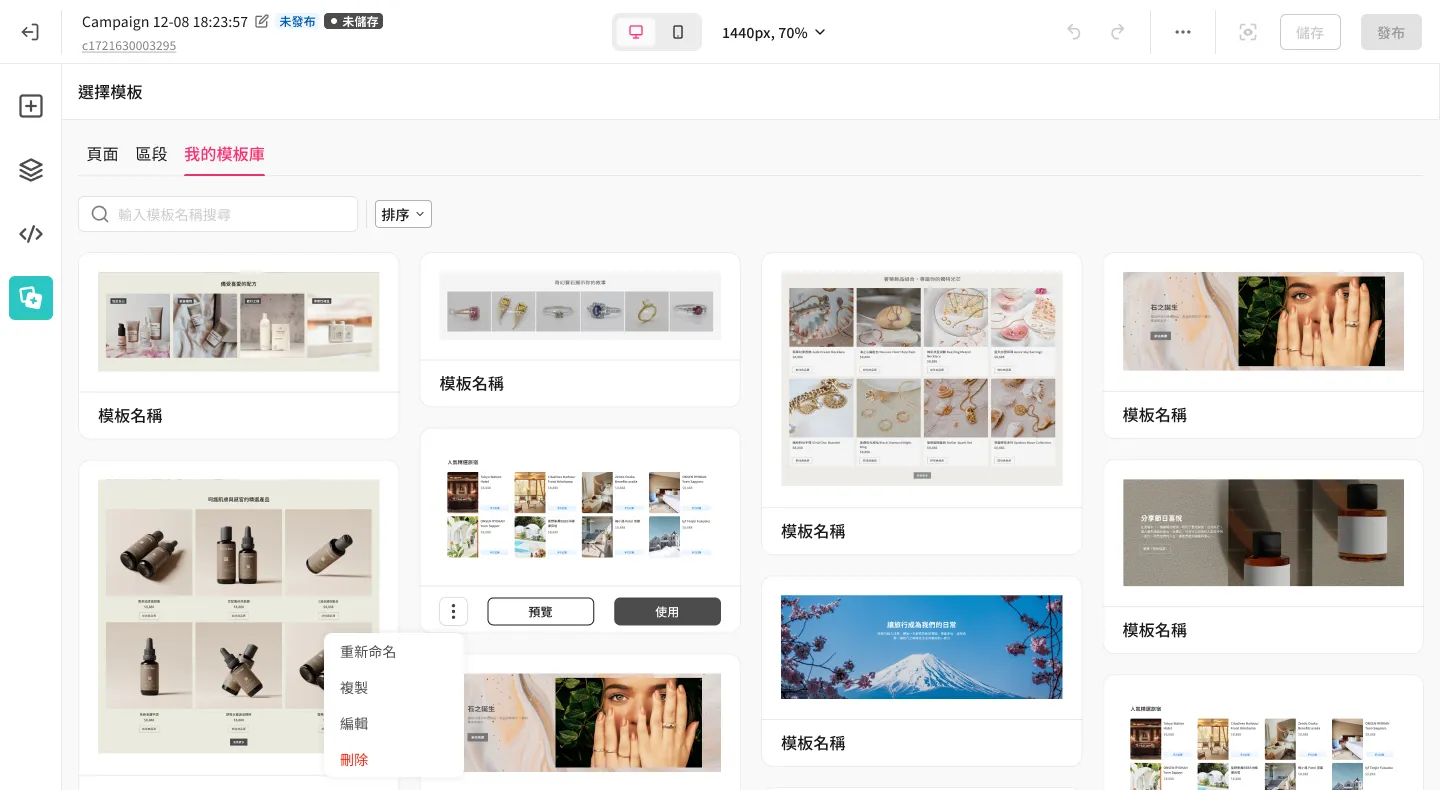
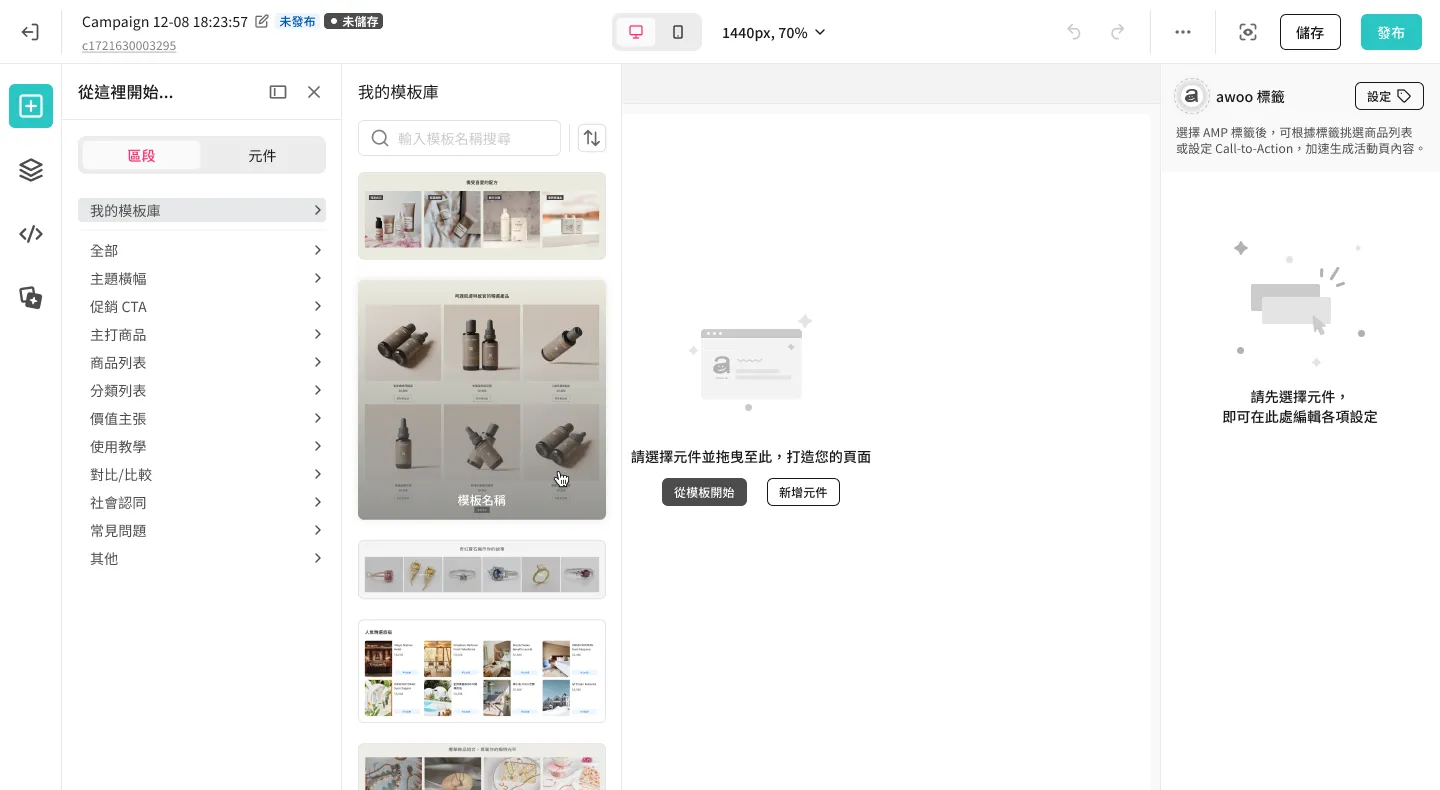
Open the full template library from the editor's left sidebar and enter the [My Templates] tab to view all current custom templates.
- Supports switching list sorting or searching by name to quickly find the desired custom template.
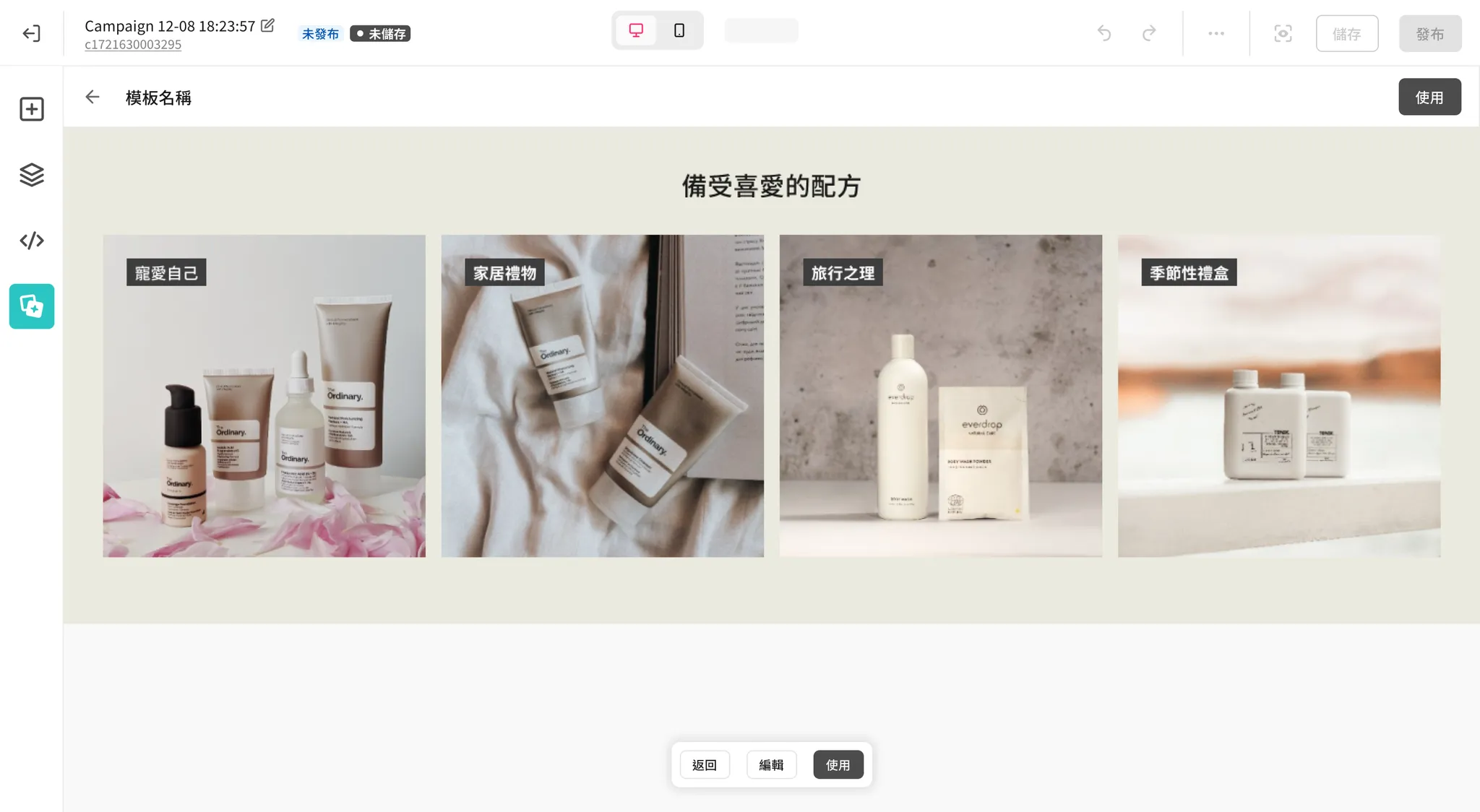
- Each custom template supports operations such as preview, edit, copy, and delete.
-
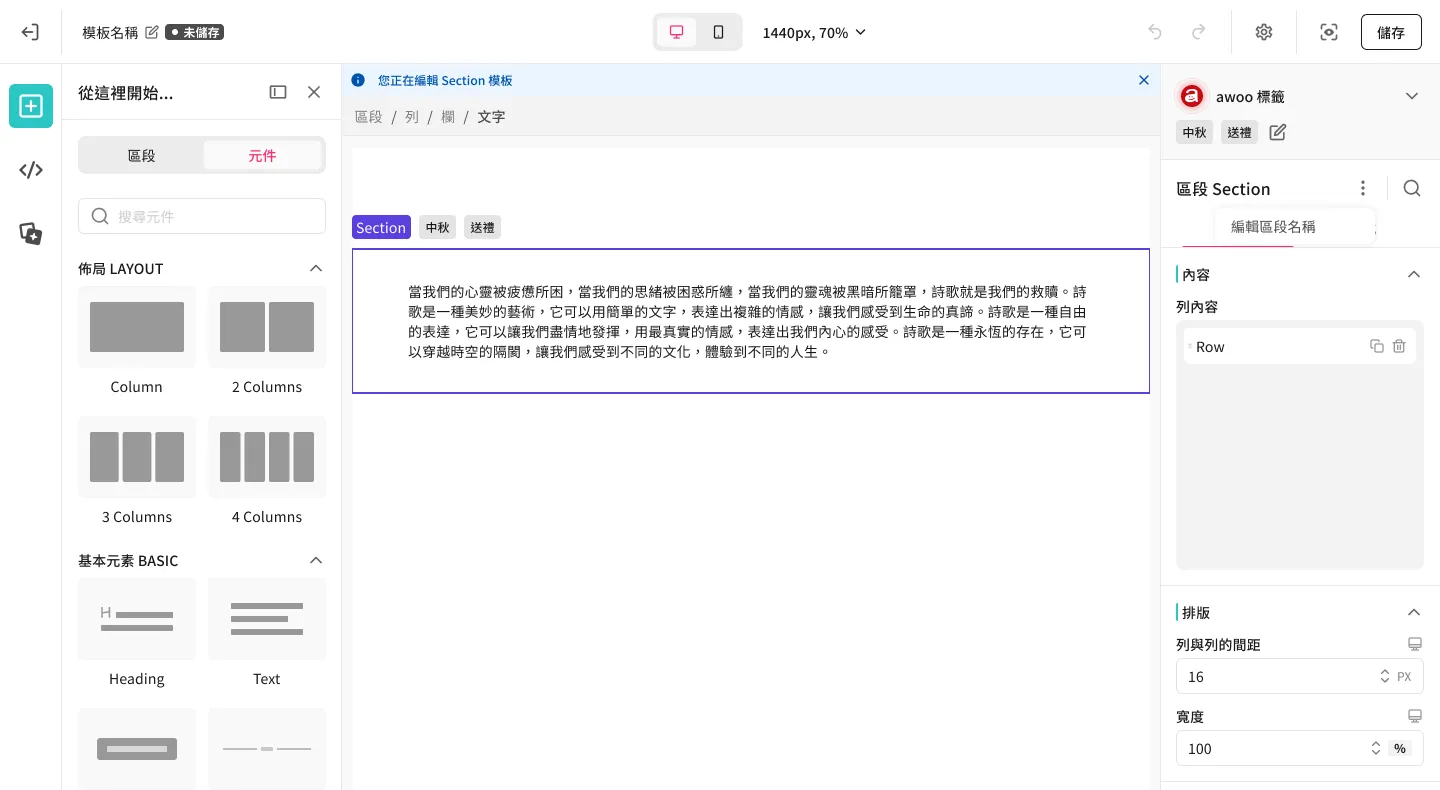
When editing a specific custom template, it will open in a new tab, entering a specialized template editor:
- The appearance and functionality of this template editor are very similar to the Campaign Star page editor, but the canvas has one and only one Section; adding or deleting Sections is prohibited.
- For easy identification, an additional reminder message "Currently editing Section Custom Template" will be displayed on the screen.
-
-
Apply Templates
- In the full template library list, clicking the "Apply" button on a template will add it to the very bottom of the page.
- You can also drag and drop a template directly into the desired position on the canvas from the [Sections] tab in the component library panel on the left side of the canvas.
Important Notes
-
To avoid contaminating existing CSS syntax or causing logic conflicts when importing templates, the content saved into the template does not include syntax related to this Section written in the left-side CSS editor.
This means if there is relevant CSS syntax, please remember to manually add it to the CSS editor after importing the custom Section template to achieve the full effect.
-
Once a template is imported into the canvas, the content exists independently on the target canvas and has no further connection to the original template, nor will it be updated synchronously.
[Example] Suppose a Section with the promotional copy "Black Friday Banana Sale" is saved as a custom template named "Banana Promotion":
- After importing the "Banana Promotion" custom Section template into a campaign page, the promotional copy on the canvas is "Black Friday Banana Sale."
- If you enter the specialized Section template editor and change the promotional copy in the "Banana Promotion" custom template to "Black Friday Banana Sales" and click save.
- Returning to the campaign page from the first step, you will find that the copy of the already imported Section is still "Black Friday Banana Sale" and will not change to "Black Friday Banana Sales."
System Template Library
Ready-to-use designs that are easy to find and apply, enhancing content assembly flexibility.
How to Use
-
Select a Template
- Entire Page:
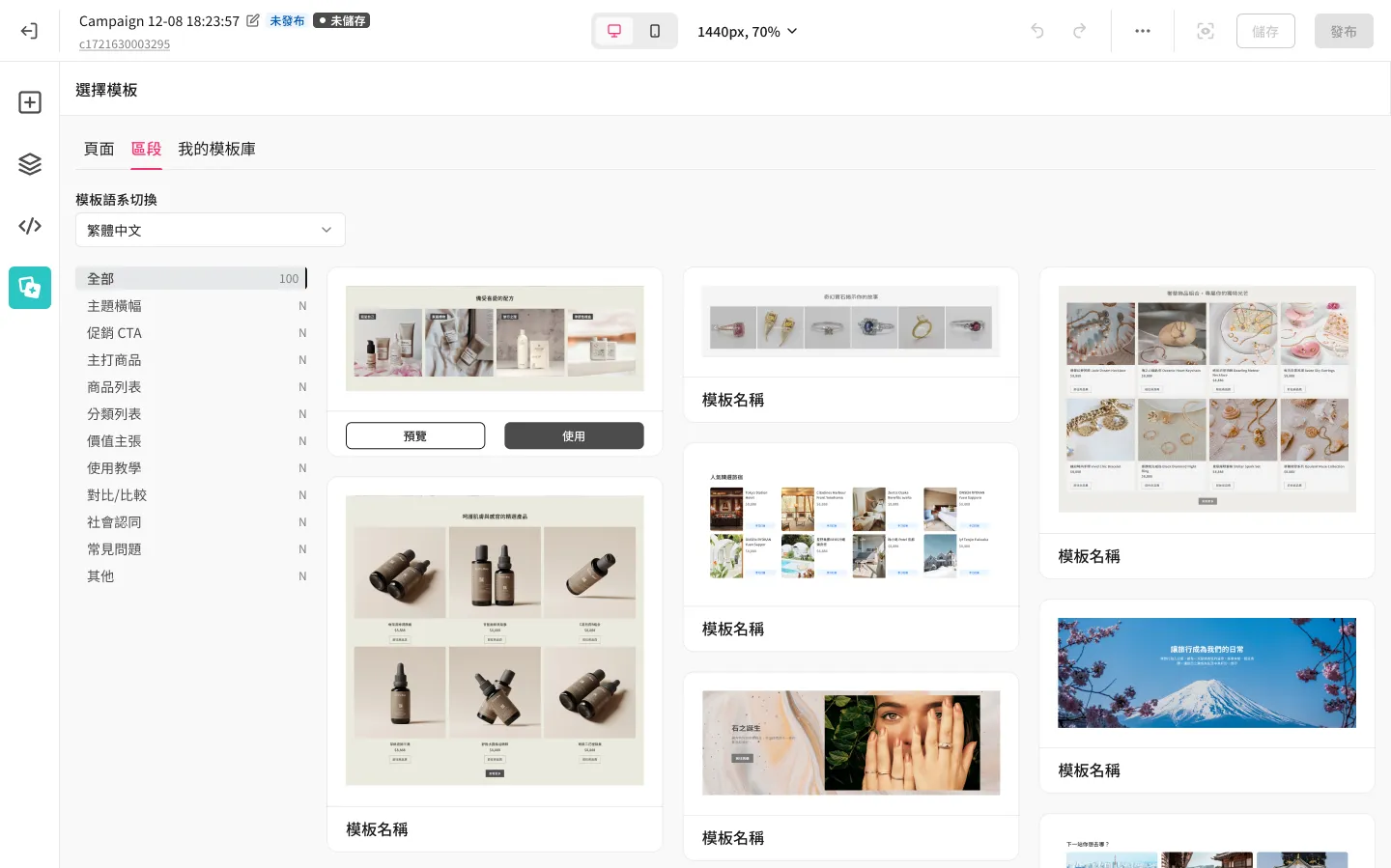
- System page templates can be found in the [Pages] tab of the full template library opened from the editor's left sidebar.
- Single Section:
- System Section templates can be found in the [Sections] tab of the full template library (left sidebar) or the [Sections] tab of the component library panel (left of canvas).
- These system templates are pre-classified into 11 major themes based on the Section's purpose for quick indexing, such as: Featured Products, Value Propositions, Instructions, Comparison, etc.
- Entire Page:
- Apply Templates
- Operation is the same as described above.
Whether the template unit is a "Page" or a "Section," it will be added below the original canvas content after importing. You don't need to worry about existing content being overwritten or replaced.
Updated 8 months ago