
Anchor Link Settings
Anchor links allow visitors to quickly jump to specific sections on a page, making it easier for visitors to browse content and reducing the time and effort needed to find the information they want. Without anchor links, visitors may scroll for a long time and eventually leave the page.
👣 Workflow
1. Set Anchor Point
- In Campaign Star, anchor points are based on "Section" units.
- To distinguish between different Sections or improve the readability of the Anchor link URL, users can edit the component name of the target anchor Section.
- Accessing the Edit Menu
- Directly click the "Edit" icon on the component panel.
- Locate the Section component on the canvas, then right-click the "..." menu on the black label in the top-left corner of the component frame.
- Naming Rules
- Section names must be unique (no duplicates).
- Only half-width alphanumeric characters, hyphens (-), and underscores (_) are allowed.
- Accessing the Edit Menu
2. Establish the Link
【Method 1】Set the link for the entire component 👍 Recommended
-
Under the [Settings] tab of the component panel, find the [Actions] section.
-
Set [Link Type] to "Jump to a specific section on this page."
-
Set [Target Section] to the desired anchor Section.
-
Set [Top Distance] to define how far the positioning point should be from the top of the screen after jumping (optional).
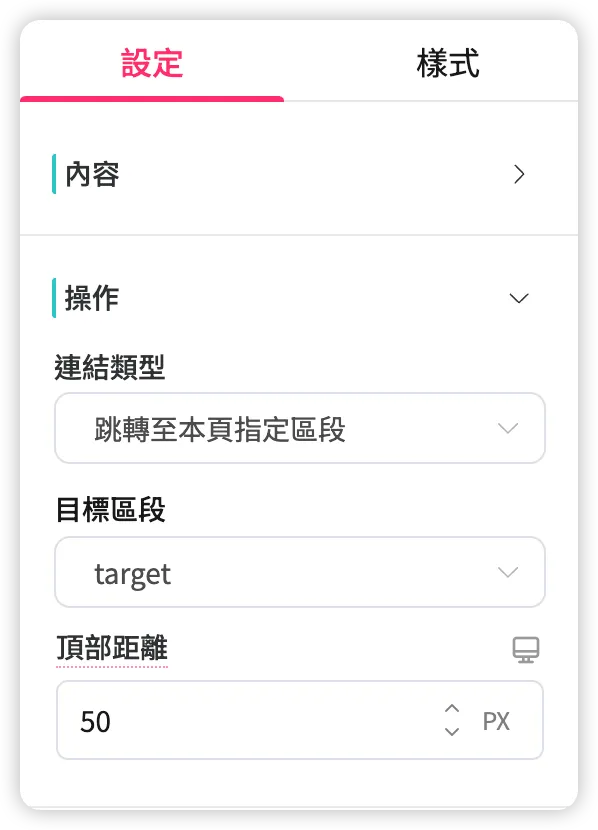
【Method 2】Set the link for specific text within a component ⚠️ Risk involved
- Copy the target Section's component name from the edit entry point.
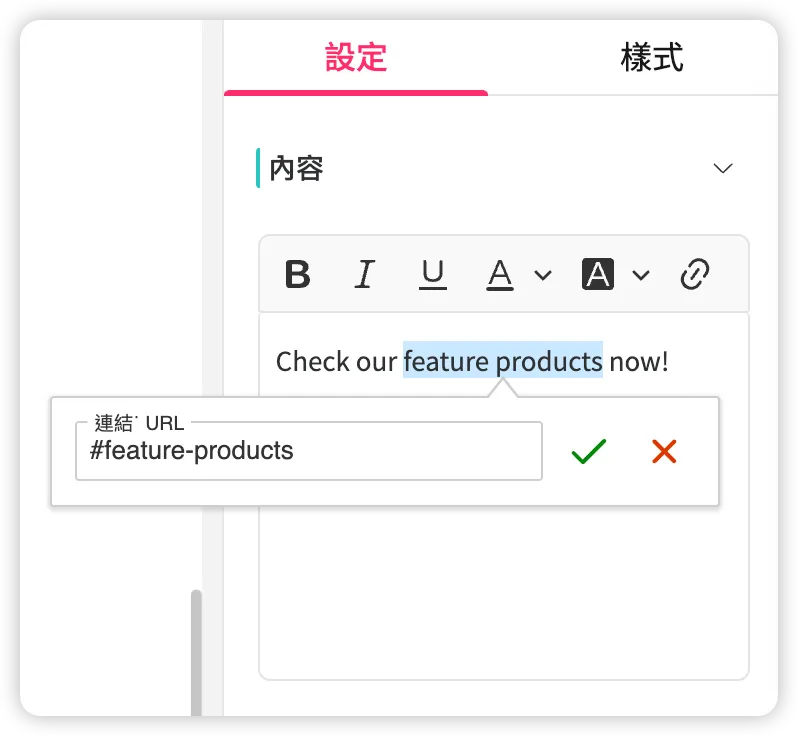
- Under the [Settings] tab of the component panel, find the rich text editor in the [Content] section.
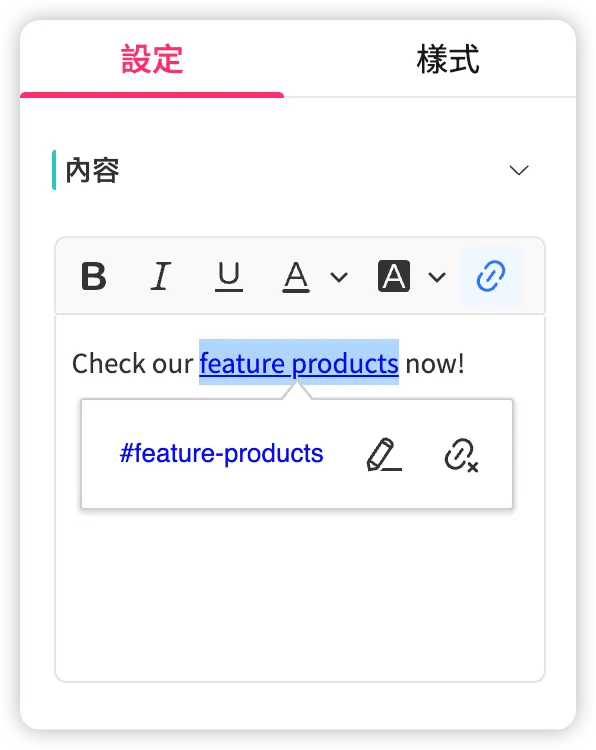
- Select the target text range and insert a hyperlink.
- In the [Link URL] field, enter the name starting with a hash symbol: "#section-name".
- The system will automatically use the current campaign page URL as the base to generate the complete Anchor link.
- For example: If the current campaign page URL is
https://awoo.shop/pages?campaignCode=christmas2024and the anchor Section name is "feature-products", after manually entering "#feature-products", the system-generated Anchor link will behttps://awoo.shop/pages?campaignCode=christmas2024#feature-products.
3. Verify the Effect
Click "Preview" or "Publish" to verify the actual effect on the online store's campaign page.
⚠️ Important Notes
- Regardless of the method used to set the Anchor link:
If the target anchor Section is deleted, the original Anchor link will become invalid and must be manually adjusted.- For Anchor links set via 【Method 2】 using manual "#section-name" input:
If the target anchor Section is renamed, the original anchor link will fail; you must manually update the content after the hash symbol.
When clicked, it will be treated as a separate page view, triggering a new viewPage event. This adds +1 to the page views in the **Campaign Star Performance Report**.
Some websites (e.g., SHOPLINE) have a default
<base>tag value in their HTML that may override the current campaign page URL, causing the system-generated complete Anchor link to be incorrect.For example: If the current campaign page URL is
https://awoo.shop/pages?campaignCode=christmas2024, the<base>tag value ishttps://awoo.shop/, and the anchor Section name is "feature-products", the generated Anchor link for "#feature-products" would behttps://awoo.shop/#feature-products, which is not the correct campaign page.✅️ Solution: When manually inserting the hyperlink, do not just enter "#section-name". Instead, enter the full campaign page URL including the anchor, such as
https://awoo.shop/pages?campaignCode=christmas2024#feature-products.
Updated 8 months ago