
Copy-Paste Component Style Painter
😔 Past Pain Points
To reduce repetitive editing work, we usually copy components with pre-configured styles to create campaign pages. However, after copying components, if you suddenly want to modify styles such as font size, color, or weight, you still need to copy everything again from scratch or manually adjust the styles of all components (and need to handle desktop view and mobile view style settings separately), which feels cumbersome.
- Example 1: Want to change all text fonts from "Noto Sans" to "IBM Zen"
- Example 2: Want to uniformly edit all button background colors in normal, clicked, and hover states
- Example 3: After configuring a certain component, unless you add this type of component by copying, components dragged from the component library to the canvas will have system default styles, requiring style configuration from scratch again
🪄 Solution
With the "Copy Style" paint brush, you can quickly copy the style settings of a component and paste them continuously onto other components of the same type.
👣 Usage Guide
-
Access the "Paint Brush" feature from the following locations:
-
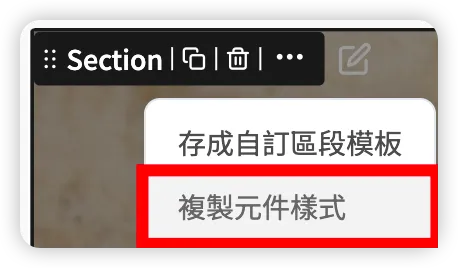
In the component frame's action label on the canvas, click "Copy Component Style" in the more actions menu
-
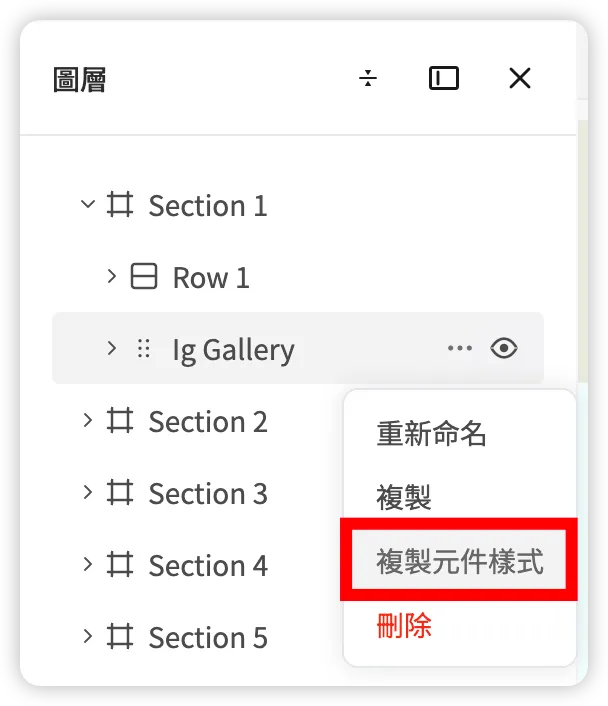
In the left layer tree, click "Copy Component Style" in the more actions menu
-
-
Enter copy-paste mode:
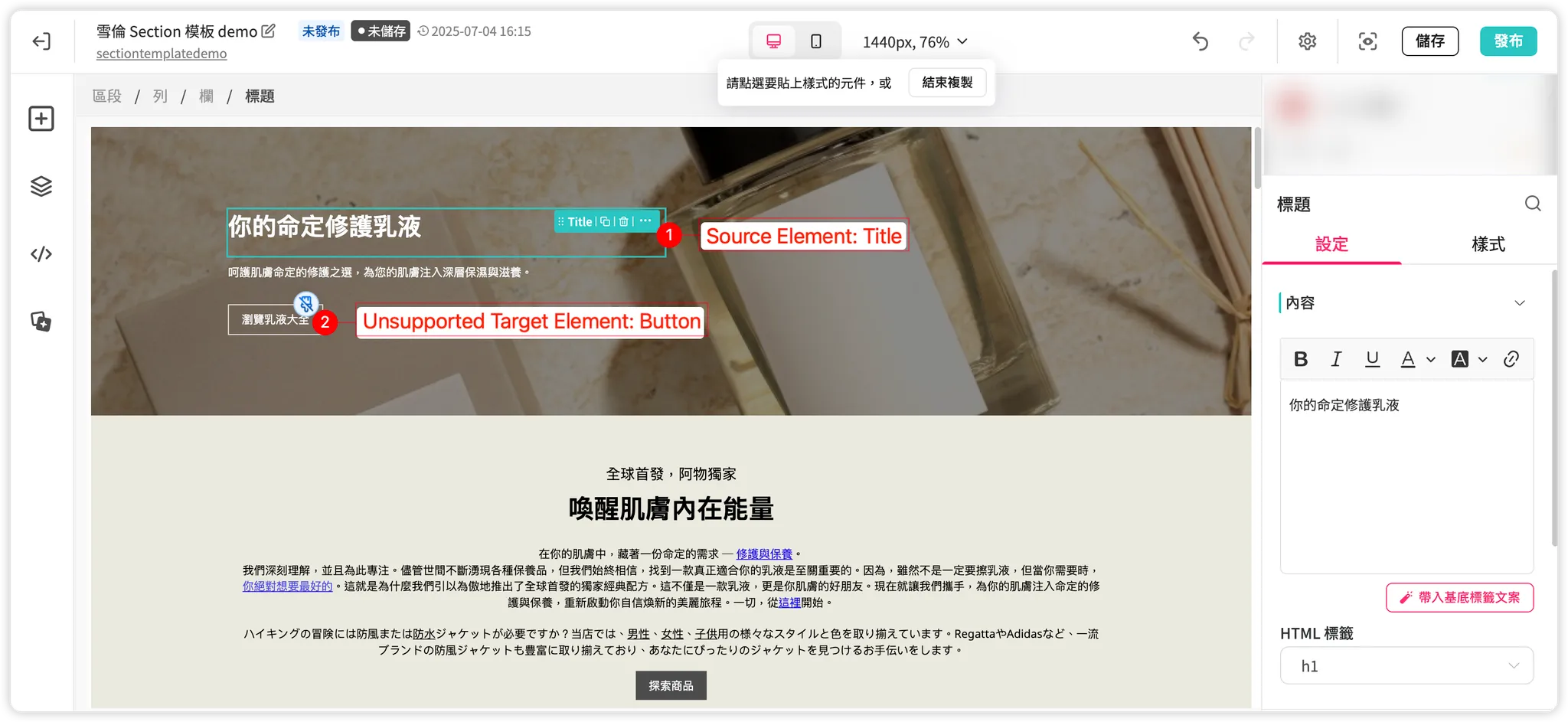
- In the canvas area and left layer tree, the mouse cursor will change to a paint brush icon. If hovering over a component that doesn't support style pasting, the paint brush icon will change to a disabled version to remind the user
- In the right settings panel, controls for the "Source Component" will be displayed, which can still be edited at any time if needed
-
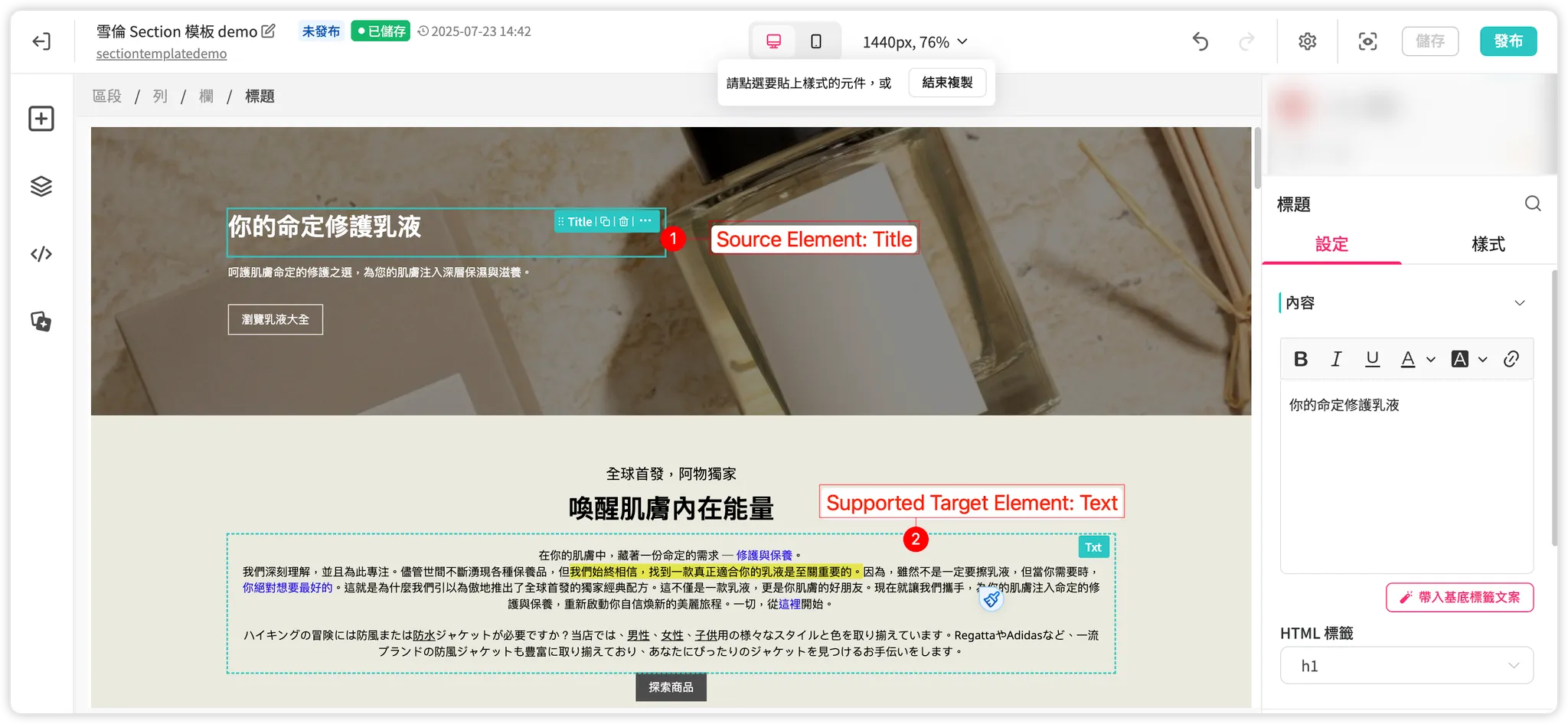
Click on the component where you want to paste the style with the paint brush:
- In the canvas area or left layer tree, you can click on the "Target Component" to paste the style (supports continuous pasting)
- At this point, the style settings of the "Target Component" will be overwritten and updated with the style settings of the "Source Component" at the moment of clicking
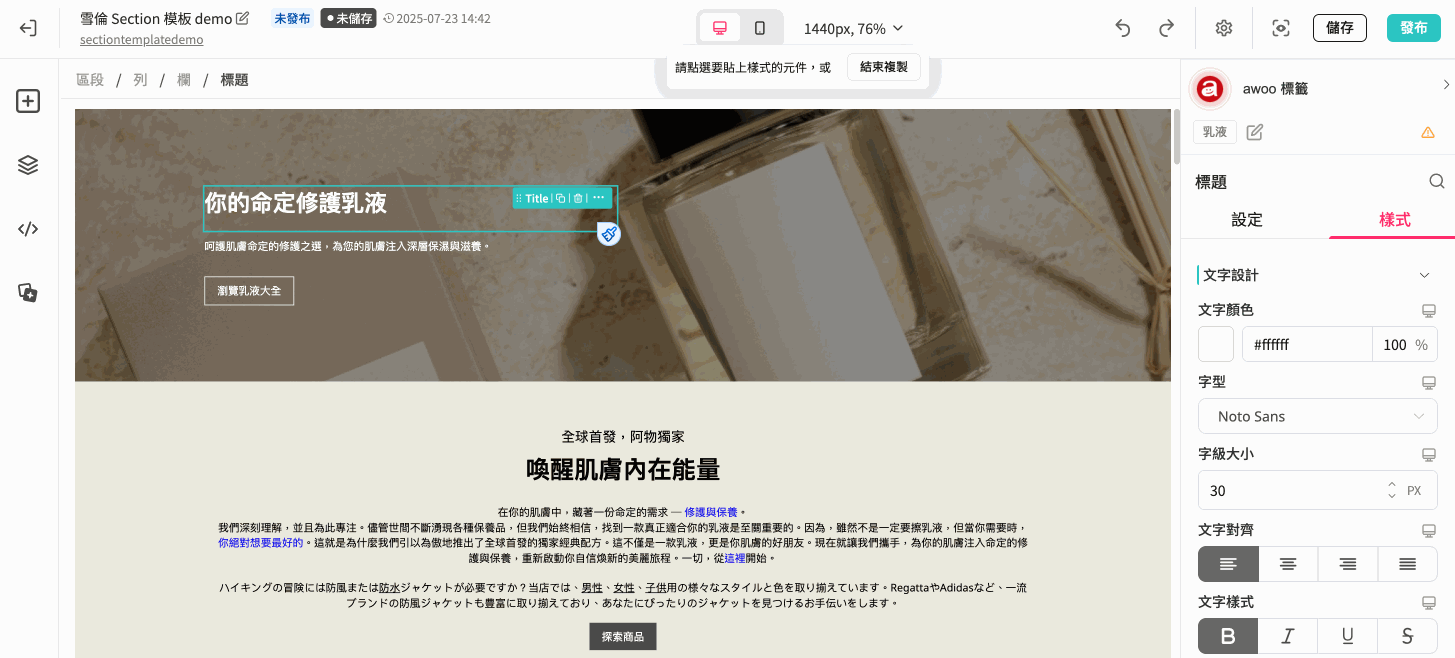
-
Exit copy-paste mode:
- Press the esc key on the keyboard
- Click the "End Copy" button in the floating bubble at the top of the screen
ℹ️ Rules for Copying and Pasting Styles
- Only supports copying and pasting styles between components of the same type
- For example: Copying Image styles and pasting them to Button is not supported
- Only supports copying and pasting all device view styles together
- For example: Copying and pasting only mobile view styles while keeping desktop view styles unchanged is not supported
- When the component type is a text component that includes a rich text editor, only styles set in the [Style tab] will be copied, and styles in the rich text editor under the [Settings tab] will not be copied
- When the component type is a composite component, the styles of the child components underneath will also be copied and pasted together
- For example: When copying Product list, it will also copy the 14 px font size of the Product title price underneath
📜 Detailed Scope of Style Copying
Components in the same cell of the table can copy and paste styles to each other.
- Structure Components:
| Component Type | Copy Scope in [Settings] tab | Copy Scope in [Style] tab |
|---|---|---|
| Section | ● [Layout]: Row spacing, Width | All |
| Row | ● [Layout]: Column width distribution, Columns per row, Column spacing, Width | All |
| Column | ● [Layout]: Column height | All |
- Basic Components:
| Component Type | Copy Scope in [Settings] tab | Copy Scope in [Style] tab |
|---|---|---|
| 🚫 None | All |
| 🚫 None | All |
| Divider | ● [Content]: All items except rich text editor (including text alignment, style, color, weight, width) | All |
- Image & Video Components
| Component Type | Copy Scope in [Settings] tab | Copy Scope in [Style] tab |
|---|---|---|
| ● [Content]: All items except "Image source" and "Alt text" (width, ratio, fill, position) | All |
| ● [Content]: All items except "Image source" and "Alt text" (width, ratio, fill, position) ● [Layout]: Child component positioning within container | All |
| Video | ● [Content]: Video ratio, Custom ratio (length:width), Width, Height | All |
- Category-Related Components
| Component Type | Copy Scope in [Settings] tab | Copy Scope in [Style] tab |
|---|---|---|
| Category list 💡 When copying, child component styles are also copied together:
| ● [Layout]: Display mode, Items per row, Carousel slides per swipe, Column spacing, Width, Carousel autoplay ——— After expanding more ——— Autoplay seconds, Show category buttons, Show slide buttons, Show pagination | All |
| Category column | ● [Layout]: Column height | All |
- Product-Related Components
| Component Type | Copy Scope in [Settings] tab | Copy Scope in [Style] tab |
|---|---|---|
| Product list 💡 When copying, child component styles are also copied together:
| ● [Layout]: Product information display, Display mode, Items per row, Carousel slides per swipe, Column spacing, Width, Carousel autoplay ——— After expanding more ——— Autoplay seconds, Show product price, Show brand, Show button, Show slide buttons, Show pagination, Show view more button | All |
| Product column | ● [Layout]: Column height | All |
| Product content row | ● [Layout]: Column width distribution, Columns per row, Column spacing, Width ● [Display order]: Whether to reverse order | All |
| Product content column | 🚫 None | All |
| Product price | ● [Content]: Price items, Original price position, Discount format, Discount position ——— After expanding more ——— Price display settings: Prefix currency code, Prefix currency symbol, Suffix currency unit, Thousands separator | All |
- Instagram-Related Components
| Component Type | Copy Scope in [Settings] tab | Copy Scope in [Style] tab |
|---|---|---|
| IG gallery 💡 When copying, child component styles are also copied together:
| ● [Layout]: Display mode, Items per row, Carousel slides per swipe, Grid initial rows, Mosaic initial sets, Column spacing, Width, Carousel autoplay ——— After expanding more ——— Mosaic: Show load more button, Sets to load per click Grid: Show load more button, Rows to load per click Carousel: Autoplay seconds, Show slide buttons, Show pagination | All |
| IG Post | ● [Actions]: Click effect, Link opening method | All |
- Advanced Components
| Component Type | Copy Scope in [Settings] tab | Copy Scope in [Style] tab |
|---|---|---|
| Custom code | ● [Layout]: Width, Height | All |
Updated 8 months ago