
E-commerce Component: Product List
💡 Use Cases
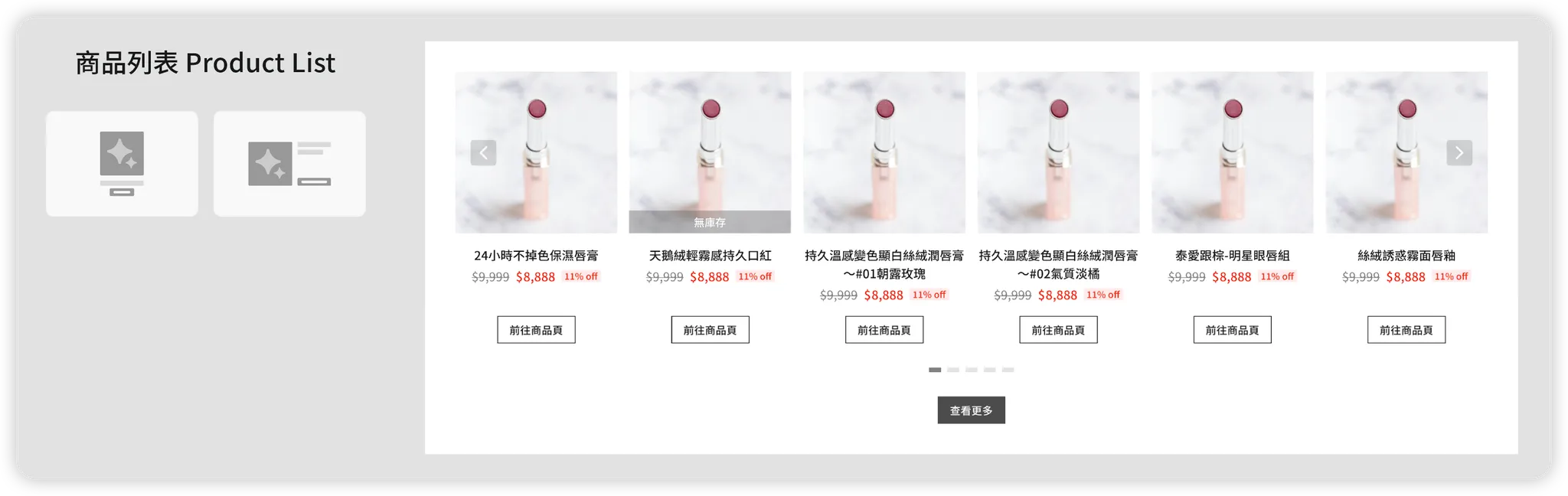
The Product List component (hereinafter referred to as Product list) in the Campaign Star page editor allows consumers to browse products related to the campaign theme, boosting sales or exposure for specific items.
🔰 Basic Introduction
-
A Product list component consists of individual product slots: the default number of products is 12, with a maximum limit of 30.
-
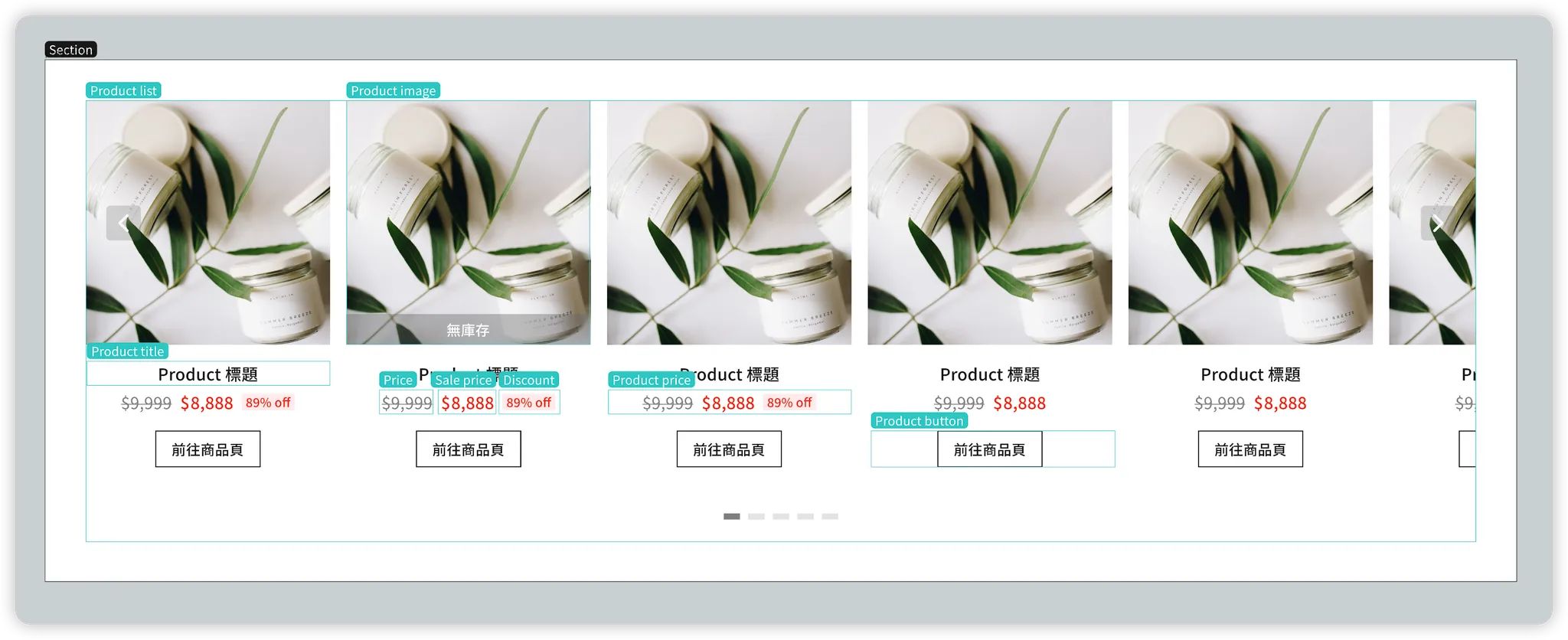
Detailed Component Architecture:
Section
Product list
Product column (× N)
- Product content row
- Product content column 1
- Product image
- Product content column 2
- Product title
- Brand
- Product price
- Price
- Sale price
- Discount
- Product button
Product list "View More" button
-
Linked Editing Effect:
Modifying the component style of a single product slot will automatically apply those changes to the entire Product list, saving time on repetitive editing. -
Content Settings:
- Dynamic Mode (Full Auto): The content is Dynamic. When saving the page in the editor, only the filter and sorting criteria for the product source are stored. The SDK campaign page then dynamically renders/automatically updates specific product content based on these criteria.
- Static Mode (Full Manual): The content is Static. When saving the page, specific Product IDs are stored. The SDK campaign page will display those fixed products and will not automatically update.
- Mixed Mode: The initial content is Static, followed by Dynamic content. Both manually pinned Product IDs and dynamic filters/sorting criteria are saved. The SDK campaign page shows your pinned products first, followed by dynamically updated content based on the source criteria.
🍭 Understanding the Interface
1. Component Panel
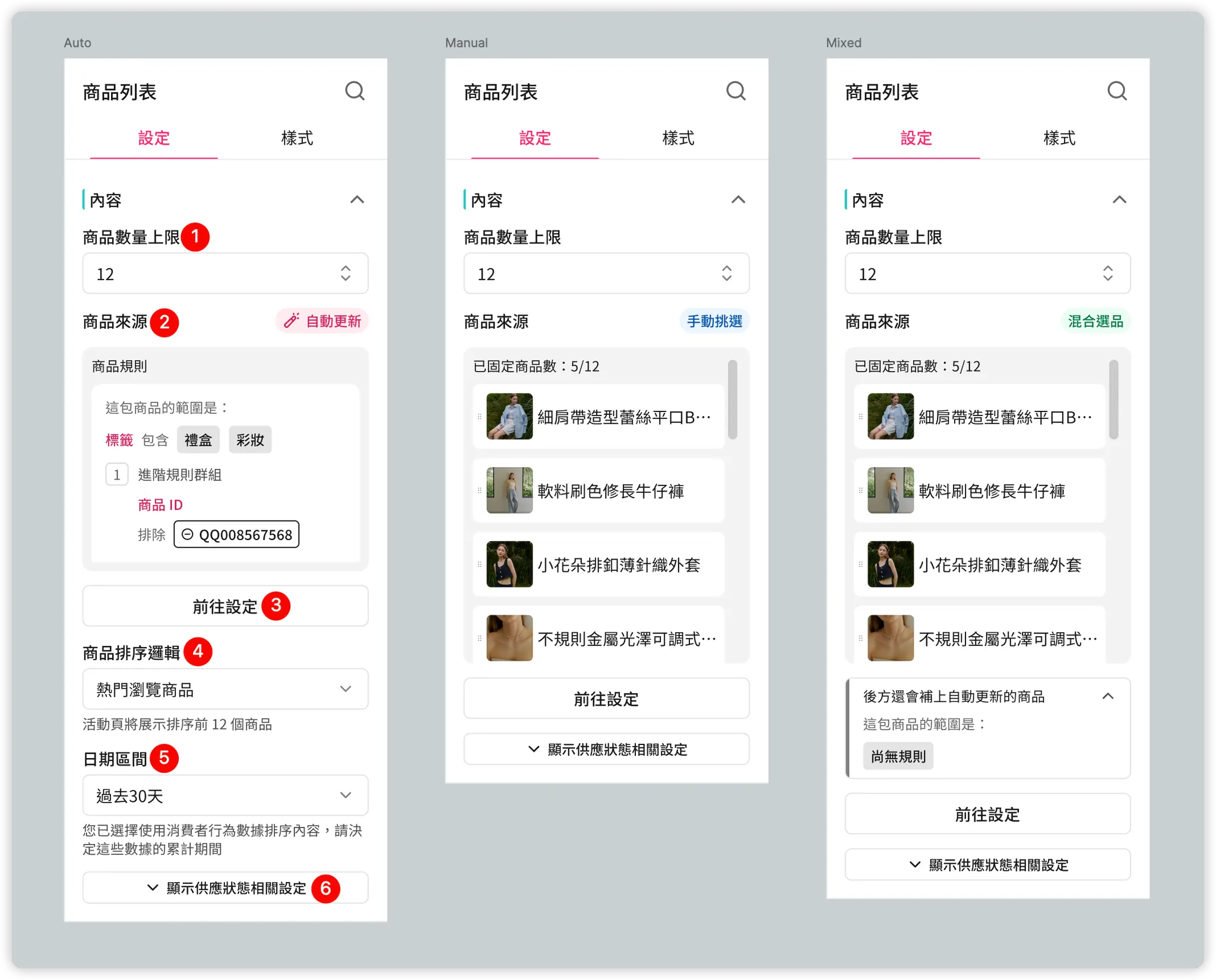
The content displayed in the right-side panel when selecting the Product list layer on the editor canvas.

| Item No. | Description |
|---|---|
| ⓵ Max Product Count | Quickly control how many product slots this Product list should display. |
| ⓶ Product Source: Mode & Summary | Displays the current mode: Auto-update, Manual Pick, or Mixed Selection, along with configuration details. |
| ⓷ Product Source: Go to Settings | Click to expand detailed product content settings. 💡 Always enter through here to edit configuration details. |
| ⓸ Product Sorting Logic | Quickly control the sorting criteria for this Product list under Auto-update mode. |
| ⓹ Date Range | Under Auto-update mode, when sorting criteria are based on awoo Pixel data, quickly control the accumulation period for that data. |
| ⓺ More Availability Settings | Collapsed by default. Manually expand to control which product availability states to hide or mark with special labels. |
2. Detailed Product Content Settings
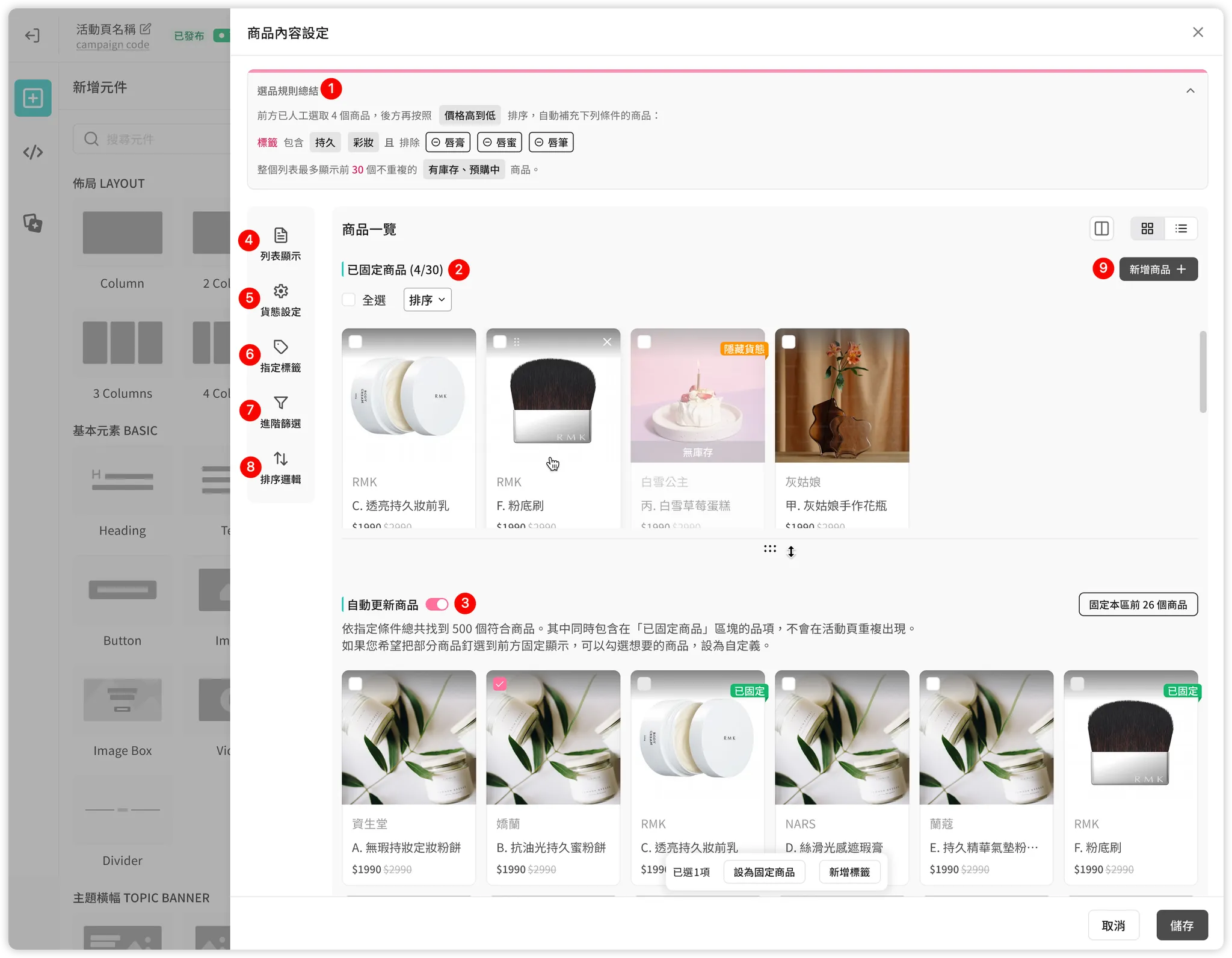
Expanded by clicking the [Go to Settings] button under the [Content] section in the [Settings] tab of the right-side component panel.
| Item No. | Description |
|---|---|
| ⓵ Selection Summary | Collapsed by default. Can be manually expanded to view a summary of selection rules and current settings at a glance. |
| ⓶ Product Overview: Pinned Products | Displays products that have been manually selected with a fixed order. These appear before "Auto-updated Products." |
| ⓷ Product Overview: Auto-updated Products | Displays products dynamically retrieved based on filters and sorting logic. These appear after "Pinned Products." 💡 This section is enabled by default. Disable it if you only want manually picked products. |
| ⓸ List Display | Controls the maximum number of slots to show. Empty slots with no products will be automatically hidden by the SDK on the live site. |
| ⓹ Stock Status Settings | Controls which product availability states to hide or mark with special labels. |
| ⓺ Assign Tags | Controls the AMP tag filter criteria for the "Auto-updated Products" section. |
| ⓻ Advanced Filters | Controls other filter criteria (e.g., Brand, Category) for "Auto-updated Products." |
| ⓼ Sorting Logic | Controls the sorting criteria for the "Auto-updated Products" section. |
| ⓽ Add Products | Click to enter the product selection screen to manually pick items for the "Pinned Products" section. |
Top — Selection Summary
-
Collapsed by default.
-
Click to expand:
- View a detailed summary of selection rules to grasp settings at a glance.
- Click directly on the value capsules to quickly call up specific setting panels for modification.

Right — Product Overview
-
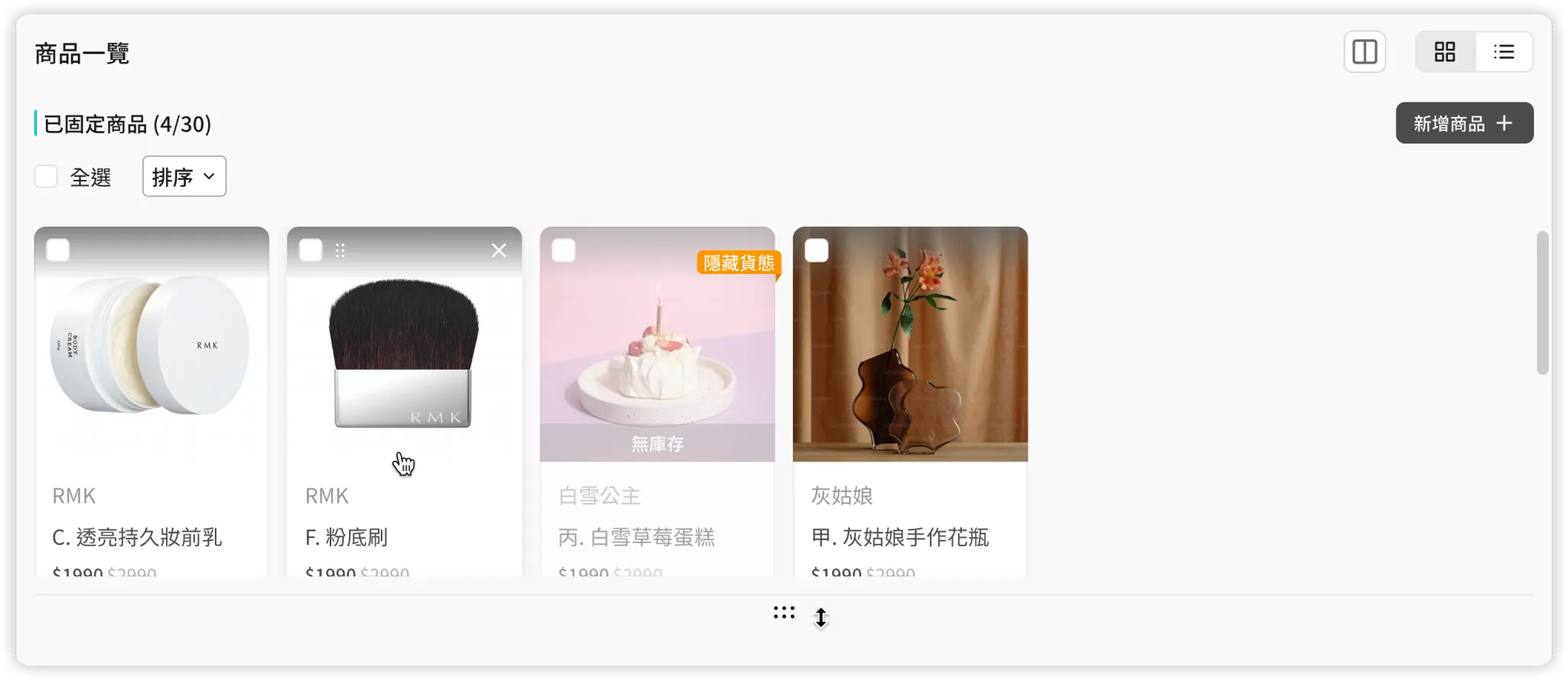
Pinned Products
Displays manually selected products with fixed order.- You can pin up to the same number of products as the total slots set in "List Display." (e.g., If max slots = 15, you can pin 15 products).
- Customizable Sorting: Supports manual drag-and-drop or applying a one-time sorting option (once applied, the order is fixed and won't change).
- Items taken offline or hidden due to availability settings will still occupy pinned slots; you must manually remove them to free up space.
-
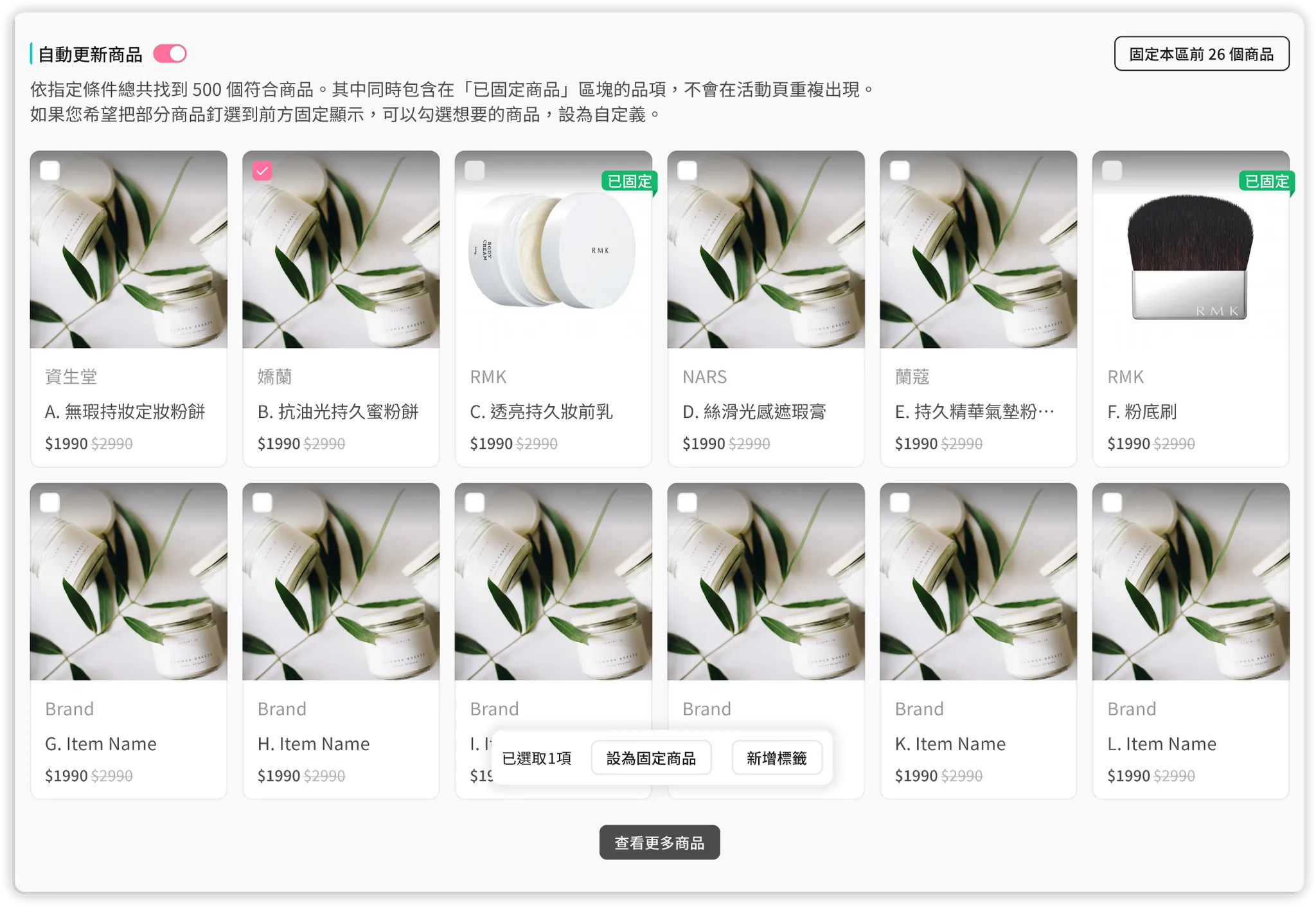
Auto-updated Products
Dynamically displays products matching the filters and sorting logic on the left.- If no tag or advanced filters are specified, it will pull all site products.
- Displays the top 30 results by default; click [View More Products] to use pagination for the full list.
- Can be pinned: Supports manually selecting checkboxes to pin items or clicking [Pin Top N Products] to automatically pin the leading available items.
-
Overall Overview
- Toggle between Card View (default) and List View.
- Supports batch adding AMP product tags to selected items for use in other AMP features. (e.g., Filter products, select all, and batch add [Christmas] and [Gift] tags).
Left — Detailed Settings
-
List Display
Controls the total slots for the Product list (Min: 1, Max: 30).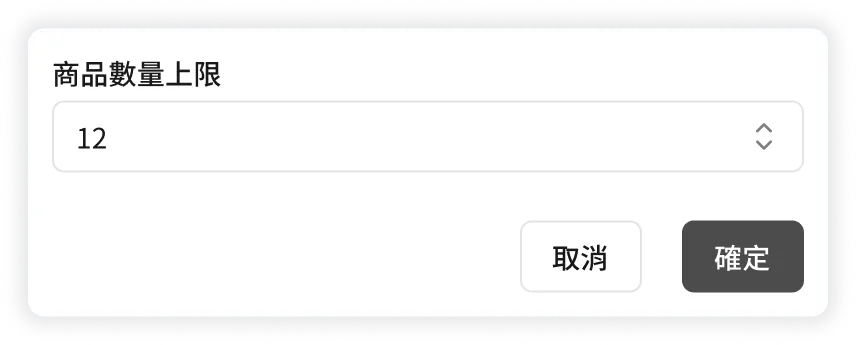
-
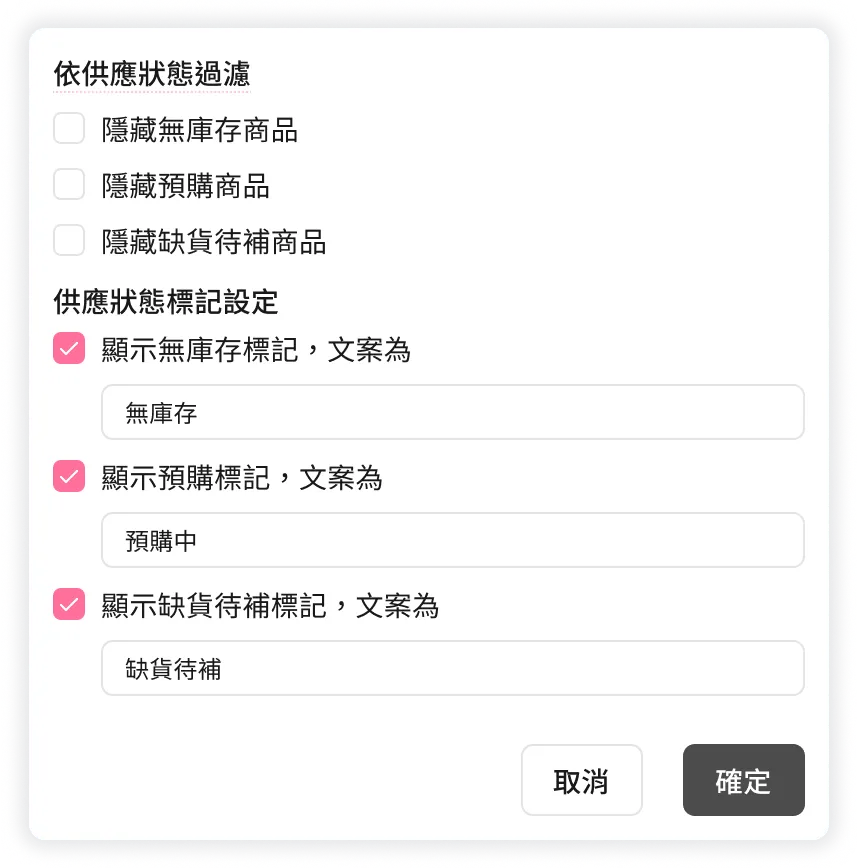
Stock Status Settings
- Control which availability states to hide. (e.g., Enable [Hide Out of Stock] to automatically hide sold-out items).
- Control which availability states to mark with labels. (e.g., Enable [Show Pre-order Label] to overlay a label on pre-order product images).
Note: Currently, only label text can be modified; background and font colors are fixed.
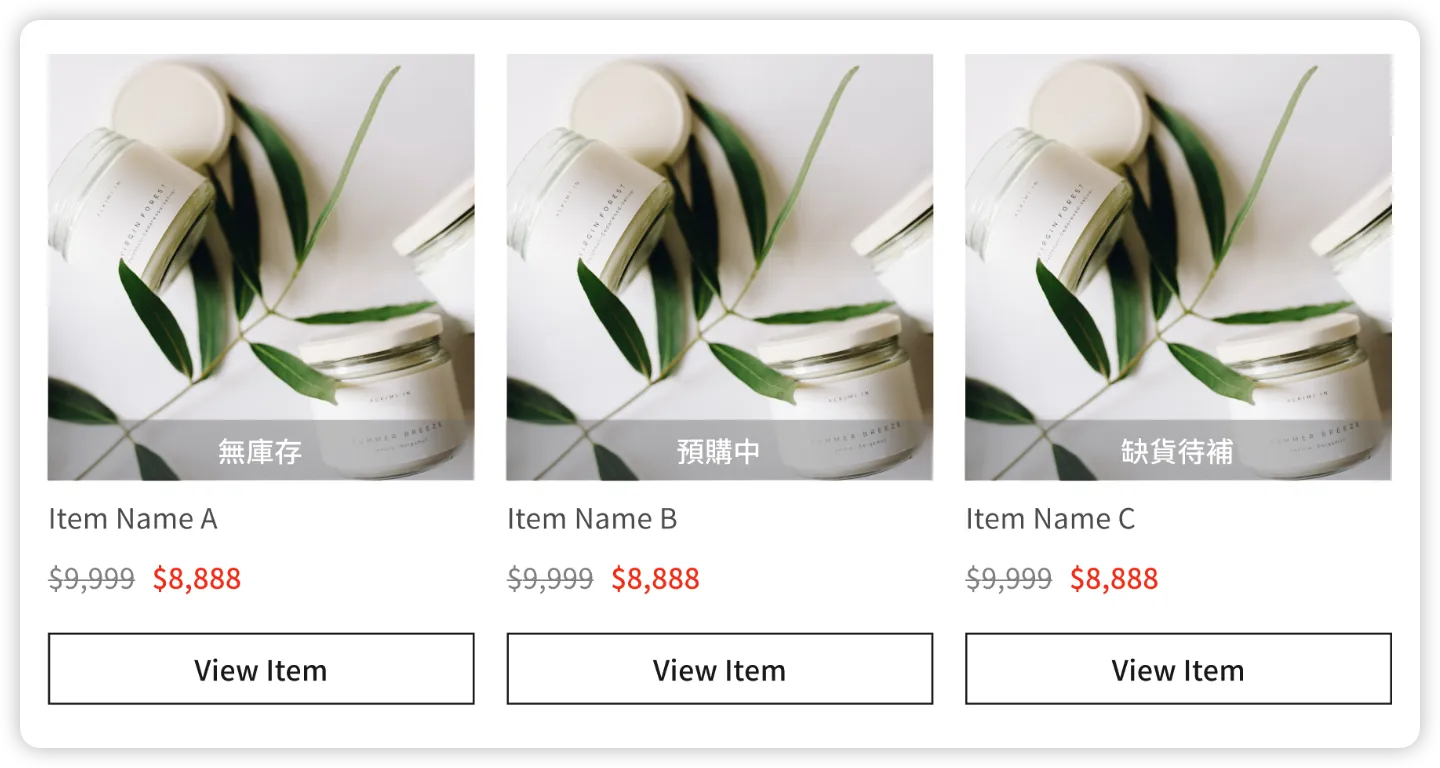
-
Assign Tags
Controls tag filters for Auto-updated Products. Cannot be set if auto-update is disabled. Combined with Advanced Filters usingANDlogic.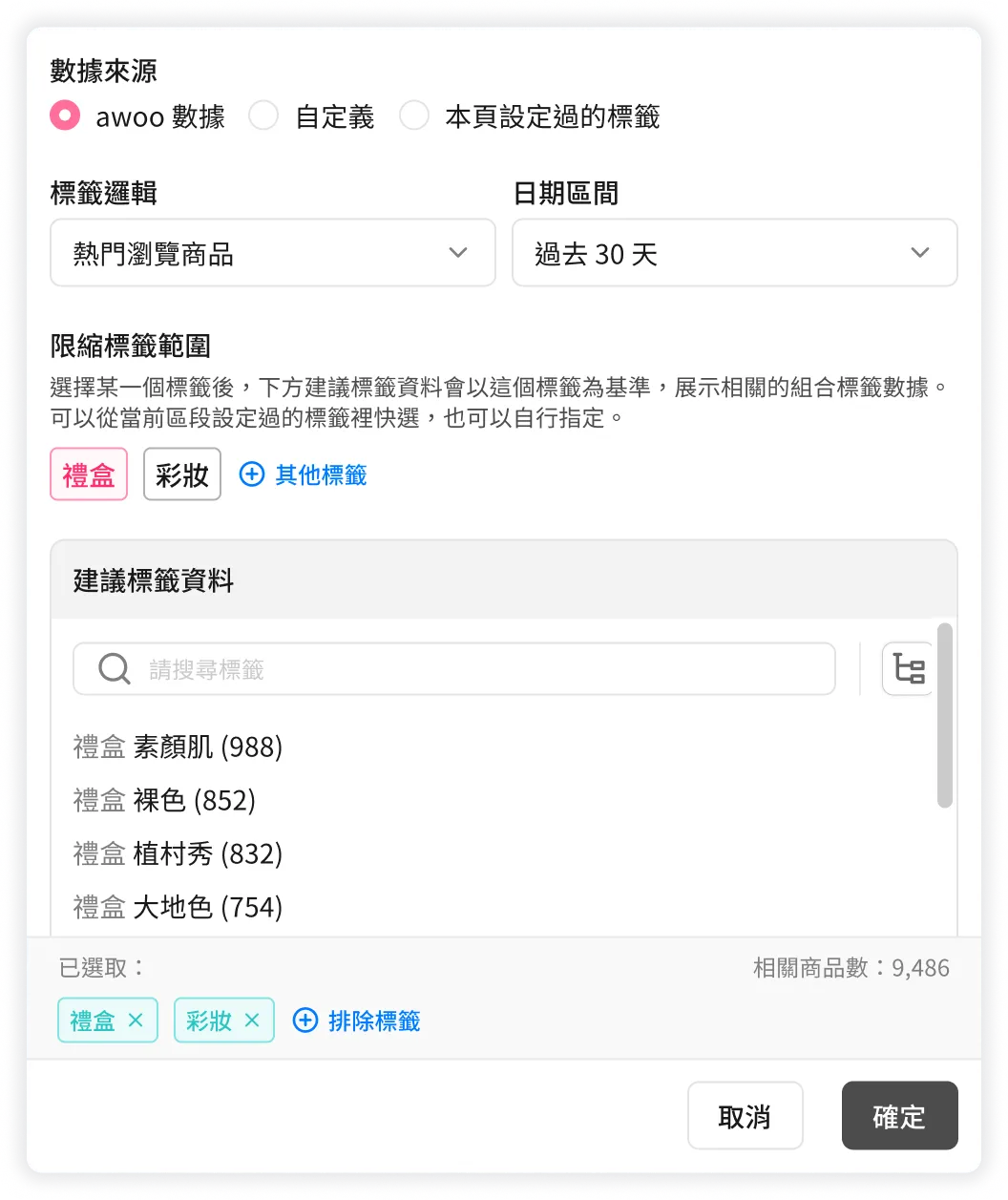
- Three Data Sources: awoo Suggestions (default), Custom, or Tags used on this page.
- Under "awoo Suggestions": Customize the logic basis (Pixel data requires a date range), narrow down suggestions based on a "term1" prefix, or group results by tag attributes (literal).
- Filter Settings:
- "Include" Tags: Click search results to add up to 3 tags (connected by
AND). - "Exclude" Tags: Click [+ Exclude Tag] to manually specify up to 3 tags (connected by
OR).
- "Include" Tags: Click search results to add up to 3 tags (connected by
Note: awoo Page (Page API) uses label preference rules (e.g., searching "Milk" might return "Fresh Milk" or "Dairy"). However, Campaign Star only searches for exact original tag matches. This may cause discrepancies between Campaign Star and awoo Page results for the same tags.
-
Advanced Filters
Controls non-tag filters for Auto-updated Products. Combined with Assign Tags usingANDlogic.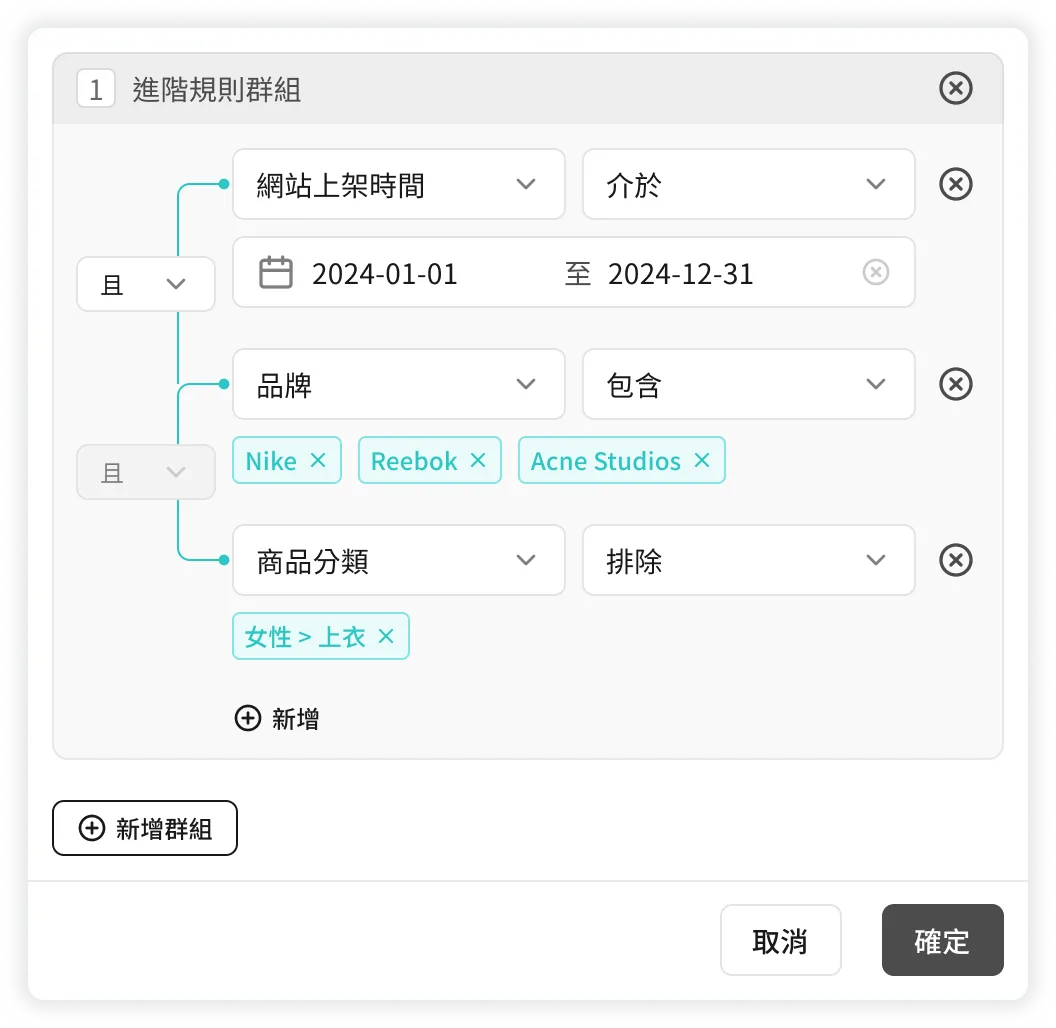
- Groups consist of one or more conditions. Use
ANDorORto connect groups or conditions within a group. - Limit: 5 conditions total.
- Dimensions include: Product ID (up to 100), Title, Category, Brand, Final Price (Sale price > Price), Discount Amount, Discount Ratio (% off), Creation Time, and Update Time.
- Groups consist of one or more conditions. Use
-
Sorting Logic
Controls sorting for Auto-updated Products.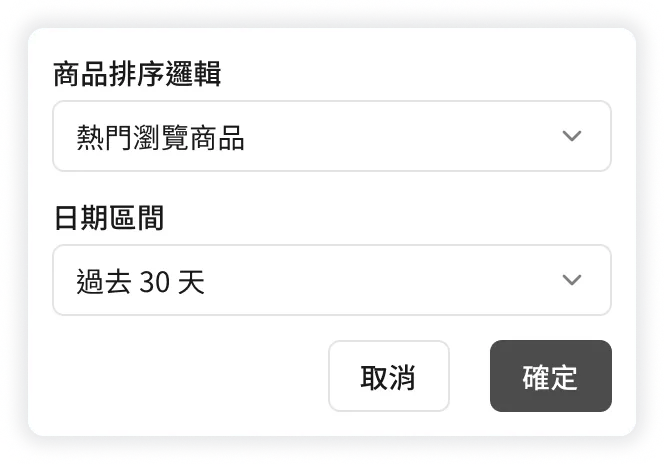
- Default: "Newest First" (if no Pixel) or "Top Viewed" in last 30 days (if Pixel exists).
- Options: Price High to Low, Price Low to High, Newest First (Created/Updated/Created in Store), Popularity, Favorites, Sales Volume, Rating, Review Count, and Pixel data (Views, Add to Cart, Purchases, Revenue).
Note: awoo Page API sorts by availability first (In Stock > Pre-order > Out of Stock), then by logic. Campaign Star sorts purely by the chosen logic, which may lead to mixed stock statuses.
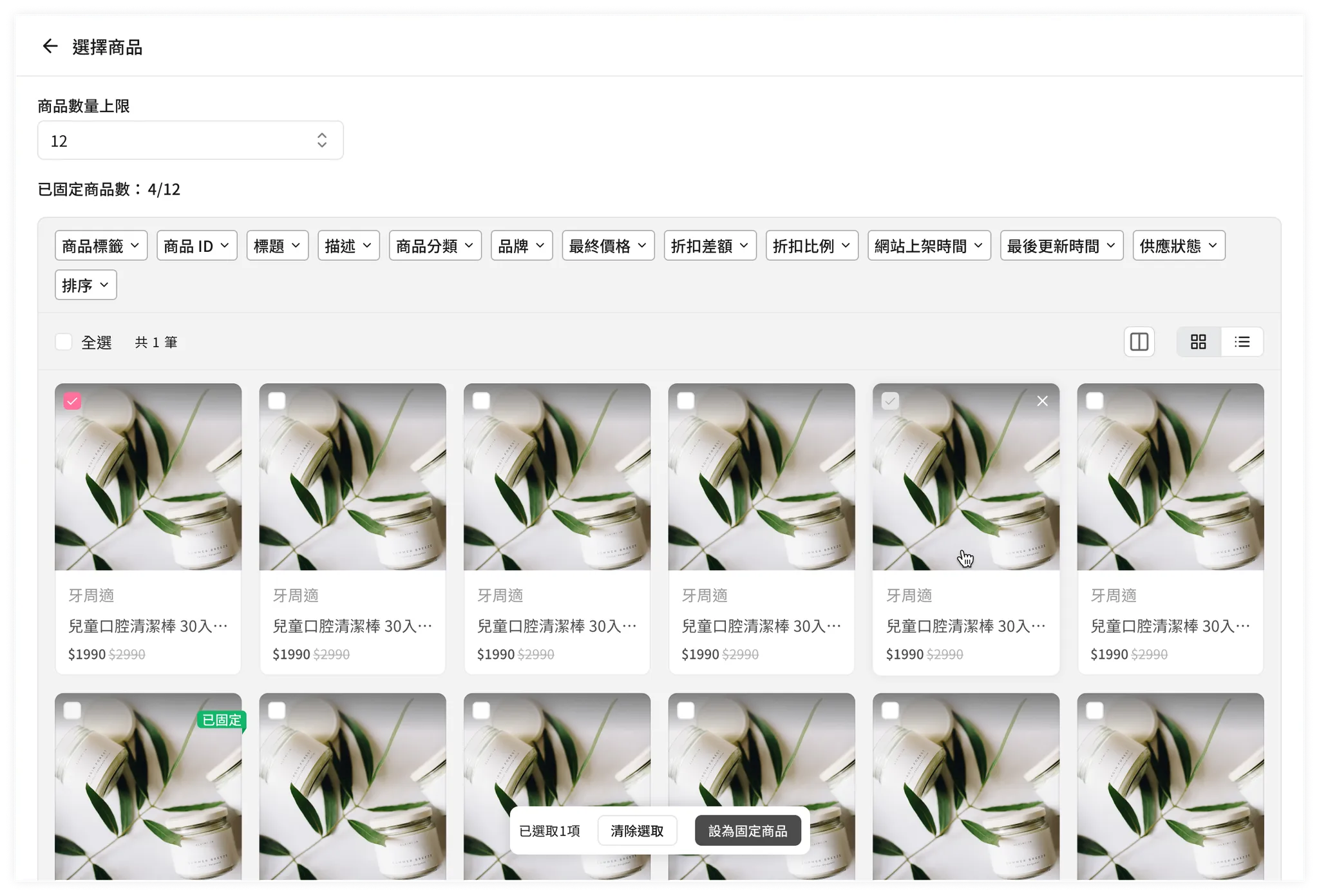
Product Selection Screen
Accessed via the [Add Products] button. Allows narrowing down products via filters/sorting and checking items to set them as pinned. Filters here always use AND logic.
👩🏫 Configuration Examples
Dynamic Mode (Auto)
Updates items and order based purely on criteria.
- Scenario: Display the 8 latest on-sale items with a 20% discount.
- Steps: Enter settings -> Enable [Auto-updated Products] -> Advanced Filter: Discount Ratio = 20% -> Sorting: Newest First -> Save.
Mixed Mode
Prioritizes specific pinned items followed by dynamic updates.
- Scenario: During Christmas, feature a brand's top items but pin a limited-edition collaboration model at the very front.
- Steps: Add Products -> Filter by Brand and Keyword "Christmas" -> Set target item as Pinned -> Enable [Auto-updated Products] -> Filter: Brand contains "Ad○das" -> Sorting: Top Revenue -> Save.
Manual Mode
Full control over items and order.
- Scenario: Display a pre-approved set of specific items.
- Steps: Disable [Auto-updated Products] -> Add Products -> Filter by Product ID -> Set as Pinned -> Drag to reorder -> Save.
Updated 8 months ago