
Basic Element: Video
Video Source
"Video Source" supports two configuration methods:
-
YouTube
👉 Default
When YouTube is selected as the source, you can enter video URLs in the following three formats:- Short URL: https://youtu.be/fFNEDtcfc1o
- Full URL for regular videos: https://www.youtube.com/watch?v=DrutY_E2IaI
- Full URL for Shorts: https://www.youtube.com/shorts/h7EOq9G8kSc
-
HTML5 (Simply understood as "videos self-uploaded to an image hosting service")
When HTML5 is selected as the source, you can enter video URLs in the following two formats:
Please note:
Campaign Star does not currently provide a feature to upload videos directly. You need to upload your video to a web storage space first and then copy the video link here.
Video Thumbnail
The system displays the built-in "Video Thumbnail" by default:
- YouTube videos: Displays the cover image from the YouTube platform.
- HTML5 videos: Displays the first frame of the video (screenshot).
If necessary, you can upload a custom image. The upload method is the same as the "Image" component; for details, see: Image Source.
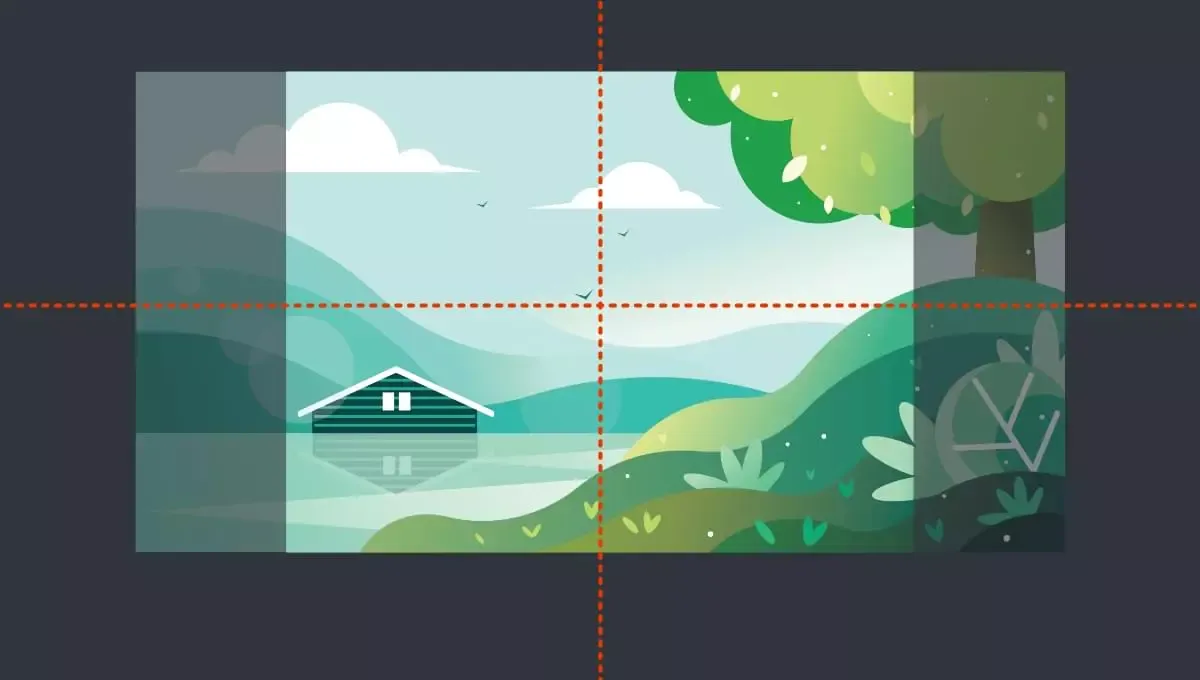
Whether using the default thumbnail or a custom image, the thumbnail will always be centered and scaled to fill (cover), covering the entire display area of the video component. Parts exceeding the component area will be cropped.
Video Size
▌ Set Video Width
-
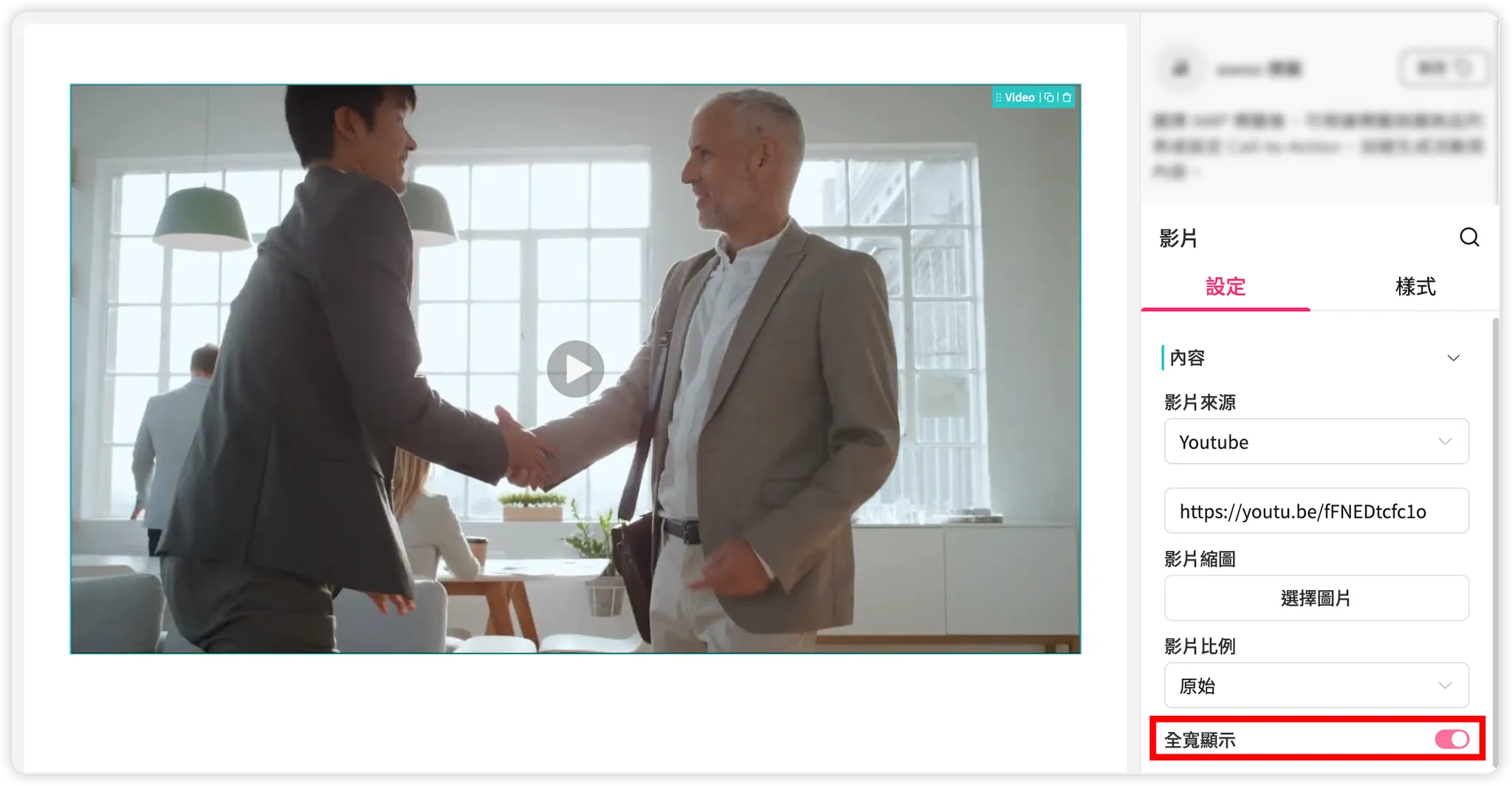
After adding a video component, the default is "Full Width," which displays at 100% based on the width of the parent Column it belongs to.
-
After turning off "Full Width," you can customize the "Maximum Width" of the video:
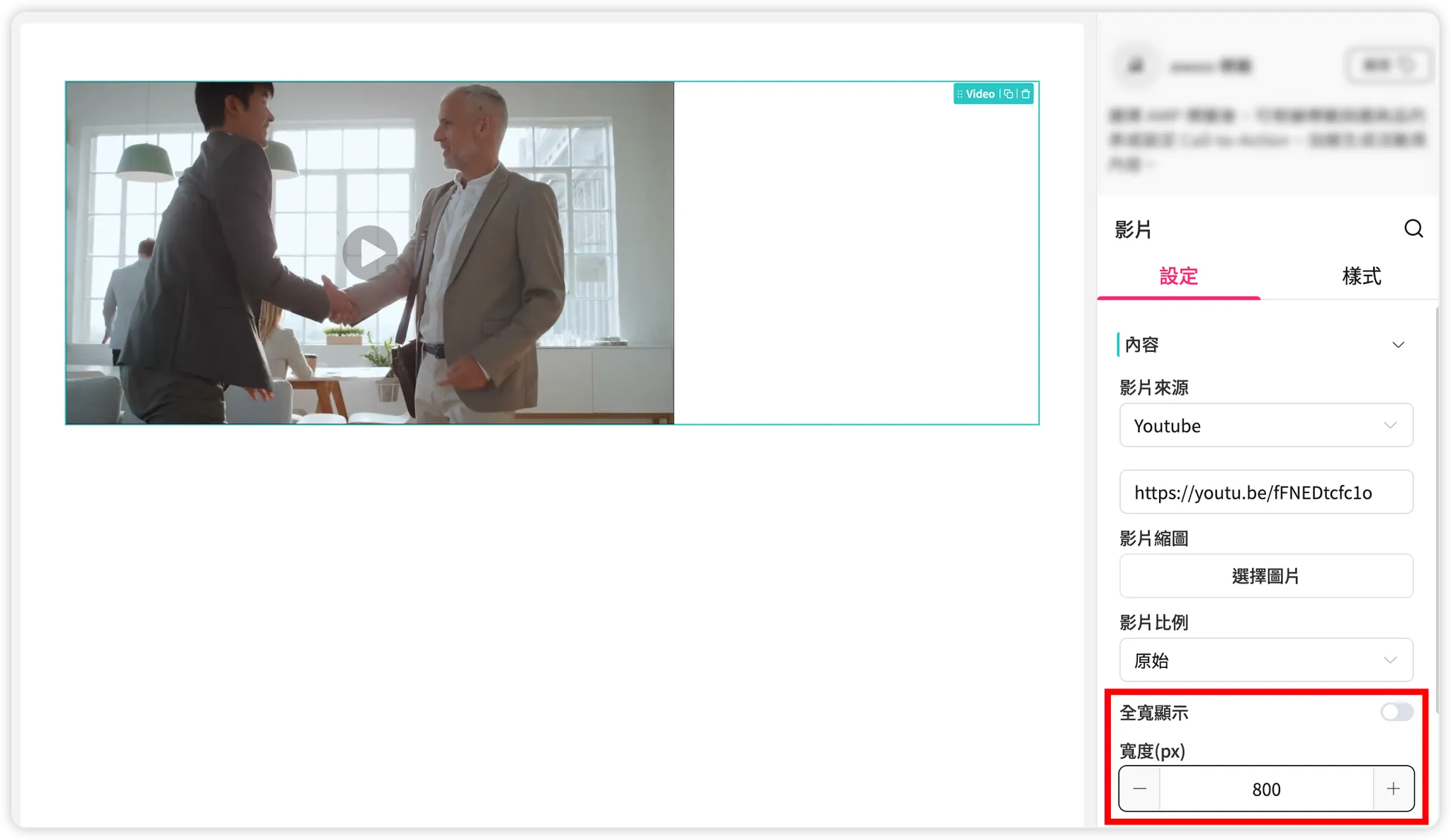
- When the page width exceeds the maximum width value, the video width will only display at this set value.
- When the page width is smaller than the maximum width value, the video width will shrink proportionally according to the page width.
▌ Set Video Height
The "Display Height" of a video cannot be set directly; it must be calculated using the "Display Width" and "Video Ratio" settings. For example:
- If the width is 200 px and the display ratio is 1:1, the height will be 200/1*1 = 200 px.
- If the width is 500 px and the display ratio is 4:3, the height will be 500/4*3 = 375 px.
▌ Set Video Ratio
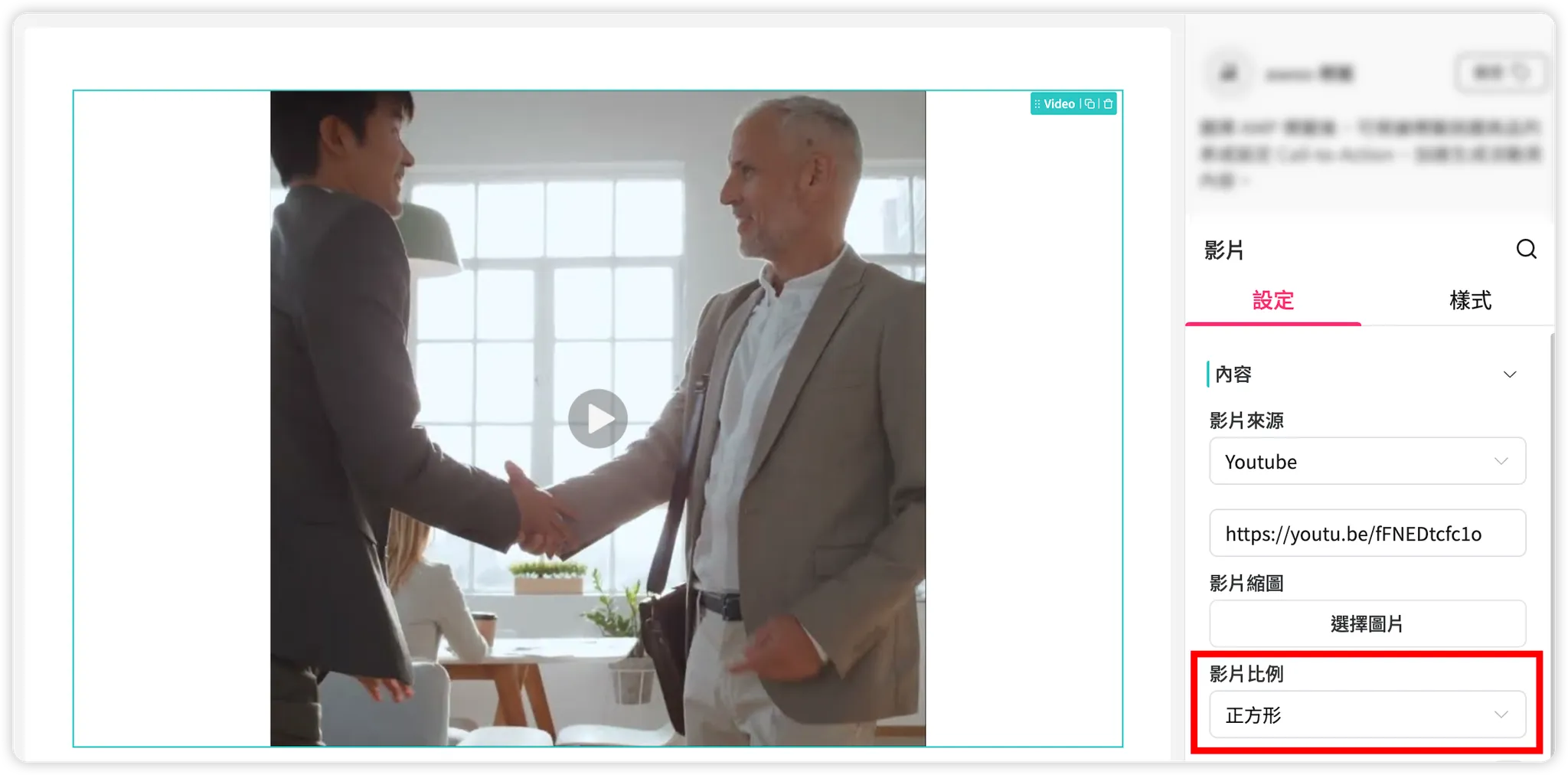
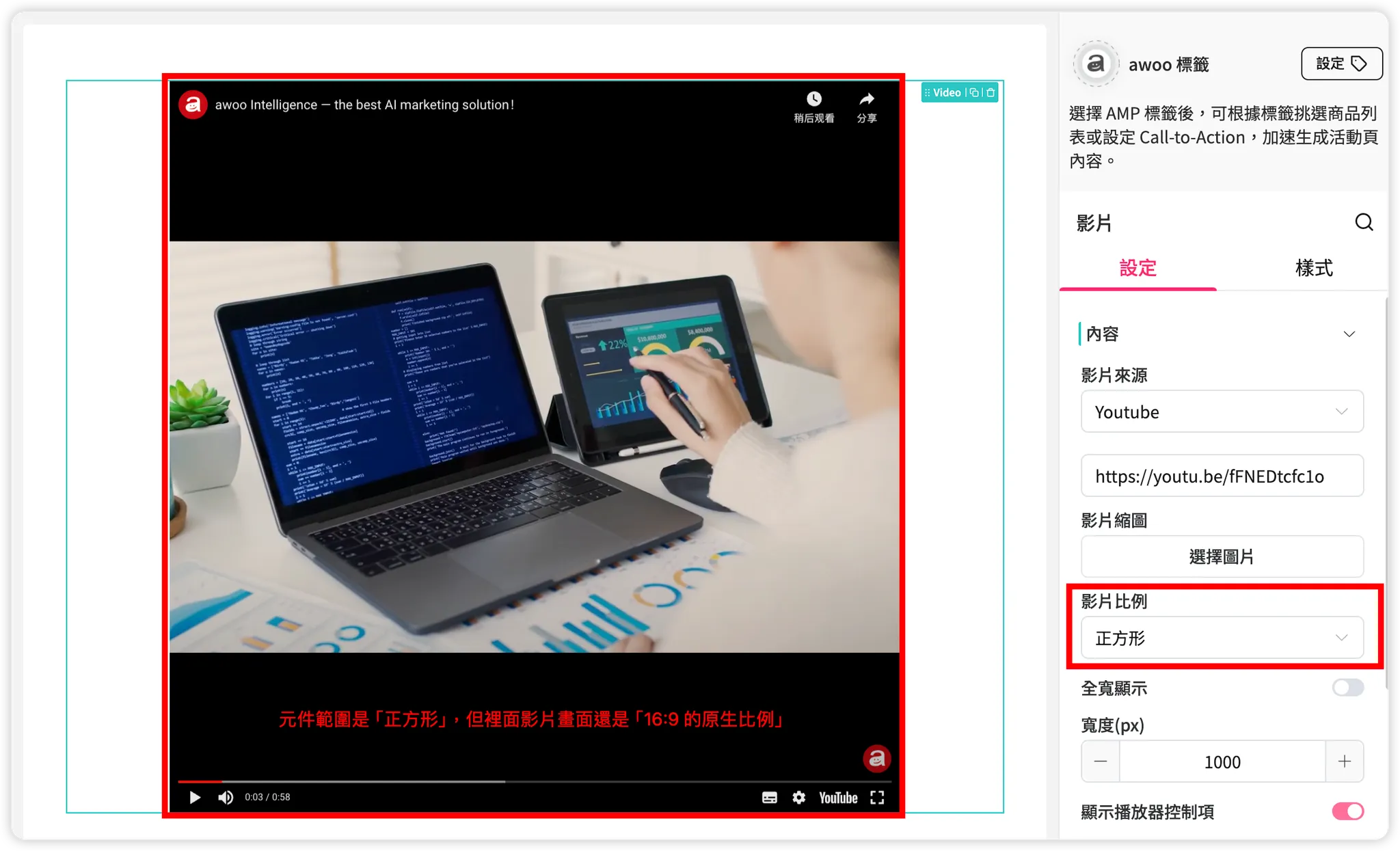
When adjusting "Video Width" and "Video Ratio," only the bounding box of the video component will change. The actual video playback area will still be rendered according to the video's original aspect ratio and will not be distorted. Any empty space within the component area will be displayed with a black background.
Advanced Video Settings
-
Show controls
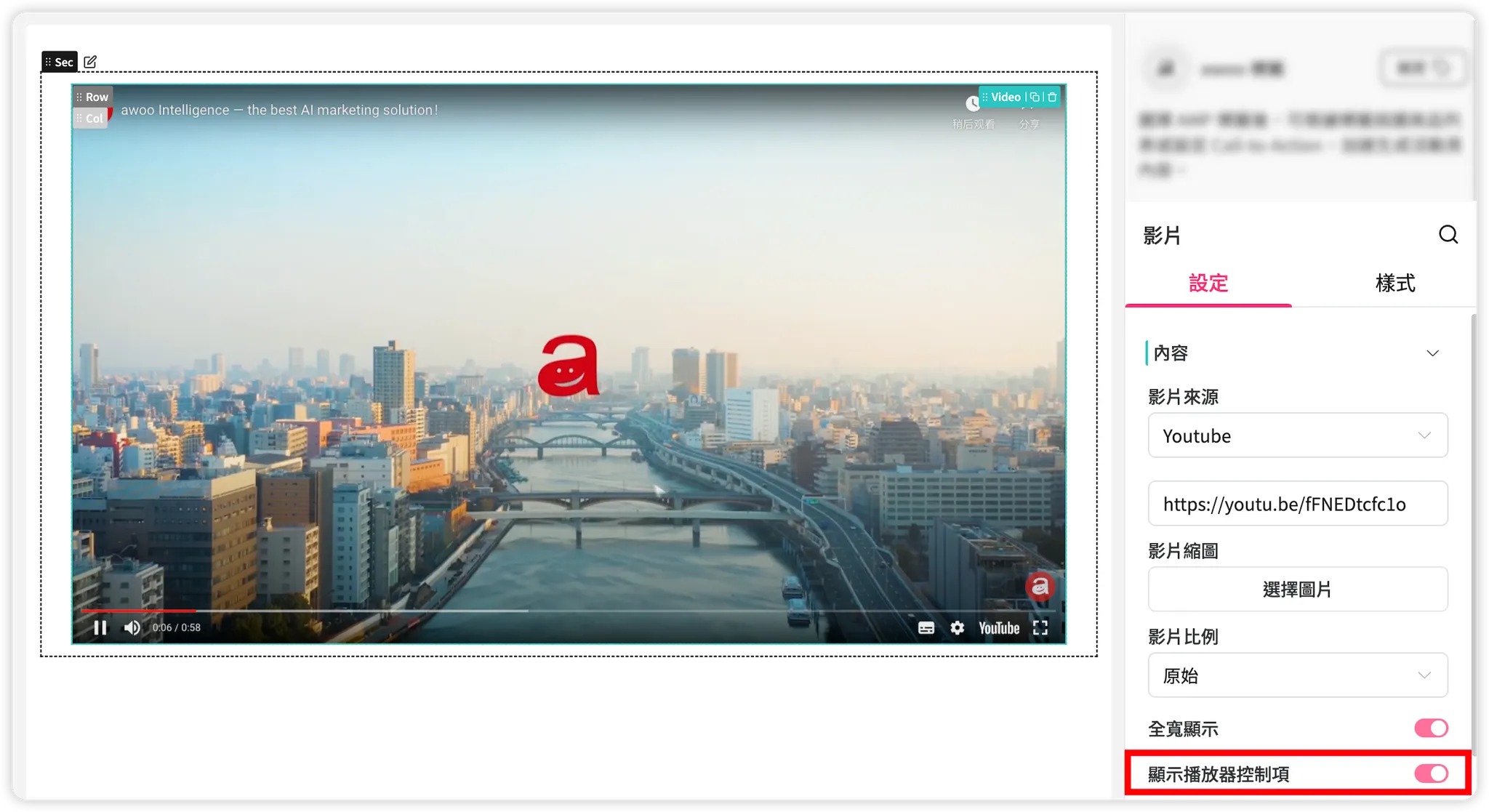
Enabled effect
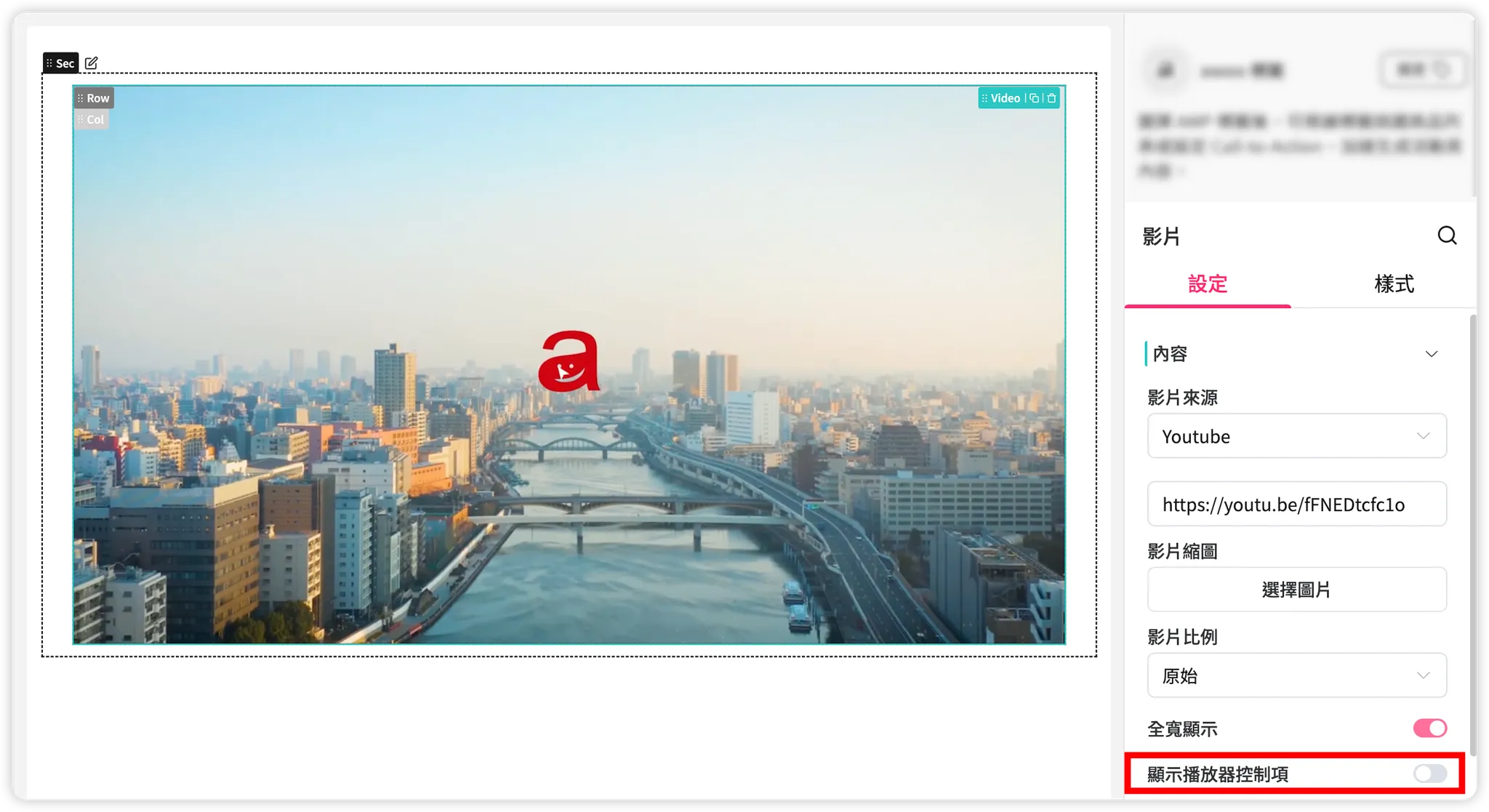
Disabled effect
-
Autoplay
Due to privacy controls in common browsers like Chrome and Safari that restrict autoplay for non-muted videos, enabling this option will automatically activate the "Mute" function. -
Loop
-
Mute
-
Show related videos
This control is only available for YouTube videos. If you want consumers to stay focused on the Campaign Star page or your e-commerce site, please disable this feature. -
Start/End Time
If "Loop" is also enabled, please note that only the first playback will follow the specified time range. Subsequent playbacks (from the second time onwards) will ignore the specified times and play from start to finish.
Other Considerations
- Since the Email medium does not allow direct video playback within messages, the system does not support exporting video components to Email HTML. It is normal if video components are not visible in the exported Email HTML!
- If any of the following anomalies occur with the source URL, the invalid video component will only be visible on the backend editor canvas; the actual online store SDK page will skip it and not display it:
- No video URL entered.
- A URL with an unsupported format is entered.
- The entered video URL is invalid.
Updated 8 months ago