
Section Base Tags
Use Cases
Every Section component in the Campaign Star page editor can be configured with AMP tags.
Once configured, these Section tags—also referred to as "Section Tags" or "Base Tags"—will dynamically influence the child components within that Section, accelerating the generation of campaign page content.
Effects of Setting Base Tags
Suppose a Section contains the following:
- A Heading component with the custom text "Lunar New Year Gift Gala."
- A Heading component with default text.
- A Button component with default link settings.
- An Image component with default link settings.
- A Category List component in its initial state.
- A Product List component in its initial state.
- ... and so on.
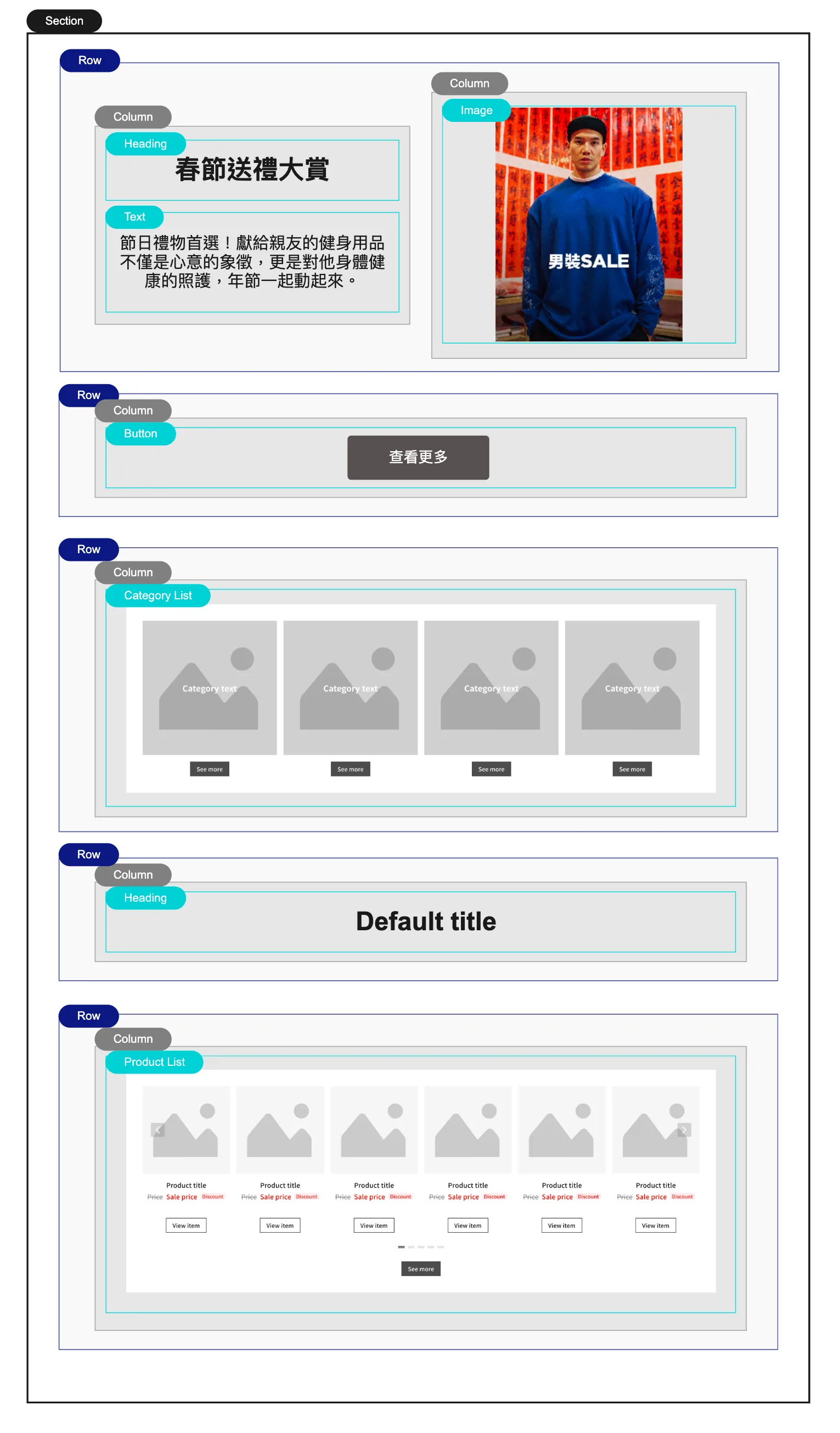
After setting the Base Tags of this Section to [Sports][Fitness]:
-
Heading component with custom text:
The text remains "Lunar New Year Gift Gala," but you can click the "Apply Base Tag Text" button to manually update it to the tag names "Sports Fitness" with one click.
-
Heading component with default text:
The text will automatically update from the default "Default title" to the tag names "Sports Fitness."
-
Button component with default link settings:
A "Go to awoo Page" option will appear in the link settings, and the link will automatically update from "Not set" to "Go to awoo Page," directing the link to an awoo Page with?tags=Sports,Fitness.
-
Image component with default link settings:
A "Go to awoo Page" option will appear in the link settings, but the link status will remain "Not set."
-
Category List component (Initial state):
When configuring tags for a specific category slot, you can use [Sports] or [Fitness] to search for related tags or directly apply the tags to batch-configure categories to the list.
☝️ For full details, see Component: Category List.
-
Product List component (Initial state):
Automatically populates the list with products that represent the intersection of [Sports] and [Fitness].
☝️ For full details, see Component: Product List.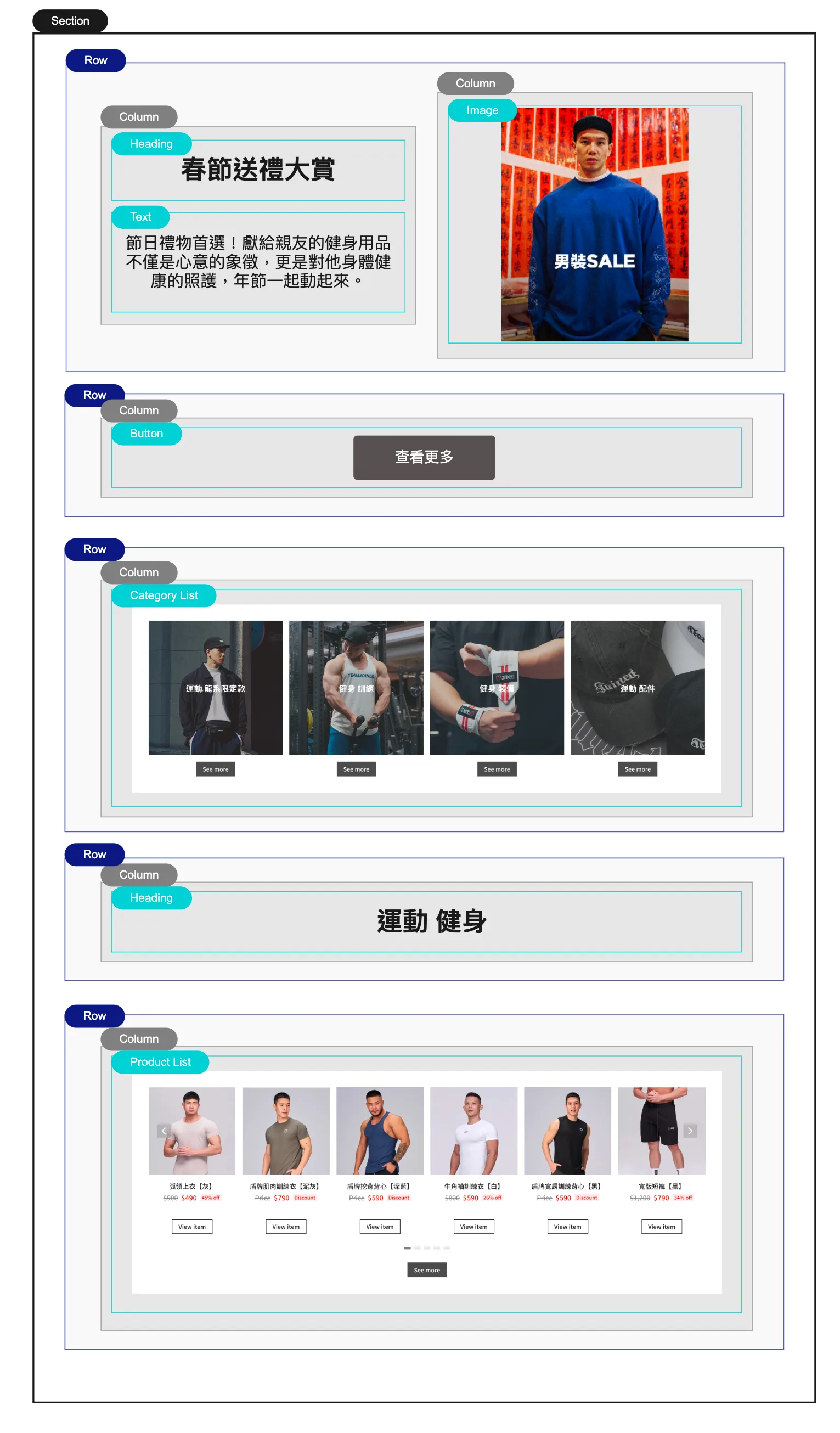
How to Set Base Tags
At the top of the right-side component settings panel, the Base Tag configuration for the Section to which the current component belongs will appear.
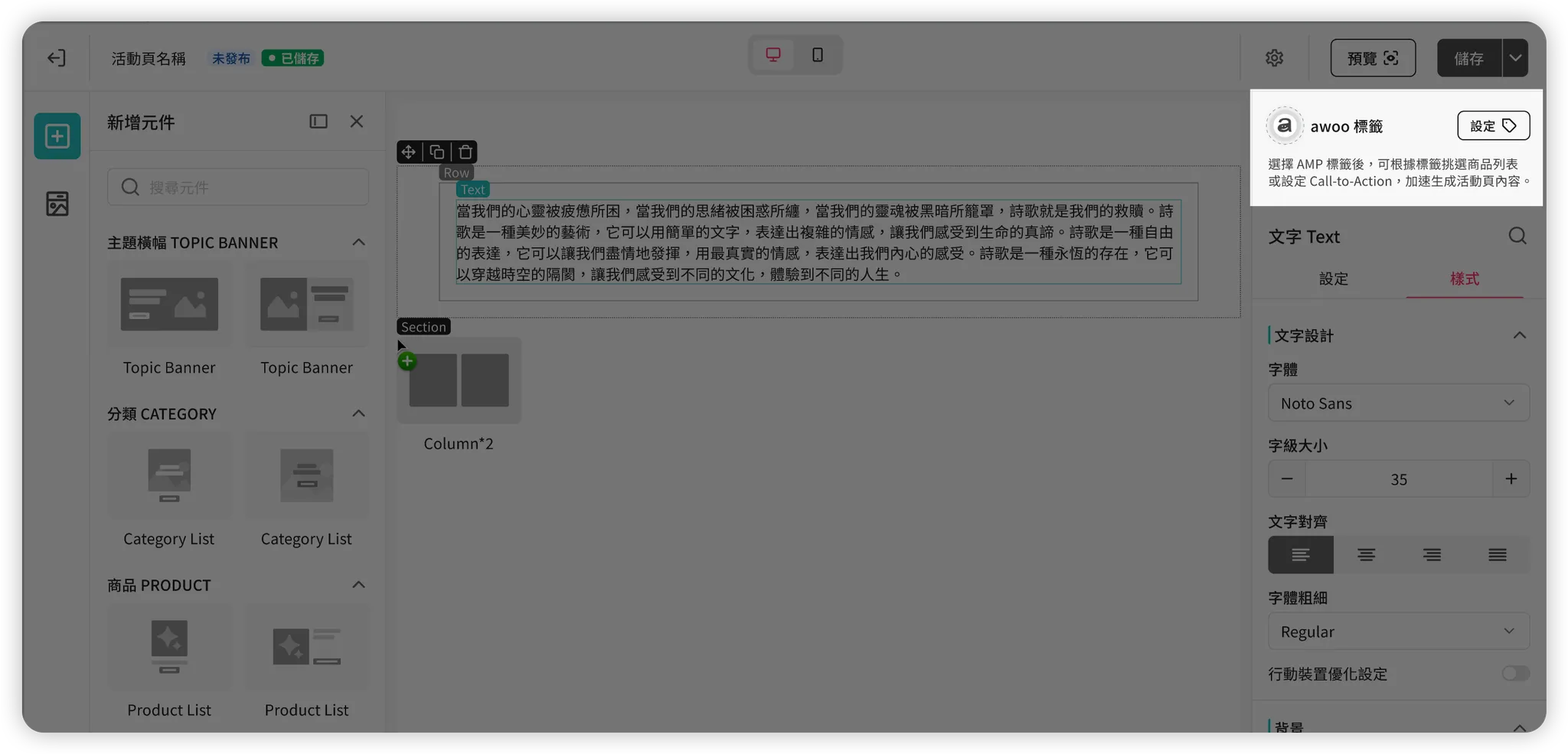
Clicking "Set" will trigger the "Section Tag Settings" screen:
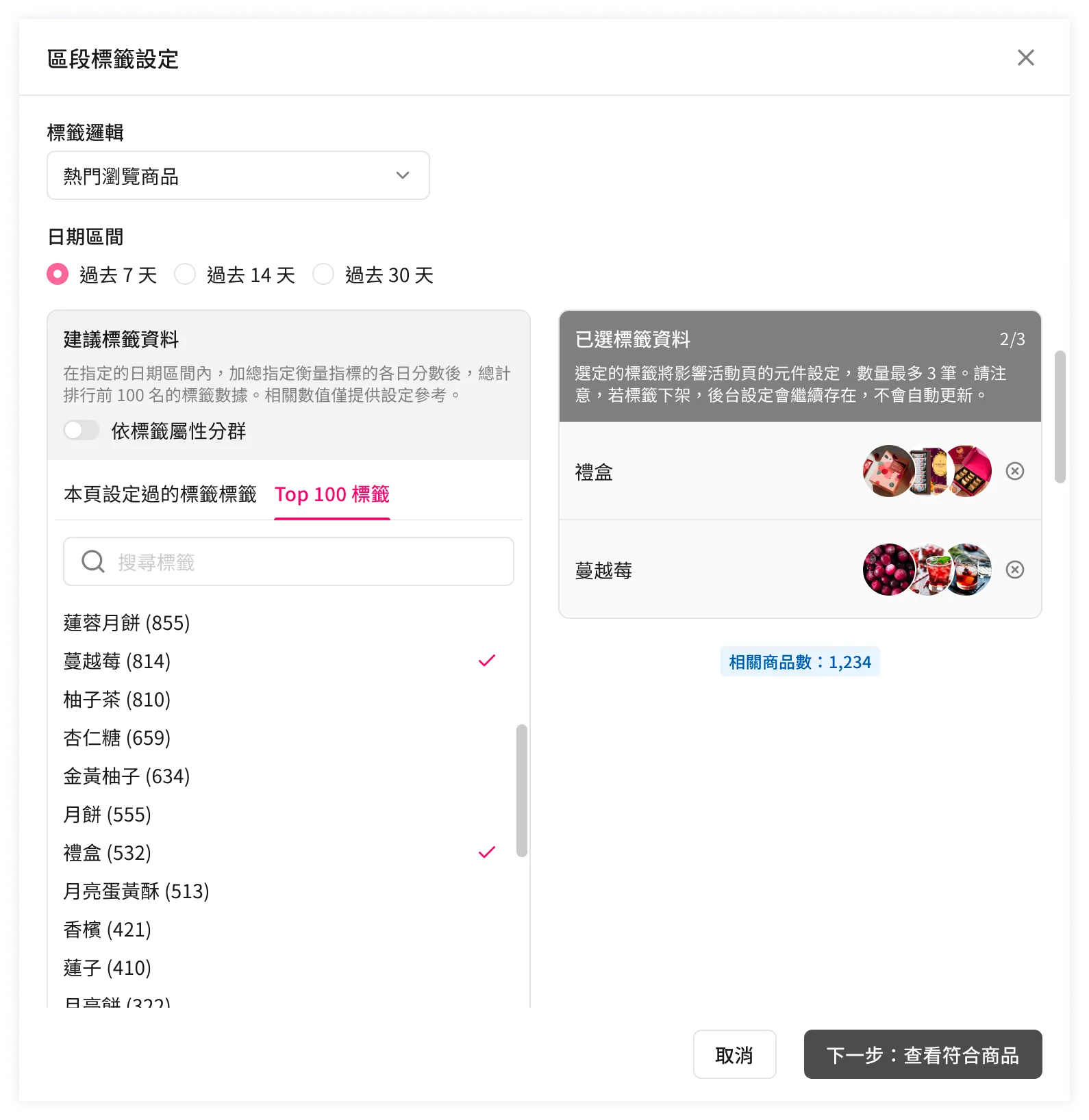
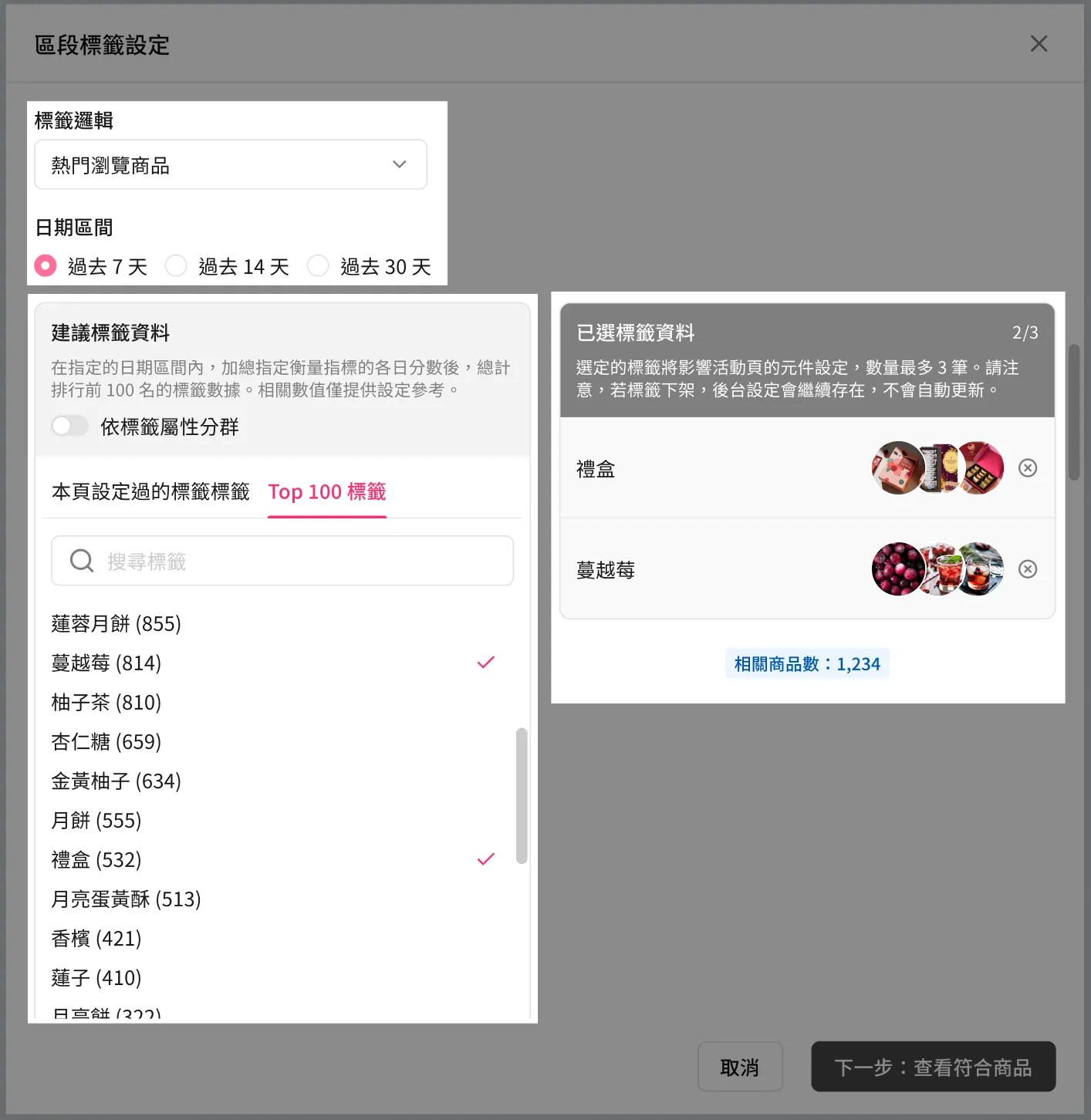
[Top Section]: Configure the data source for the suggested tag pool.
| Tag Logic Options | Data Source | Content of Suggested Tag Pool | Meaning of Number in Brackets |
|---|---|---|---|
| Most Products (Default) | TGM | Real-time query of total products associated with a tag, retrieving the top 100 tags. | Number of products |
| Trending Products (Views) | Pixel & awoo BI | Attributes product view event counts to tags, then accumulates total scores by tag to retrieve the top 100 tags. 🗓 Requires specifying a date range for cumulative data. | Cumulative product views |
| Trending Products (Add to Cart) | Pixel & awoo BI | Attributes "Add to Cart" event counts to tags, then accumulates total scores by tag to retrieve the top 100 tags. 🗓 Requires specifying a date range for cumulative data. | Cumulative product add-to-carts |
| Trending Products (Purchases) | Pixel & awoo BI | Attributes purchase event counts to tags, then accumulates total scores by tag to retrieve the top 100 tags. 🗓 Requires specifying a date range for cumulative data. | Cumulative product purchases |
| Highest Revenue Products | Pixel & awoo BI | Attributes purchase revenue to tags, then accumulates total scores by tag to retrieve the top 100 tags. 🗓 Requires specifying a date range for cumulative data. | Cumulative product revenue |
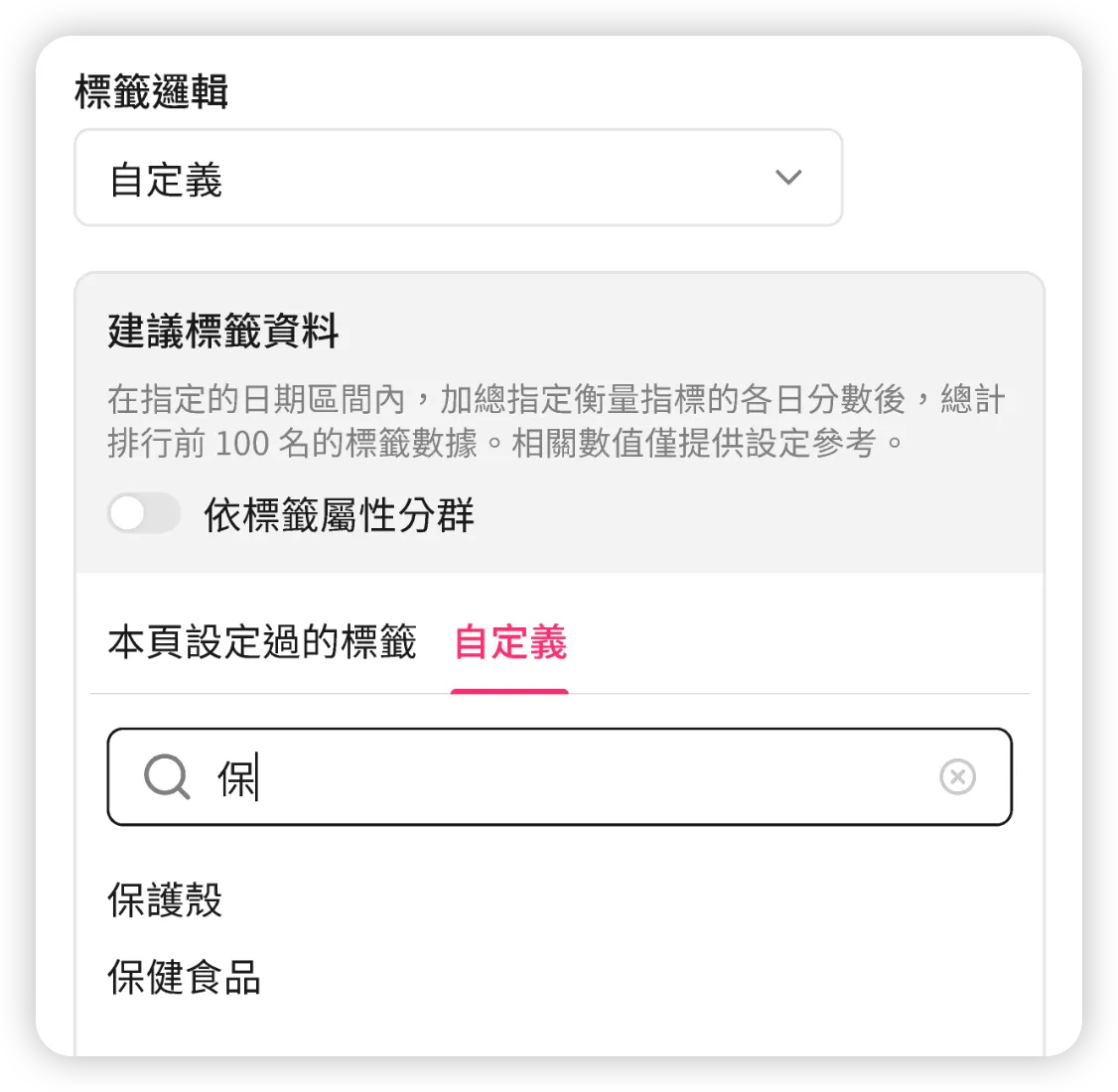
| Custom | TGM | Retrieves relevant tags in real-time from TGM based on entered search keywords. | — |
[Bottom Left]: Displays the suggested candidate tag pool.
- "Tags used on this page" tab: Quickly select and reuse tags previously configured elsewhere on the page.
- "Top 100 Tags" tab: Displays up to 100 relevant tags based on the specified tag logic.
- "Custom" tab: In custom mode, displays tags starting with the query keyword based on the search string.
[Bottom Right]: Displays selected tag data.
- A maximum of 3 tags (terms) can be selected.
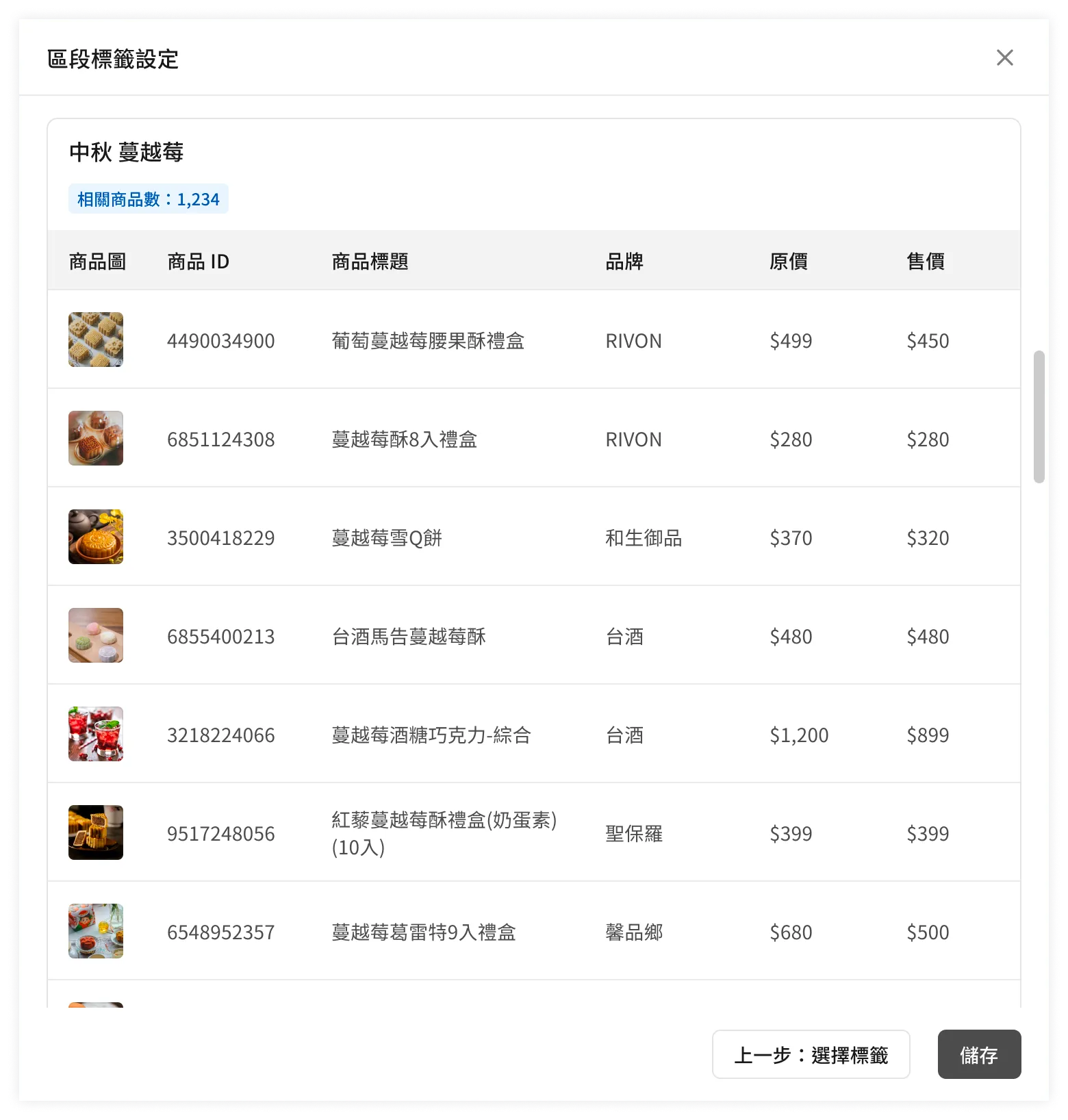
After selecting tags, click "Next" to view the products under this tag combination, ensuring you don't select a combination with no content. Click "Save" on this screen to officially set the Base Tags for the Section.
Updated 8 months ago