
Managing Post Albums
After selecting Instagram posts from the media source post pool, customers need to add these posts to album folders before they can be applied and managed in subsequent steps.
Album folders can be used to showcase Post Galleries on Campaign Star campaign pages.
1. Viewing and Editing Albums
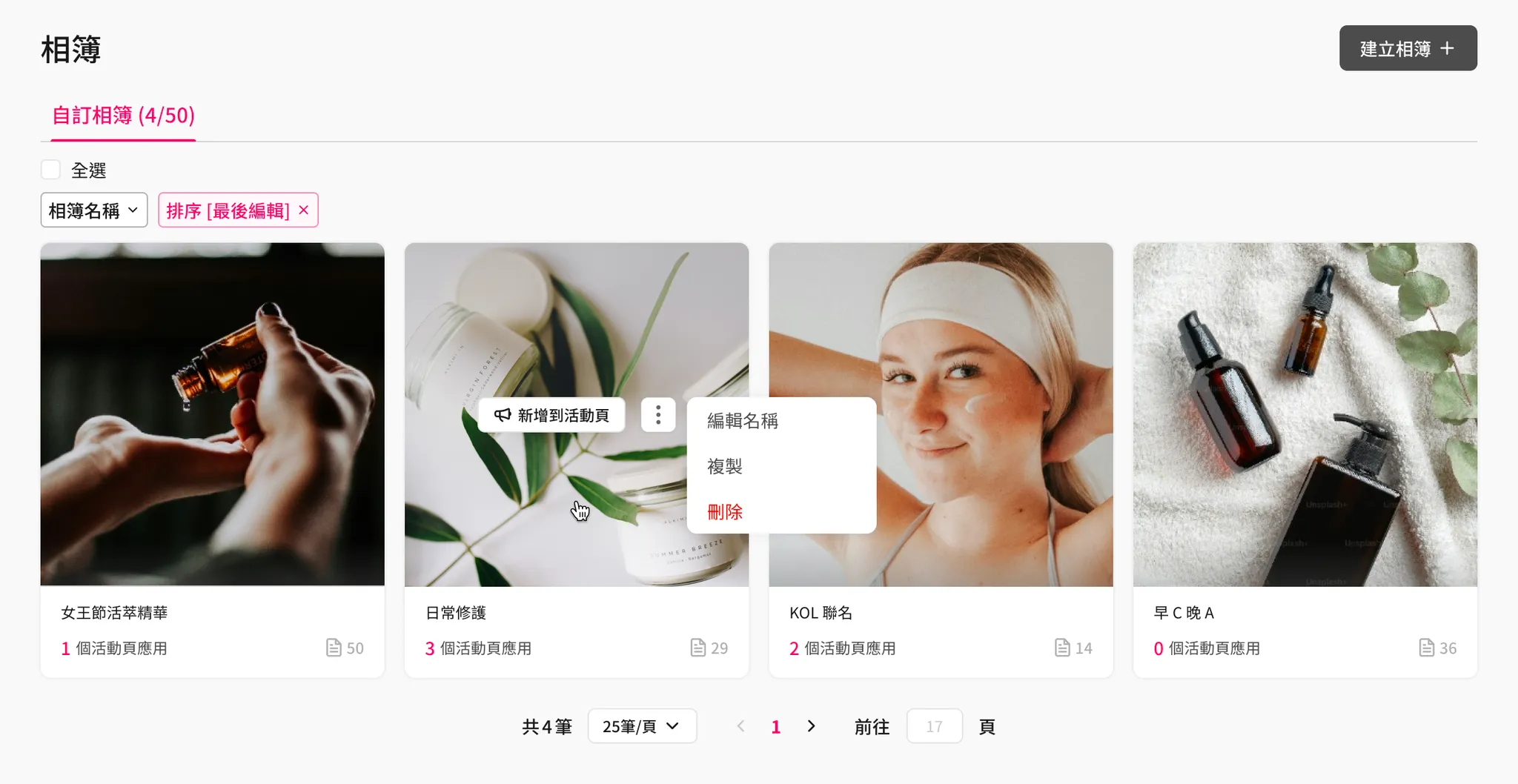
- Usage Limits
- There is no limit to the number of custom albums a single post can be linked to.
- Each album can contain a maximum of 50 posts (this value may be adjusted based on the pricing tier of the sales plan in the future).
- Each store can have a maximum of 50 custom albums (this value may be adjusted based on the pricing tier of the sales plan in the future).
1-1. Sorting Albums 🔀
- Last Updated: New to Old
👉 Default - Creation Time: New to Old
- Post Count: High to Low
- Album Name: A-Z
- Album Name: Z-A
1-2. Editing Albums ✍️
- Add to Campaign Page
- Rename
- Duplicate
- Delete
1-3. Viewing a Single Album 📂
Click on an album to view the post list within that specific album.
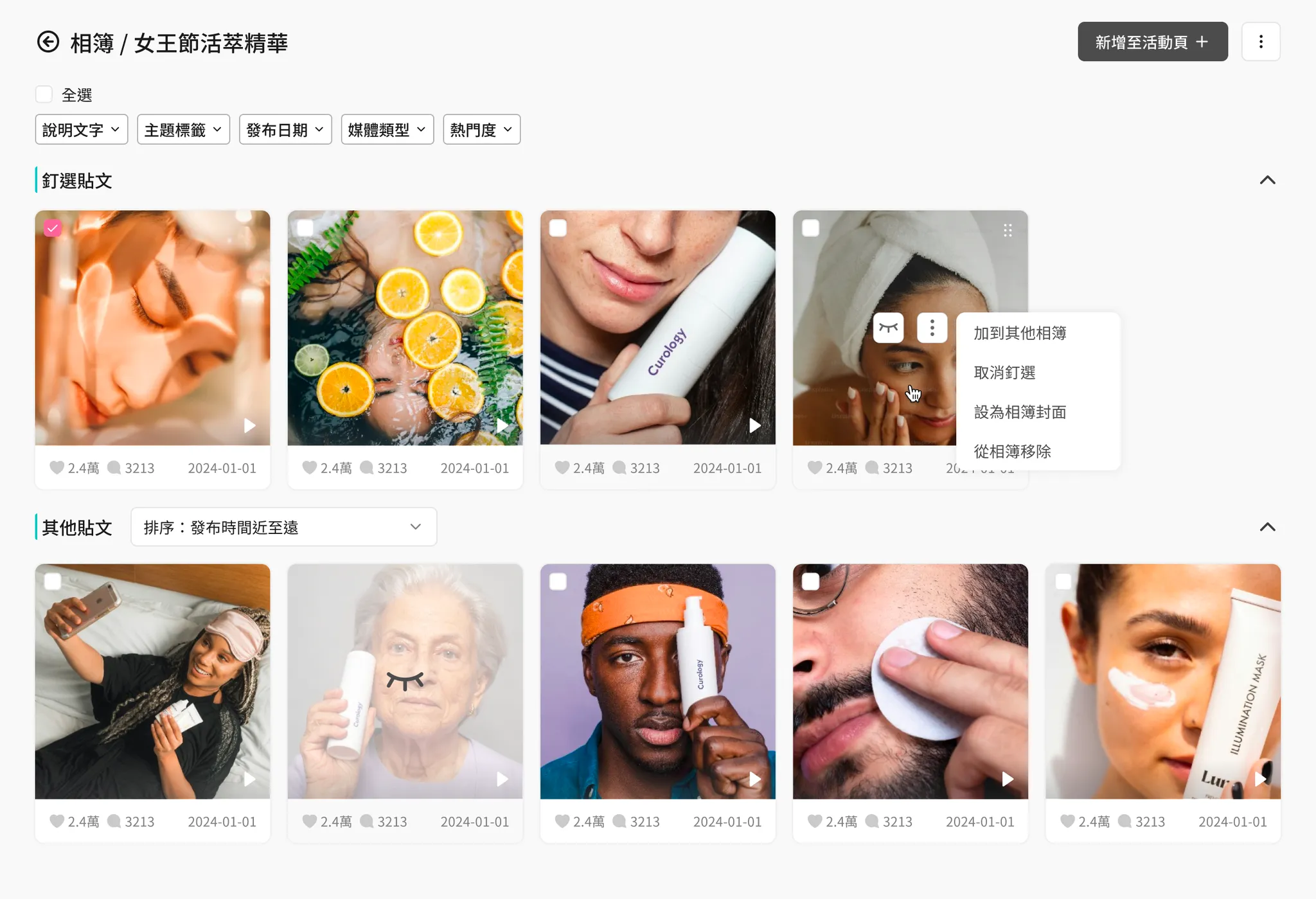
- Album posts are split into two sections based on their pinned status:
- Pinned Posts: Permanently displayed at the front. Within the pinned posts section, you can manually drag and drop to change the order.
- Other Posts: The remaining unpinned posts. These can only be automatically sorted based on the values in the Sorting Rules dropdown; manual drag-and-drop to change order is not supported.
- The basic operations for the post list are identical to those in [Visual UGC > Media Sources], with the following additional advanced settings unique to album posts:
- Show / Hide: Once hidden, the post still exists in the album, but the Campaign Star campaign pages (backend editor canvas & online store SDK pages) will not display it.
- Pin / Unpin: An album can have up to 10 pinned posts.
- Drag and drop to reorder pinned posts.
- Adjust sorting logic for unpinned posts.
- Remove from album.
- Set as album cover photo.
1-4. Adding Albums to Campaign Pages 📄
After configuring the posts in an album, customers can directly add the album to a Campaign Star campaign page and display it using the Instagram Gallery component.
-
Usage Limits
- There is no limit to the number of campaign pages an album can be added to, nor is there a limit to the number of Instagram Gallery components it can be linked to.
However:- Each store can have a maximum of 50 campaign pages.
- Each campaign page can have a maximum of 50 Instagram Gallery components (more specifically, Row-level components).
- An Instagram Gallery component can only display 1 album.
- There is no limit to the number of campaign pages an album can be added to, nor is there a limit to the number of Instagram Gallery components it can be linked to.
-
Access Points for Adding to Campaign Pages
-
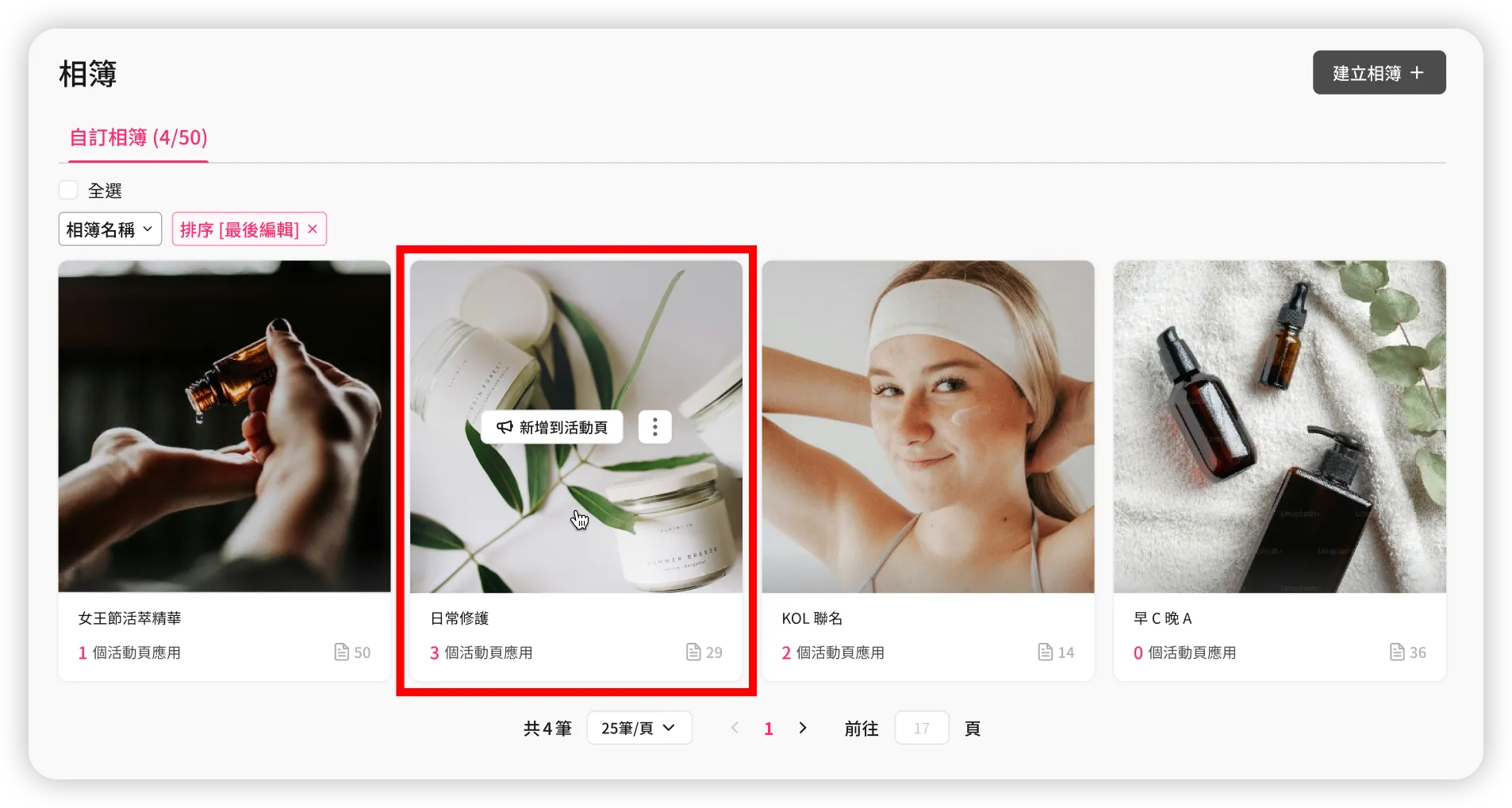
In the album list, hover over an album and click the "Add to Campaign Page" button.
-
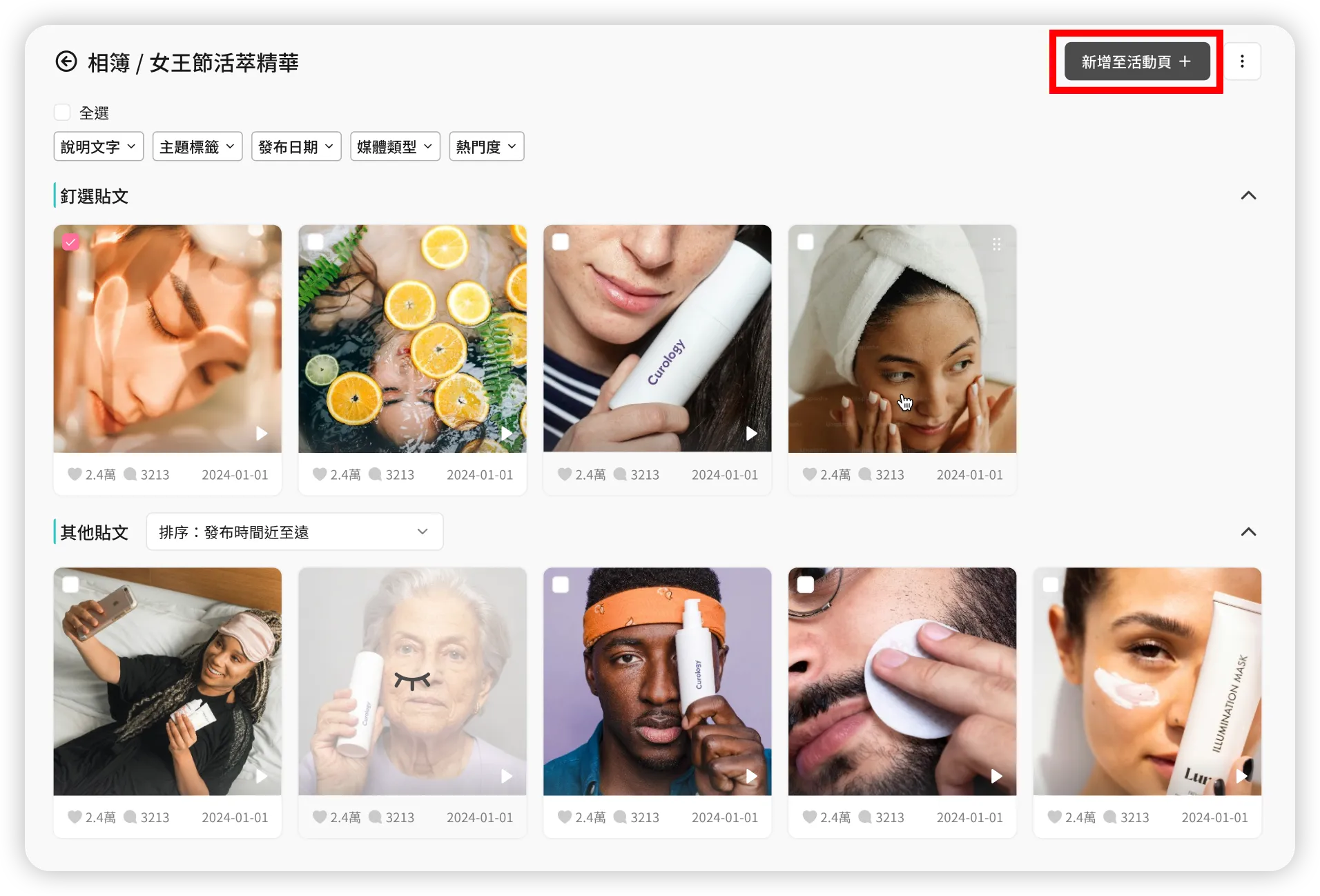
In the single album view, click the "Add to Campaign Page" button in the top-right corner.
-
-
Workflow for Adding to Campaign Pages
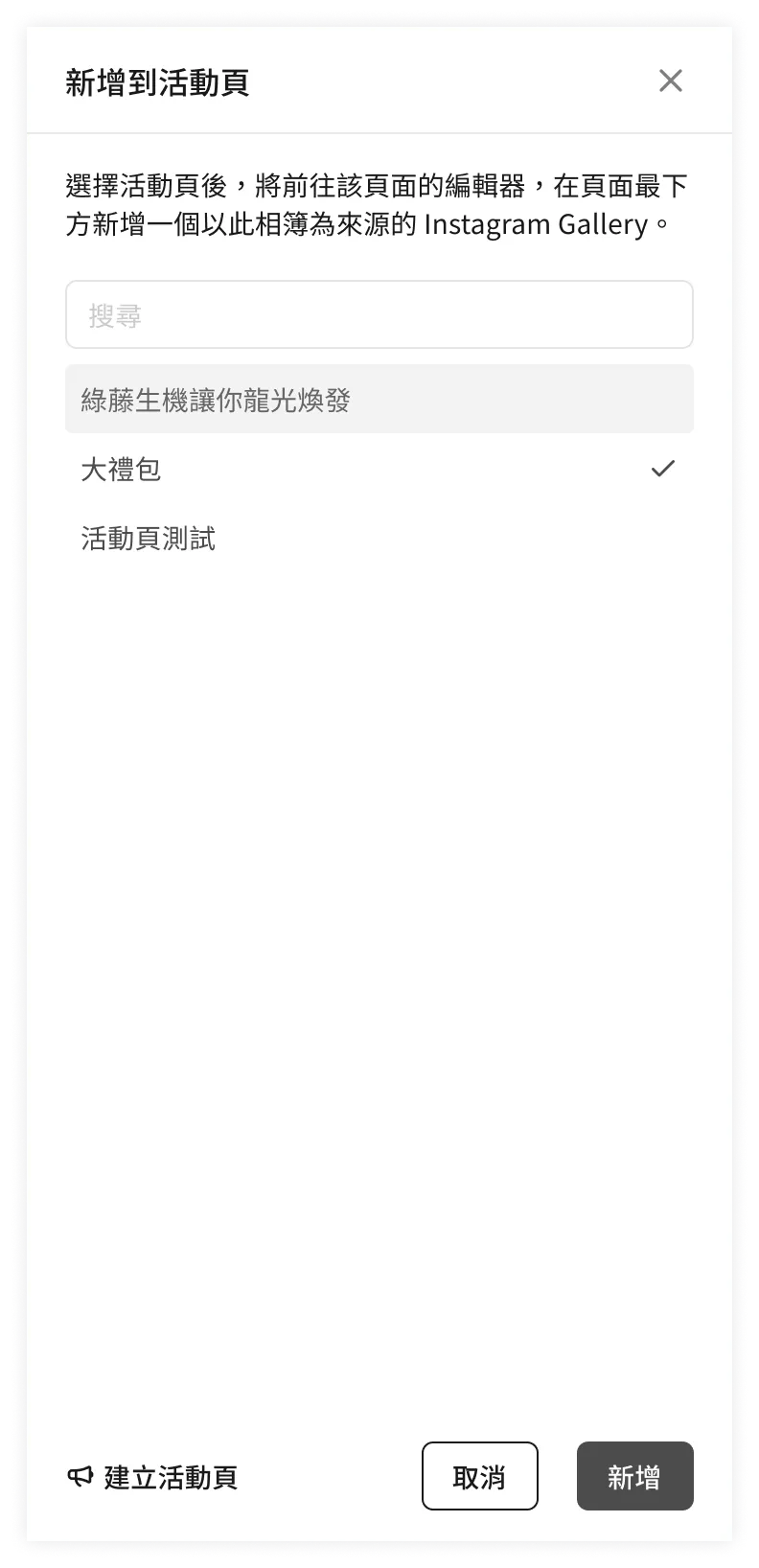
- After clicking the "Add to Campaign Page" button, the campaign page list will appear on the right side of the screen. If no suitable page exists, you can click "Add Campaign Page" to create one directly.
- Select a single page from the list and click the "Add" button.
- Upon success, the system will automatically redirect to the Page Editor for that campaign page and add a new Instagram Gallery component at the bottom, using this album as the content source.
Alternatively, you can drag and drop an "Instagram Gallery" component onto the canvas directly from the left component library in the Campaign Star editor, then select an album as the content source from the component panel.
FAQ
➤ Can I set a rule to automatically add posts matching certain criteria to an album?
This is not currently supported. Posts must be manually selected and added to albums.
➤ If I disconnect my Instagram account, will the created albums still exist?
Yes. Even if the Instagram account is unlinked, the created albums and their underlying Instagram posts will still exist and can still be showcased on Campaign Star campaign pages.
In cases where "Instagram account is not bound" or "Account is bound but authorization has expired," only the candidate post pool in [Visual UGC > Media Sources] will stop syncing new posts. This does not affect posts already added to albums for future use, nor does it affect existing Campaign Star components already displaying those albums.
Updated 8 months ago