
E-commerce Component: Category List
💡 Use Cases
The Category List component (hereinafter referred to as Category list) in the Campaign Star page editor allows consumers to browse extended product categories related to the campaign theme. This enhances page navigation and boosts sales or exposure for specific categories.
You can also think of the Category list as an AMP tag list with images and customizable text or links.
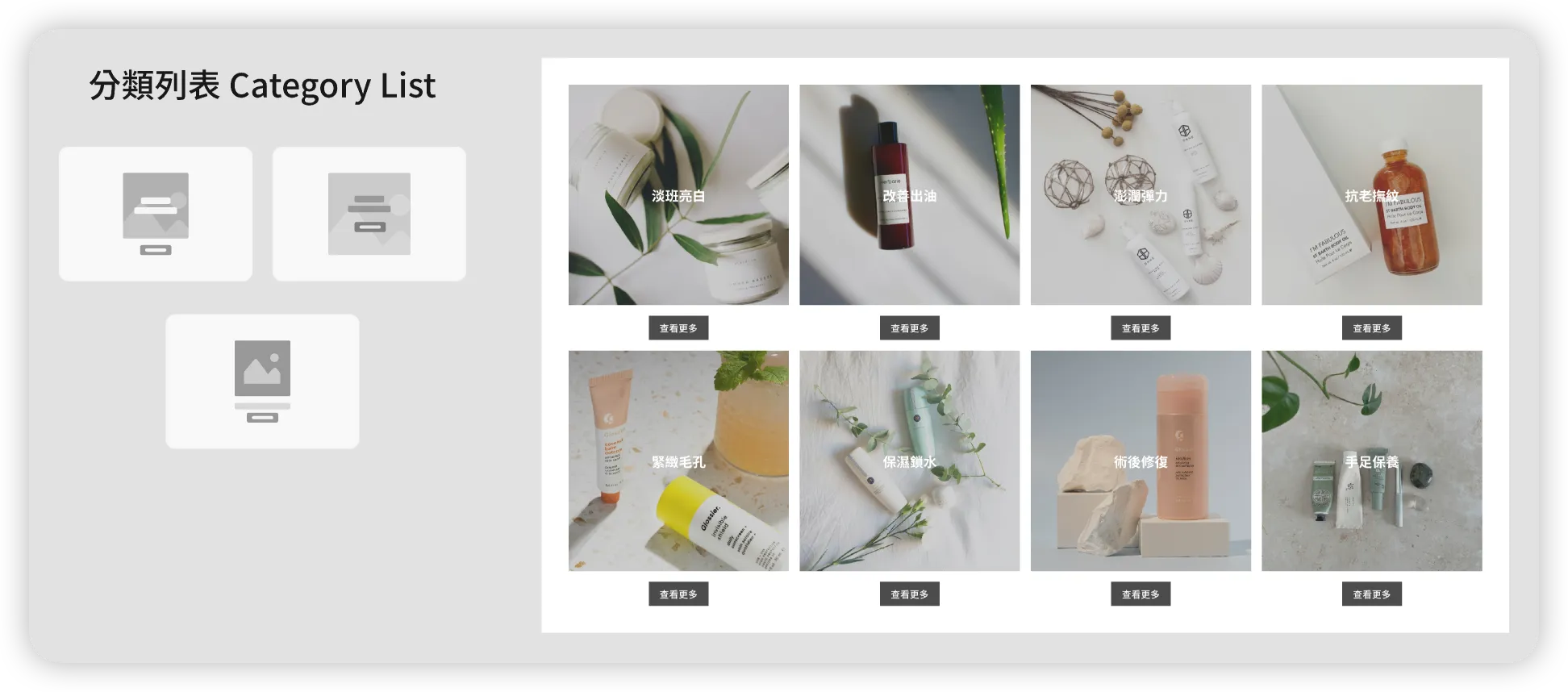
🔰 Basic Introduction
-
A Category list component consists of individual category slots: the default number of categories is 10, with a maximum limit of 20.
-
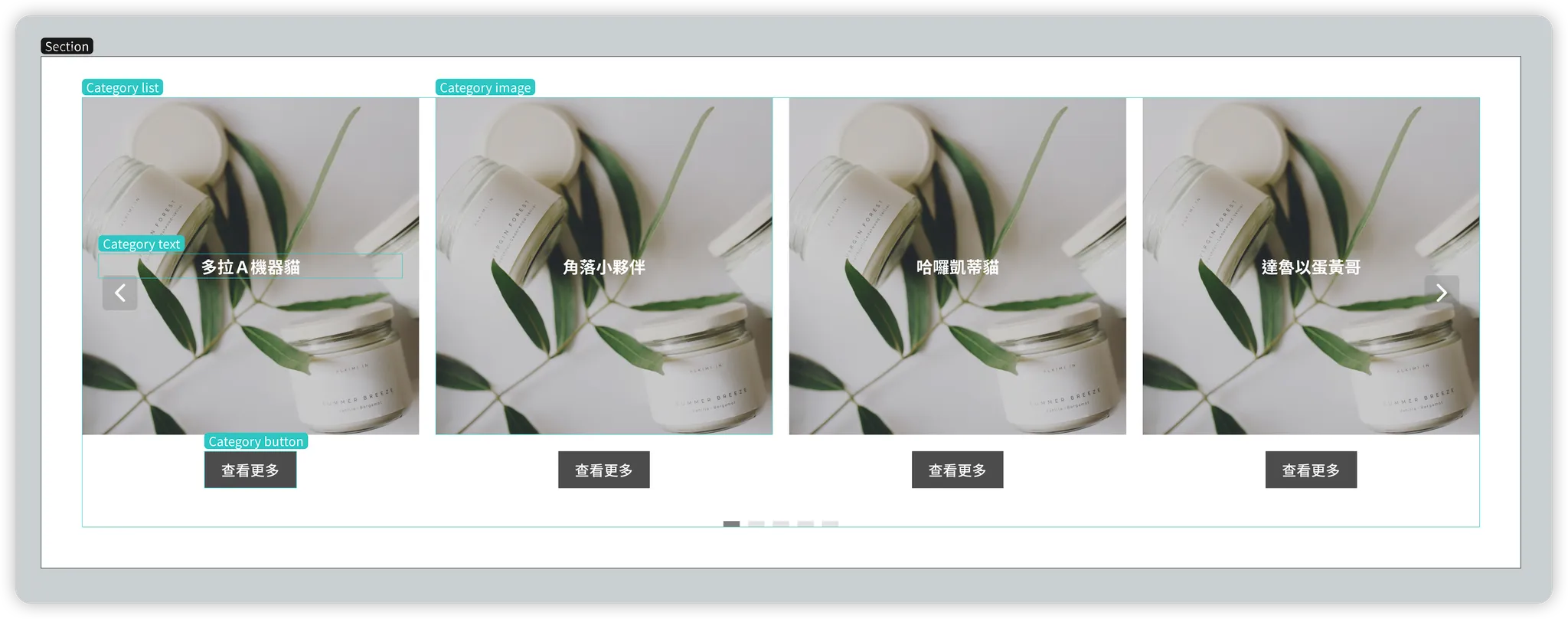
Detailed Component Architecture:
Section
Category list
Category column
- Category image box
- Category text
- Category button
- Category image box
- Linked Editing Effect:
- Modifying the action link of a "Category Image Box" in a slot will automatically update the action link of the "Category Button" in the same slot to ensure they lead to the same destination.
- Modifying the component style of a single category slot will automatically apply those changes to the entire Category list, saving time on repetitive editing.
- Content Settings:
- Use AMP tags (Section Base Tags) to quickly set up categories.
- Customize any content you wish to display, including images, text, and links.
- Enable auto-play and set the rotation interval in the right-side settings panel.
- Button text is fully customizable, including visibility and display style.
- Category list content is Static:
The content specified when saving in the editor will remain fixed on the campaign page and will not automatically update.
🏷️ Category Tags
Each category slot can be configured with 1–3 AMP tags.
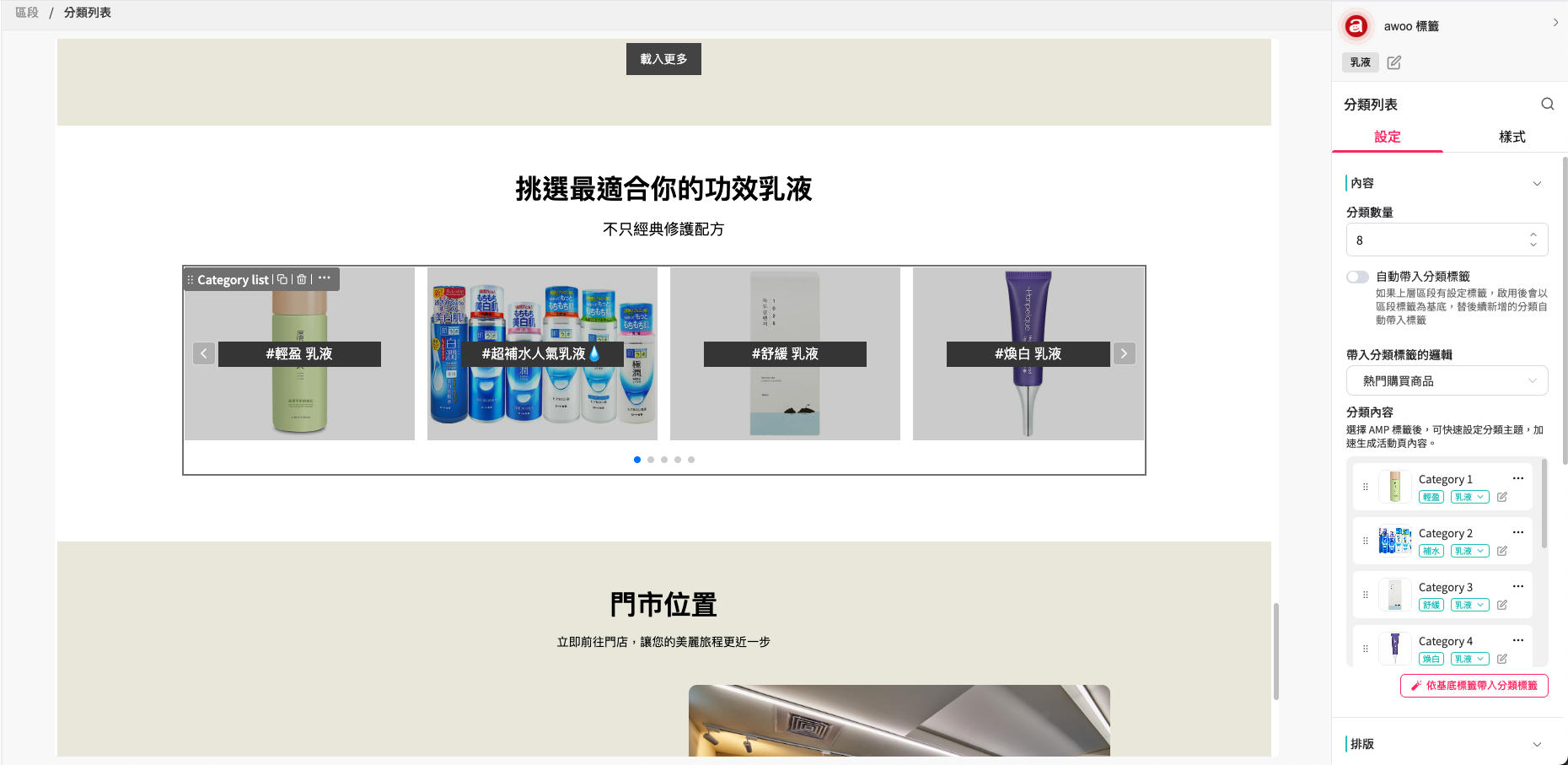
Effects of Setting Category Tags
After adding or editing tags for a specific category slot, the child components within that category will change as follows:
- Category Text: Automatically updates to the name of the category tags.
- Category Image Box: Automatically updates to an image of a product related to the category tags. The link also automatically updates to "Go to awoo Page" for that tag group.
- Category Button: Since the link settings for the button and image are linked, the button link also automatically updates to "Go to awoo Page" for that tag group.
How to Set Category Tags
1. Manual Individual Settings
▍Method
-
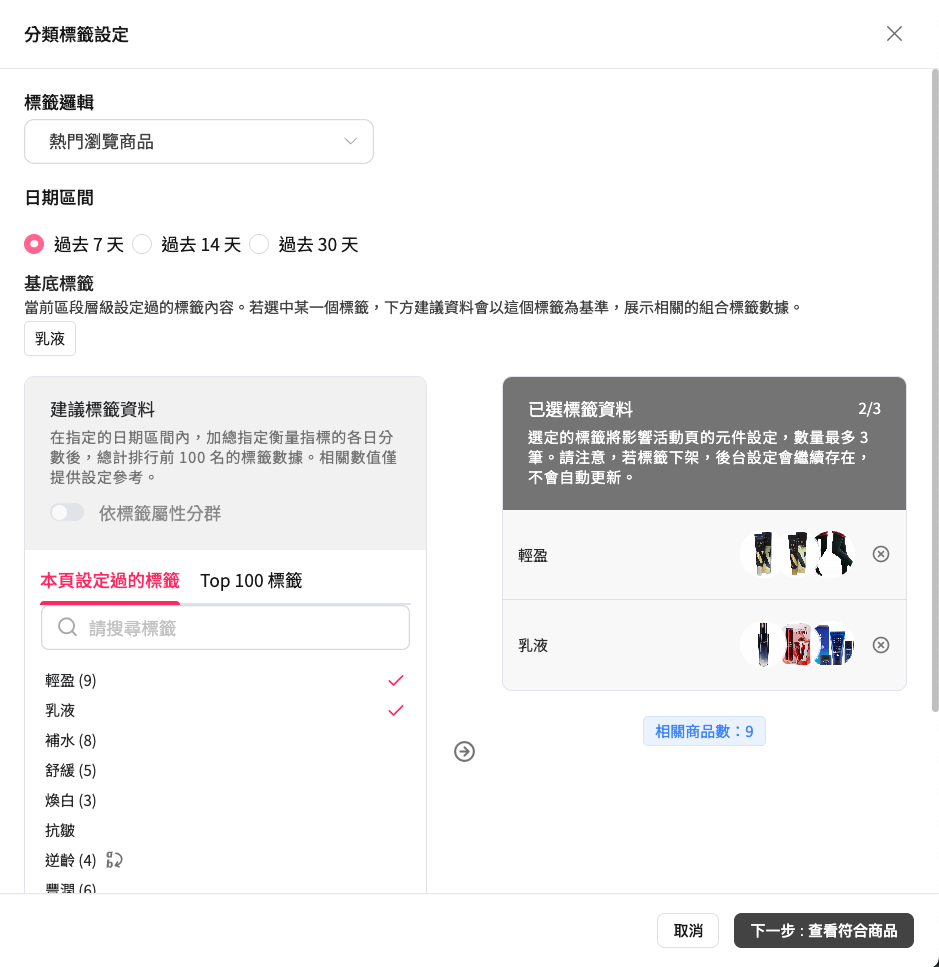
In the Category list component settings panel, select the category you want to edit from the list and click "Edit."
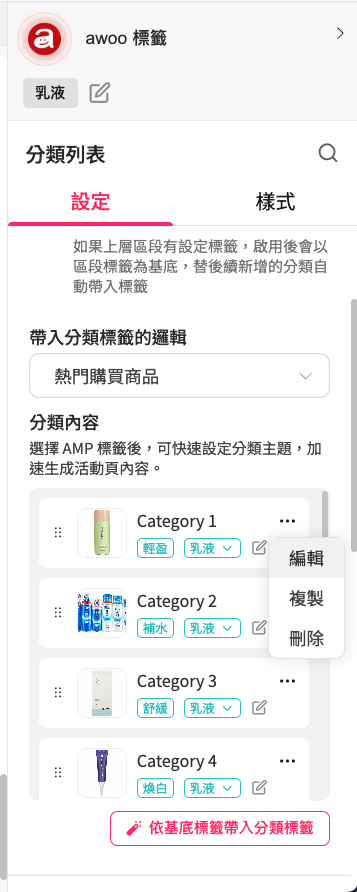
-
The tag selection screen (same as Section Base Tags configuration).
-
Click the "Save" button to apply settings.
2. Manual Batch Settings for the Entire List
If you want to set category tags for the entire list at once, you can use the Section Base Tags feature.
▍Method
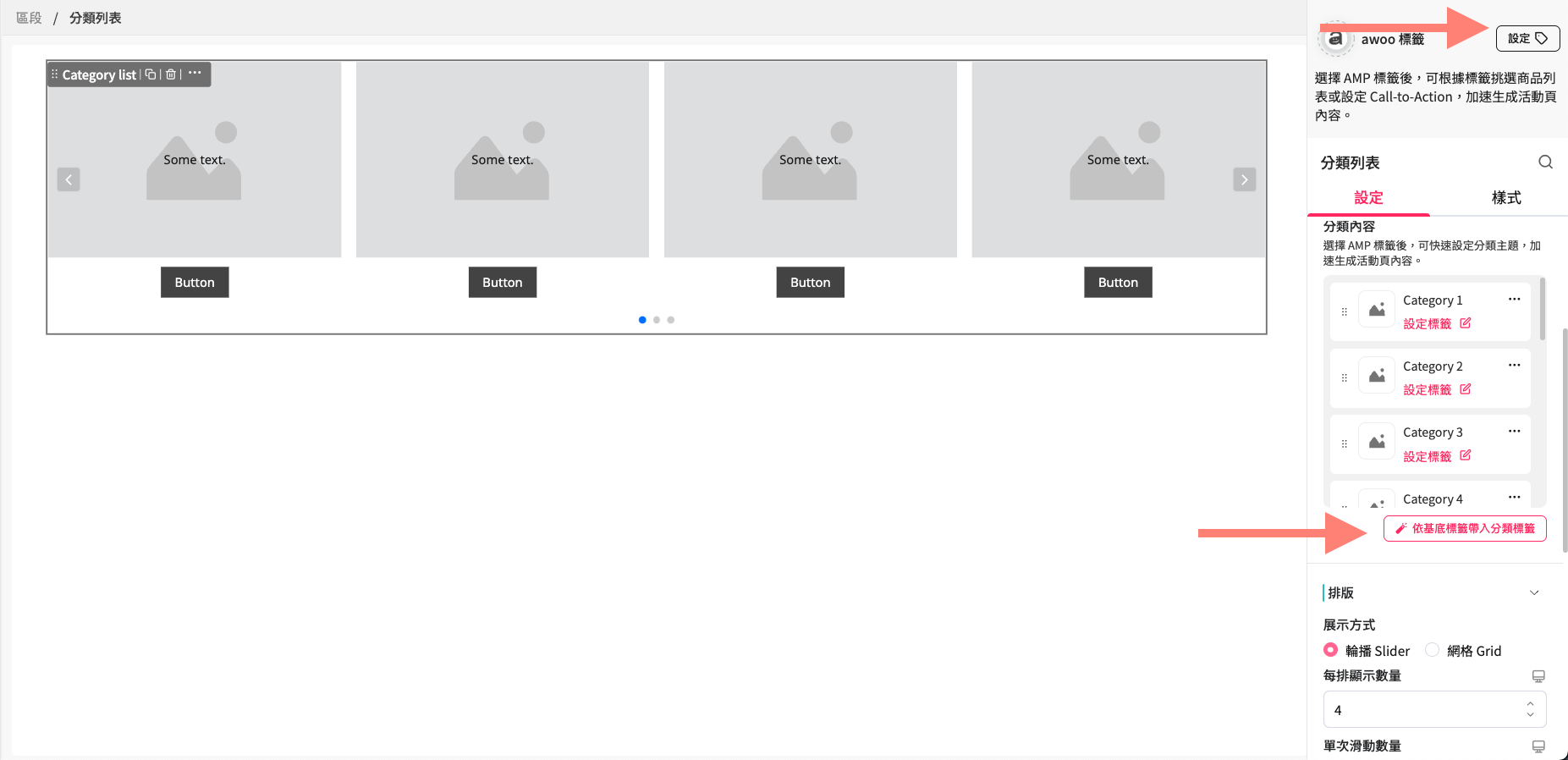
- Set the Section Base Tags in the "Parent Section" above the Category list.
- In the Category list settings panel, click the "Apply Category Tags via Base Tags" button under the category content section.
▍Batch Setting Logic
The system searches for related tag combinations based on the Base Tags set in the parent Section and automatically applies them:
| Base Tags | Applied Category Tag Logic |
|---|---|
| None |
|
| 1 Term: [Sports] |
|
| 2 Terms: [Sports][Training] |
|
| 3 Terms: [Sports][Training][Fitness] |
|
If no extended combinations can be found via the Base Tags, the system will apply the original "Base Tags" directly to the category slots.
3. Automatic Category Tag Settings
To allow the system to automatically set tags for the Category list, you must first complete the Section Base Tags setup.
▍Timing of Automatic Application
- When adding a new Category list to a Section that already has Base Tags set.
- When setting Base Tags in a parent Section, the system automatically applies tags to all empty categories.
- When increasing the number of categories in a list (e.g., from 5 to 10), only the newly added slots will have tags automatically applied:
- Tags for the original slots (1–5) will remain unchanged (no retroactive changes).
- The 5 new slots (6–10) will have tags applied automatically.
▍Method
- Configure Section Base Tags in the "Parent Section."
- Add a Category list component.
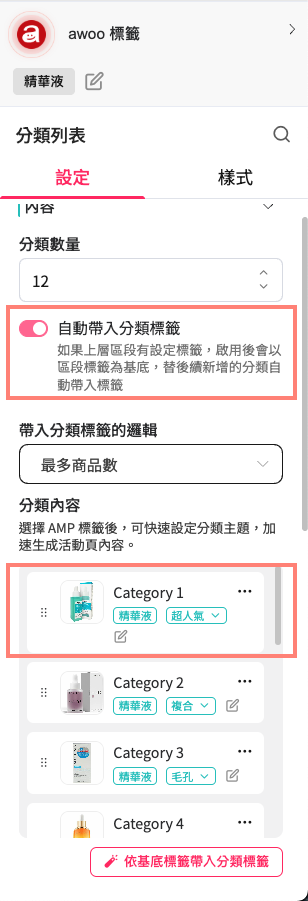
- In the Category list settings panel, ensure the "Auto-populate category tags" toggle is enabled.
You can then adjust the "Auto-population Logic" to customize how the system selects tags.
| Logic | Data Source | Effect |
|---|---|---|
| Most Products (Default) | TGM |
|
| Trending Products (Views) | Pixel & awoo BI |
|
| Trending Products (Add to Cart) | Pixel & awoo BI |
|
| Trending Products (Purchases) | Pixel & awoo BI |
|
| Highest Revenue Products | Pixel & awoo BI |
|
Updated 8 months ago