
View Media Sources and Select Posts
After successfully connecting your Instagram account, the system will sync posts daily and display them in the 'Media Sources' post pool, where you can view and select desired posts to add to album folders for management.
Post pools are divided into the following two types based on the synchronization source:
1. Post Pool: My Content
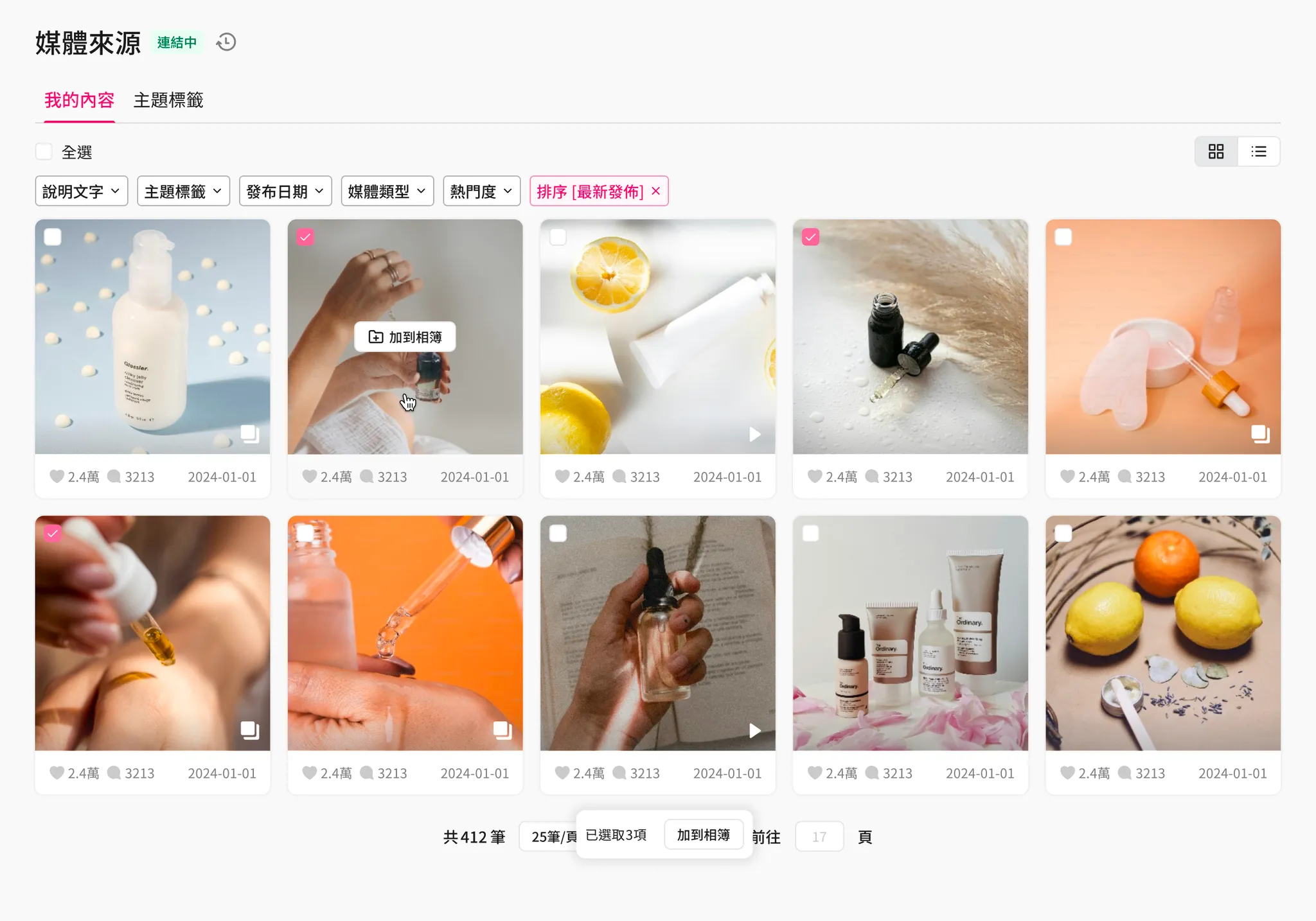
-
Post Source
Posts published by this connected Instagram account. -
Update Mechanism
Upon the first synchronization after connecting the Instagram account, the system will only sync the latest 125 posts from this account. Subsequently, it will sync all posts published the previous day on a daily basis, and the data will continue to accumulate.Currently, due to Instagram API rate limits, the system will not automatically update posts that have already been pulled into AMP:
-
For example, if a post has 100 likes at the time of synchronization on June 1st, and after a few days of social engagement, the like count grows to 99,999 on June 7th, the like count seen in AMP will remain at the initially synced 100 and will not update automatically.
-
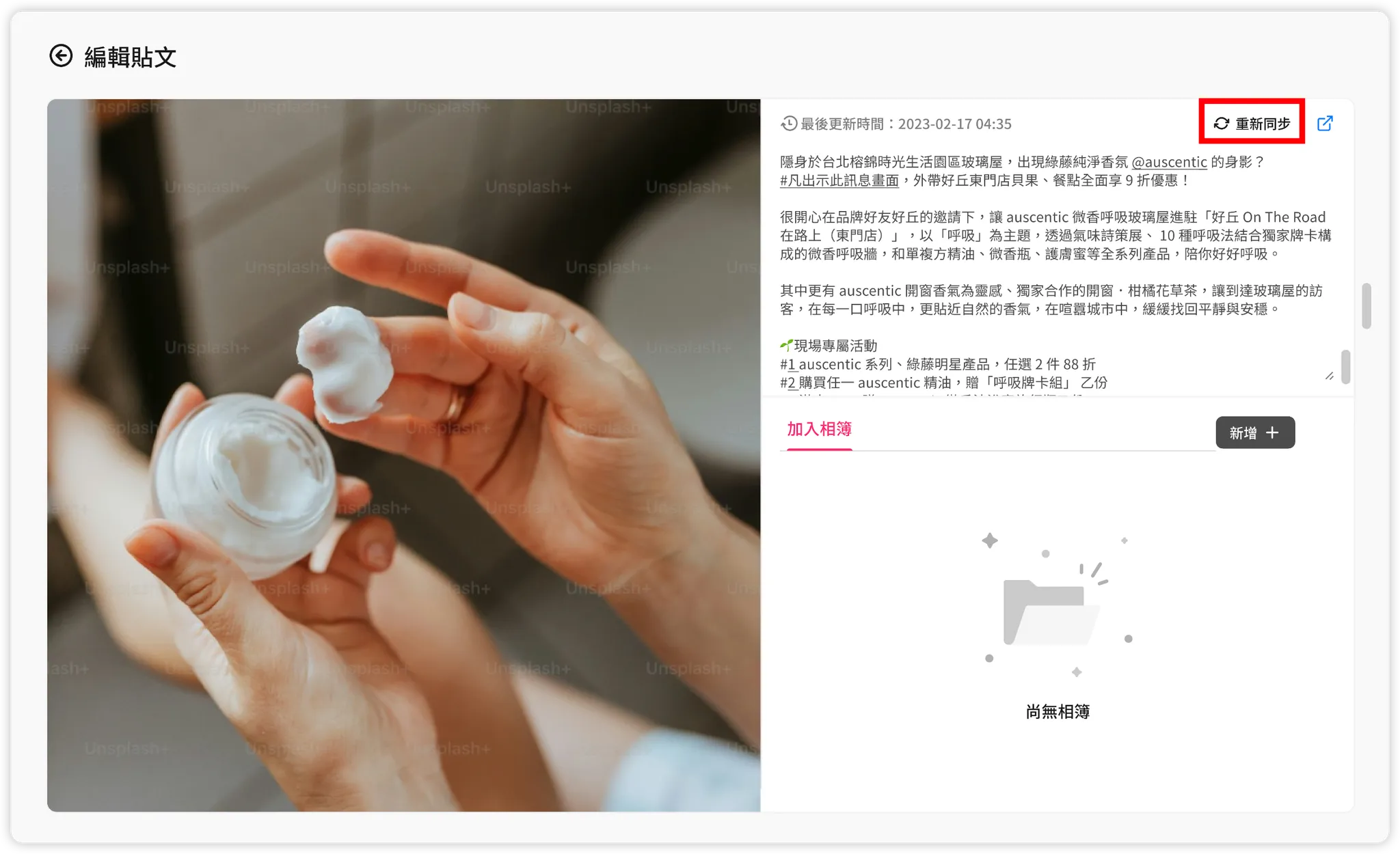
However, for posts published by the "Connected Instagram Account" itself, you can manually update the post content using the "Re-sync" function on the single post view screen.
-
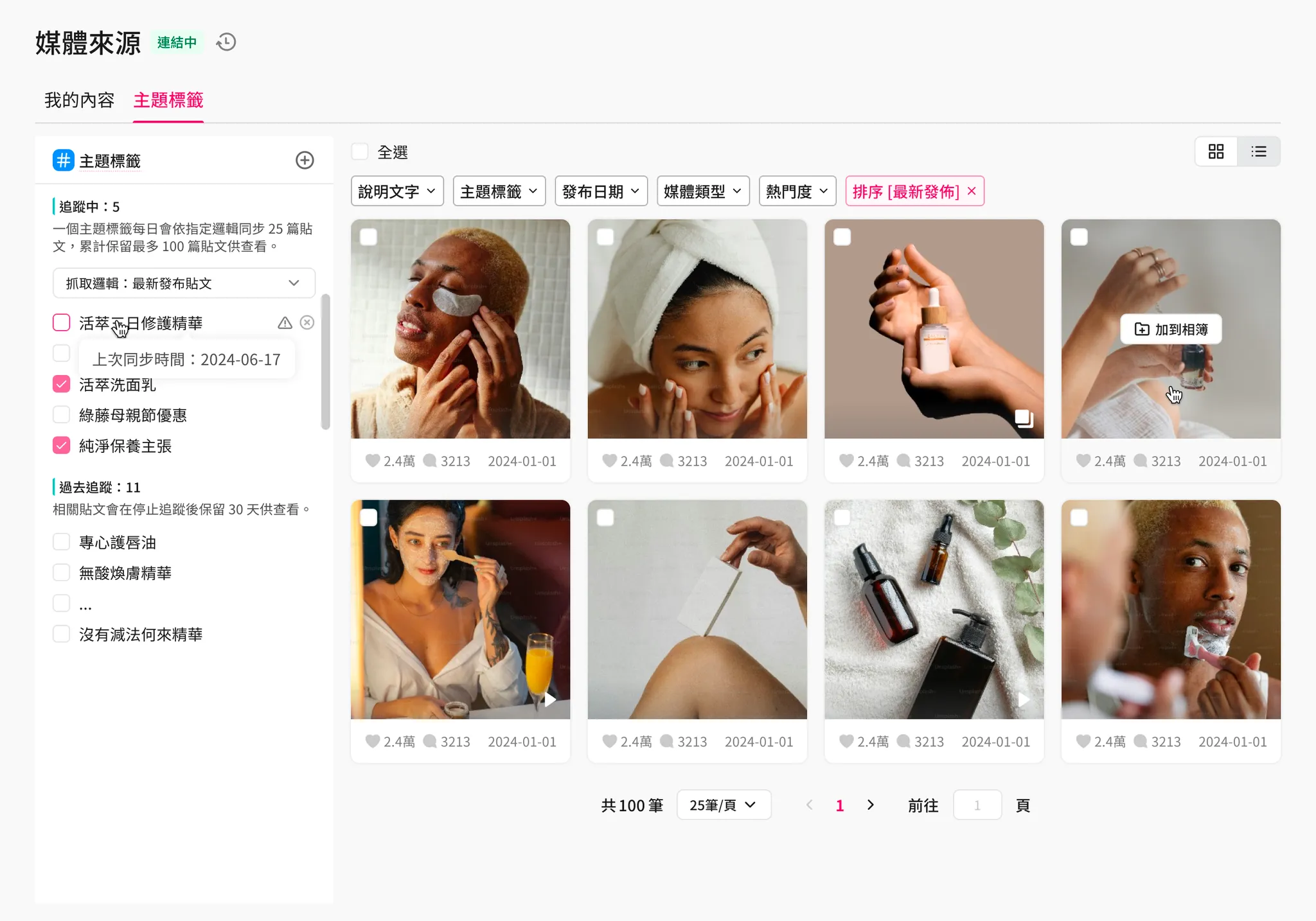
2. Post Pool: Hashtags
-
Post Source
Posts that include specific #hashtags (hereinafter referred to as "Hashtags") in their captions. These may be posts published by your own Instagram account or posts published by consumers. -
Update Mechanism
Every day, the system executes a synchronization based on the Hashtags you are currently tracking and your specified synchronization logic. A maximum of 25 posts per Hashtag are synced back daily, accumulating until a single Hashtag reaches a maximum of 100 posts.- When a Hashtag is about to exceed 100 unique posts, the system will automatically replace the oldest synced posts with the newest ones to maintain a fixed maximum of 100 posts per Hashtag.
- If the 25 posts pulled in a single sync include duplicates of content already synced, the system will not pull additional unique posts into AMP for that day. Therefore, if you use the "Most Popular" logic, the posts collected daily may be very similar, resulting in actual unique daily increments of ≤ 25 posts.
Please note:
Due to official Instagram API restrictions, the system can only sync Hashtag posts published after you have completed account authorization on Instagram.We recommend completing account authorization in awoo AMP before launching social sharing campaigns that use specific hashtags to avoid missing potential UGC post materials.
Currently, due to Instagram API restrictions, the system will not automatically update posts that have already been pulled into AMP:
- For example, if a post has 100 likes at the time of sync on June 1st, and it grows to 99,999 by June 7th, the count in AMP remains at 100.
- For posts not published by the connected Instagram account itself, the Instagram API does not support updating post content.
2-1. Post Sync Logic Settings 🔄
You can specify the logic used to sync Hashtag posts. Once the setting is changed, the next sync operation will use this logic to pull posts into the AMP backend:
- Latest: Pulls posts published within the last 24 hours.
👉 Default - Top: Pulls posts determined as "Top" by the Instagram platform algorithm.
2-2. Hashtag Tracking Settings #️⃣
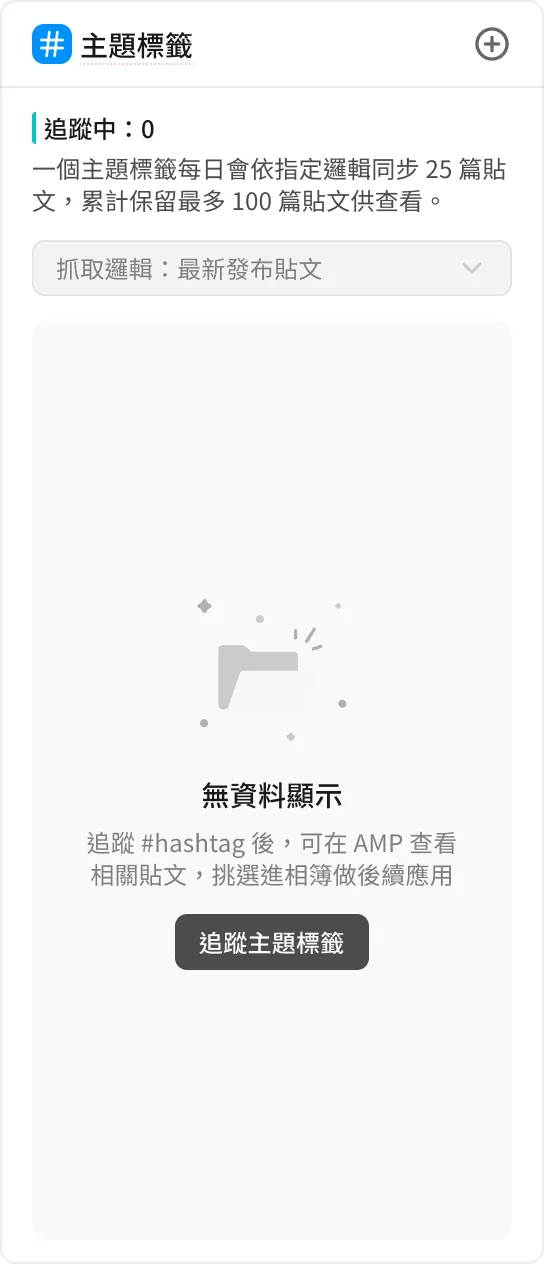 | 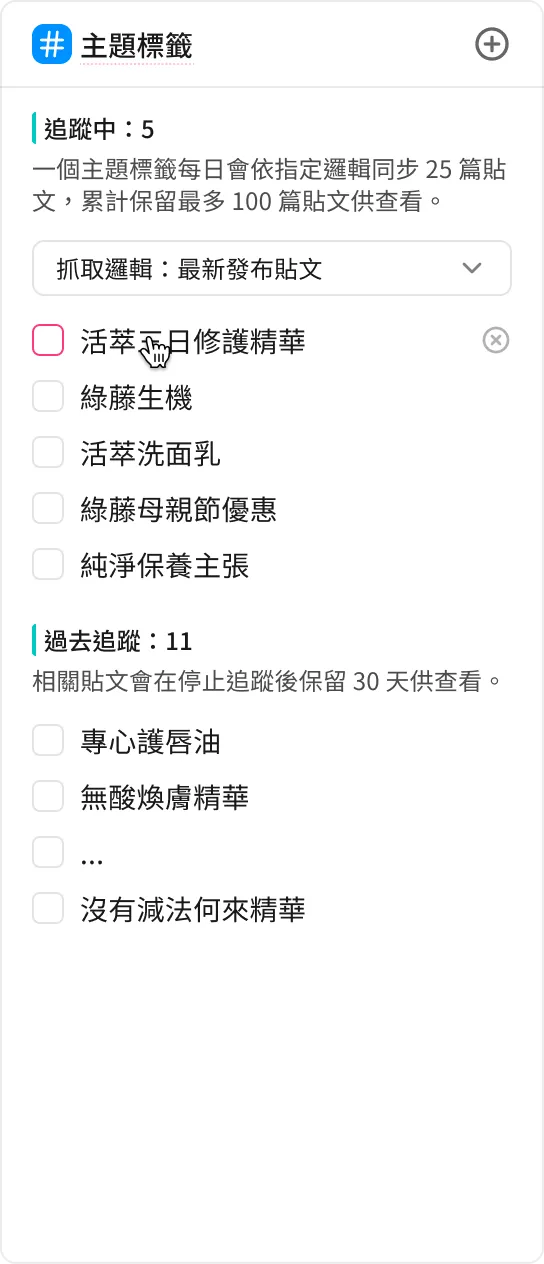 | 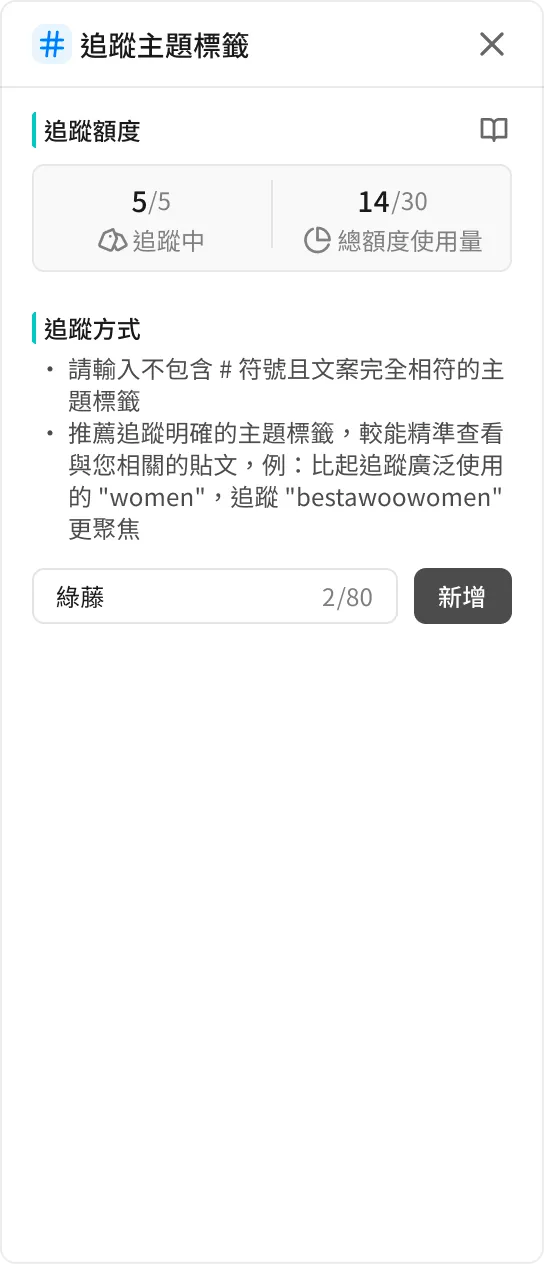 | 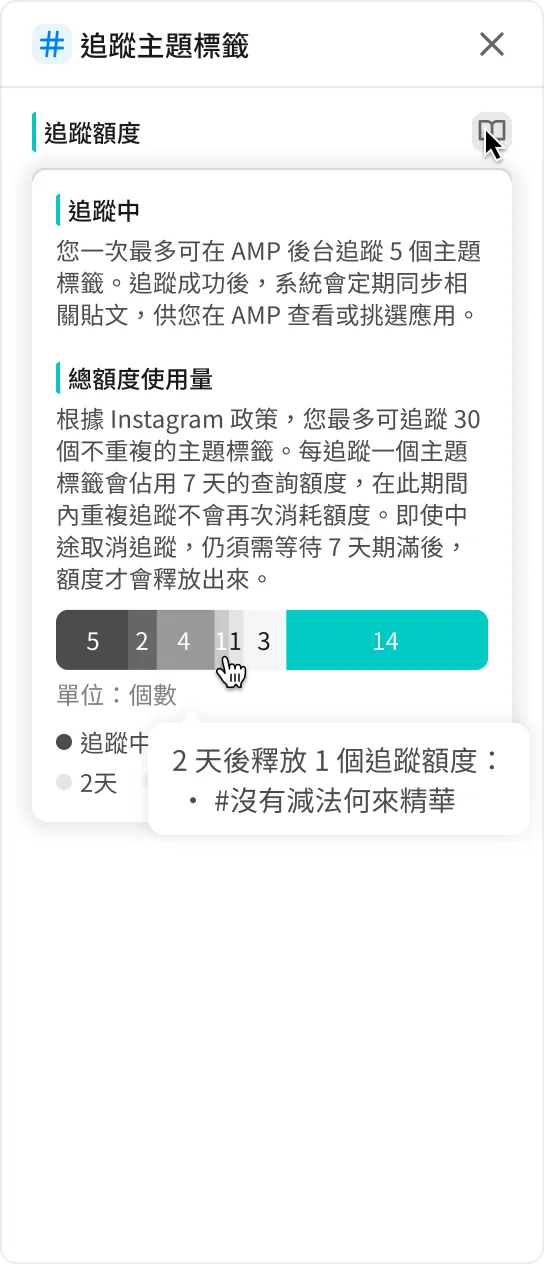 |
| Initial Empty State | Tracking + Past History | Add New Tracking Item | Tracking Quota Description |
- You can track up to 5 Hashtags at a time:
-
Please omit the
#symbol and enter only the following text. Note that special symbols or emojis other than the_underscore are not supported. -
In addition to the tracking limits in the AMP backend, the official Instagram API restricts a single Instagram account to querying only 30 unique Hashtags, and each Hashtag occupies one query quota for seven days from the date of the first query. If this query quota is exhausted, you will be unable to track new Hashtags even if you are tracking fewer than 5 Hashtags in AMP.
-
💡 Example of "Hashtag Tracking Quota":
Date Action AMP Backend Tracking Quota Official Instagram Query Quota 6/01 (No Hashtags tracked) Tracking: 0
Available: 5/5Used: 0
Available: 30/306/02 10:16 Track three hashtags: #A, #B, #C Tracking: 3 (A,B,C)
Available: 2/5Used: 3
Available: 27/306/02 10:30 Stop tracking hashtag: #C Tracking: 2 (A,B)
Available: 3/5Used: 3
Available: 27/30
※ #C, which was canceled in AMP, still occupies a query quota because seven days have not passed since the first query on 6/2, even if the AMP system has not synced posts yet.6/02 12:46 (AMP system syncs posts for #A, #B) 6/03 14:22 Stop tracking #B, then add three new hashtags: #X, #Y, #Z Tracking: 4 (A,X,Y,Z)
Available: 1/5Used: 6
Available: 24/30
※ #B still occupies a quota until seven days pass from 6/2.6/08 Stop tracking #A Tracking: 3 (X,Y,Z)
Available: 2/5Used: 6
Available: 24/30
※ #A still occupies a quota until seven days pass from 6/2.6/09 Tracking: 3 (X,Y,Z)
Available: 2/5Used: 3
Available: 27/30
※ Quotas for #C, #B, and #A are released as seven days have passed since 6/2.6/10 Tracking: 3 (X,Y,Z)
Available: 2/5Used: 3
Available: 27/30
※ Quotas for #X, #Y, and #Z are released after seven days from 6/3, but because AMP auto-renews queries, they will start a new 7-day cycle from 6/10.
-
- If you are unsatisfied, you can cancel Hashtag tracking at any time. The system will stop syncing new posts for that Hashtag, but previously synced posts will remain in the AMP backend for viewing until 30 days after cancellation.
Please note:
After adjusting Hashtag tracking settings, the system will not sync posts immediately, but a synchronization will occur once daily. Please wait patiently.
2-3. Best Practices ✨
- To avoid a large amount of irrelevant content occupying the daily 25-post sync quota, we recommend tracking hashtags that are strongly relevant to your brand. For example:
- Instead of tracking
#women(75M posts), track#brandname_ootd(100+ posts) for higher precision. - Instead of tracking
#skincare(120M posts), track a unique brand slogan hashtag like#PureSkincareByBrandfor more accuracy.
- Instead of tracking
- If you plan to use Instagram hashtags for post-purchase review campaigns or outfit contests, please set up hashtag tracking in the AMP backend first, then ask consumers to post with those hashtags 1–2 days later to ensure the system can sync those posts.
- It is strongly recommended to manually verify hashtags on Instagram to ensure the content is relevant before adding them to AMP. Avoid searching for hashtags directly in AMP to prevent wasting official Instagram query quotas on unimportant or overly broad tags.
3. Viewing and Editing Posts
3-1. Filtering Posts ⏳️
- Description Text: Text within the post body.
- Hashtags:
- Top Filter: Query up to 5 at once; filters for posts tagged with ALL specified hashtags (Intersection/AND).
- Media Source List (Left): Select any number; filters for posts tagged with ANY selected hashtags (Union/OR).
- Media Type: Supports "Single Image," "Single Video," and "Carousel/Slideshow."
- Publish Date: The original date of publication by the author. Supports "Before," "After," and "Between."
- Popularity: The like count ranking percentage compared to other posts in the pool. Supports "Top 5%," "Top 10%," and "Top 25%."
3-2. Sorting Posts 🔀
- Publish Date (New to Old): The original IG publication time.
👉 Default - Sync Date (New to Old): The time the post was last synced into AMP.
- Like Count (High to Low)
- Album Count (High to Low): Number of AMP albums the post is linked to.
3-3. Viewing a Single Post 👁️🗨️
Click any post in the list to enter the detailed information screen for that post.
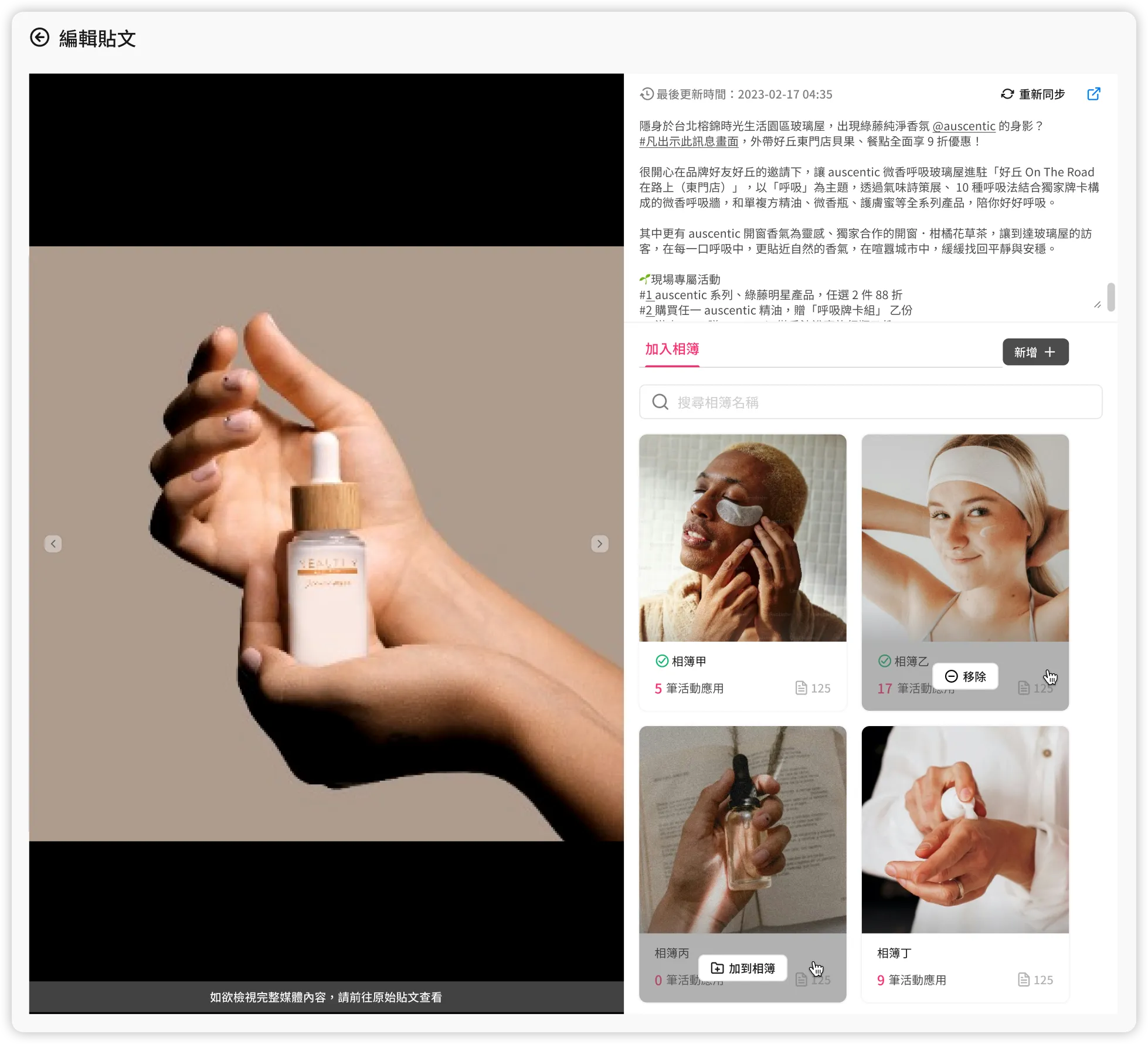
- Previewing Post Media
Currently, AMP only provides a minimal preview of media data:- Single Video Posts: You can only see the video thumbnail; it cannot be played directly in the AMP backend or Campaign Star campaign pages.
- Carousel/Slideshow Posts: You can only see the first slide; you cannot swipe to see subsequent slides in the AMP backend or Campaign Star. If the first slide is a video, only the thumbnail is visible.
- Re-syncing Post Content
- For posts published by your own account:
- Captions, like counts, and comment counts will remain as they were when first synced; they will not update automatically unless the system happens to pull the same post during a Hashtag sync.
- You can manually trigger the "Re-sync" function.
- For posts published by other accounts (e.g., Hashtag posts):
- Data remains as it was at the first sync and will not update automatically.
- The "Re-sync" function cannot be triggered manually.
- For posts published by your own account:
3-4. Adding Posts to Albums 🗂️
Once you find satisfactory posts in the media source pool, you need to add them to album folders for further management and application.
-
Usage Limits
- There is no limit to the number of custom albums a single post can be linked to.
- Each album can contain a maximum of 50 posts.
- Each store can have a maximum of 50 custom albums.
-
Access Points for Linking Albums
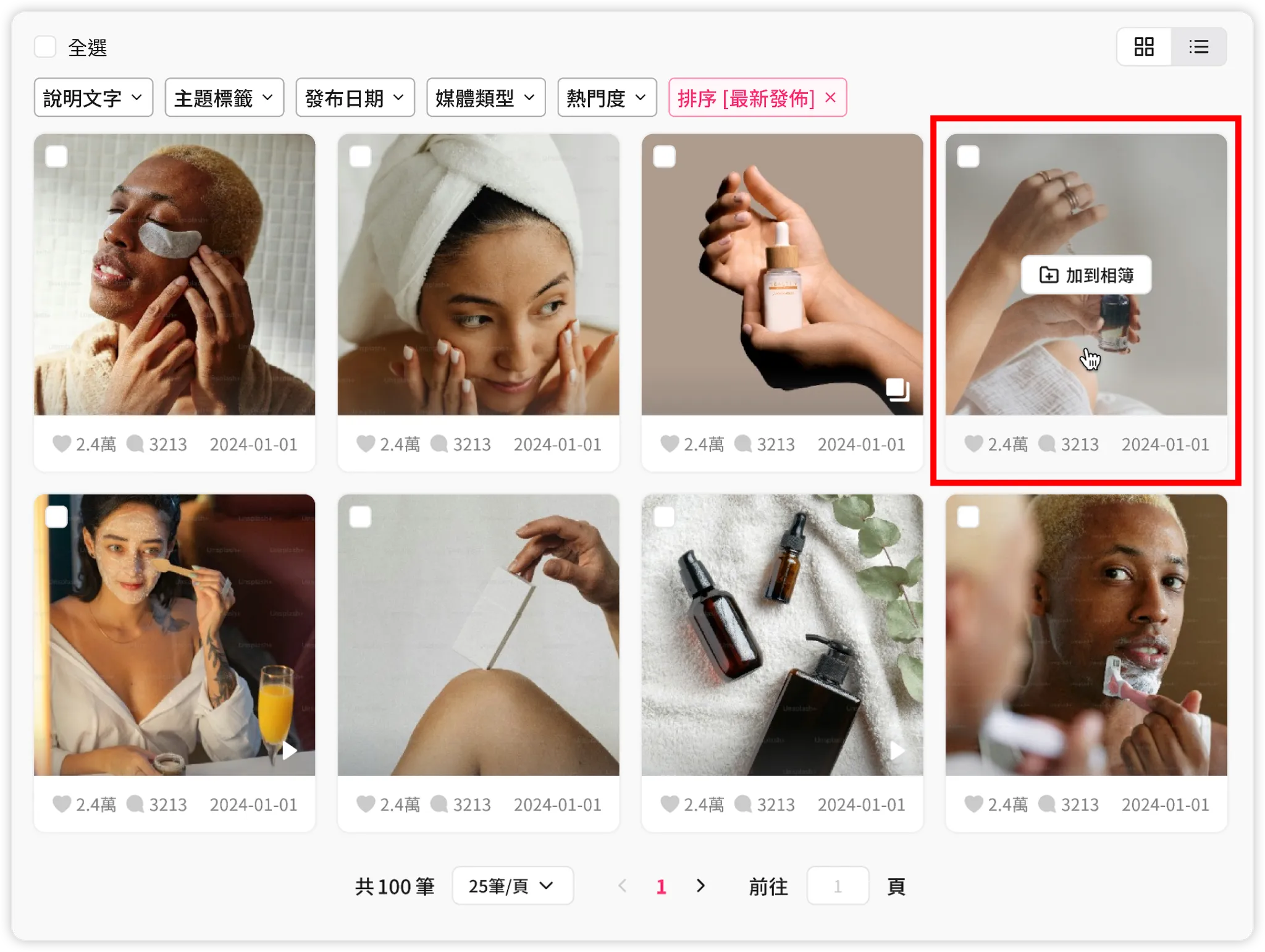
- In the post list, hover over a post and click the "Add to Album" button.
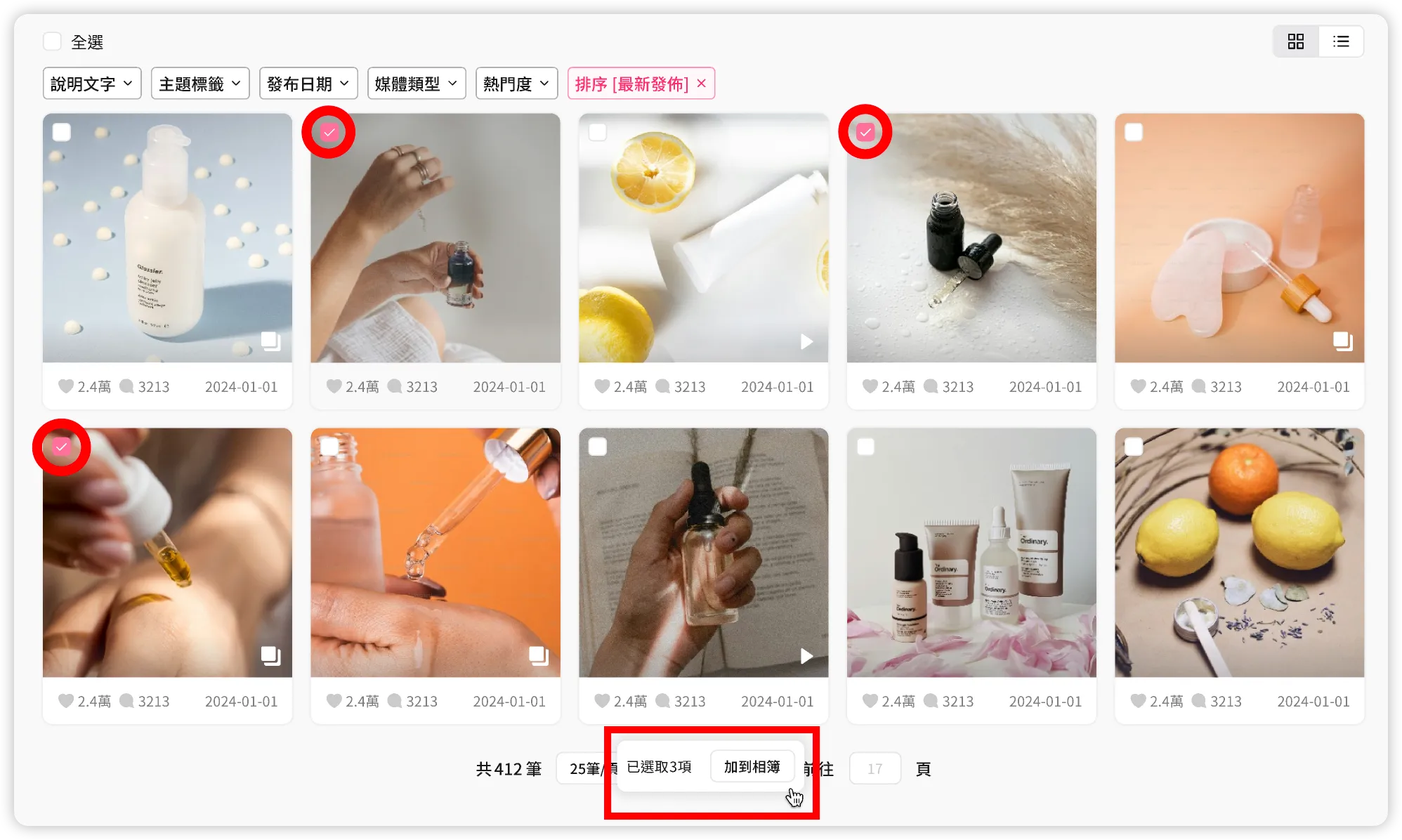
- In the post list, select one or more posts and click "Add to Album" in the batch operation bar at the bottom.
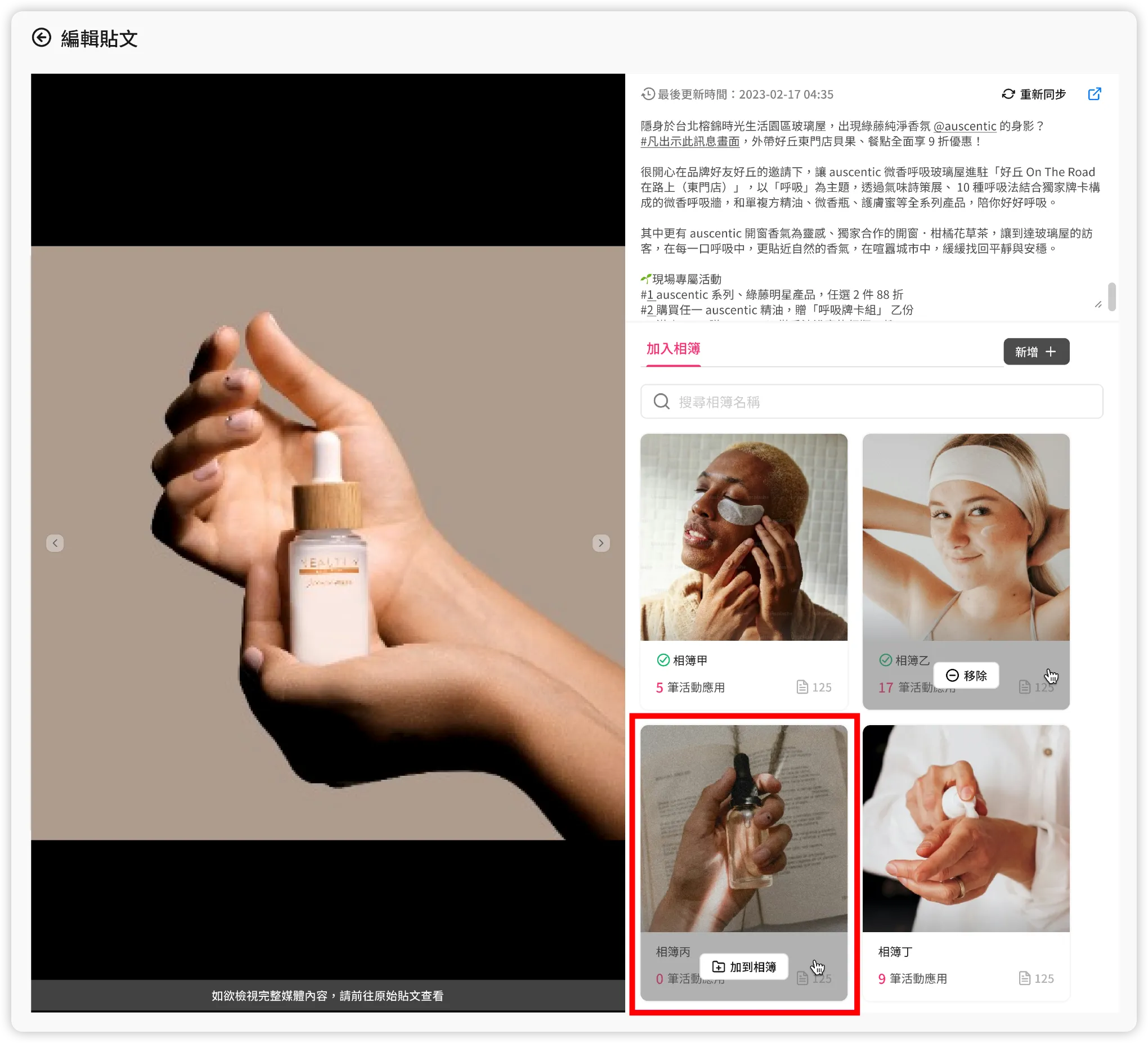
- In the single post view, hover over an album in the album list and click the "Add to Album" button.
- In the post list, hover over a post and click the "Add to Album" button.
-
Workflow for Linking Albums
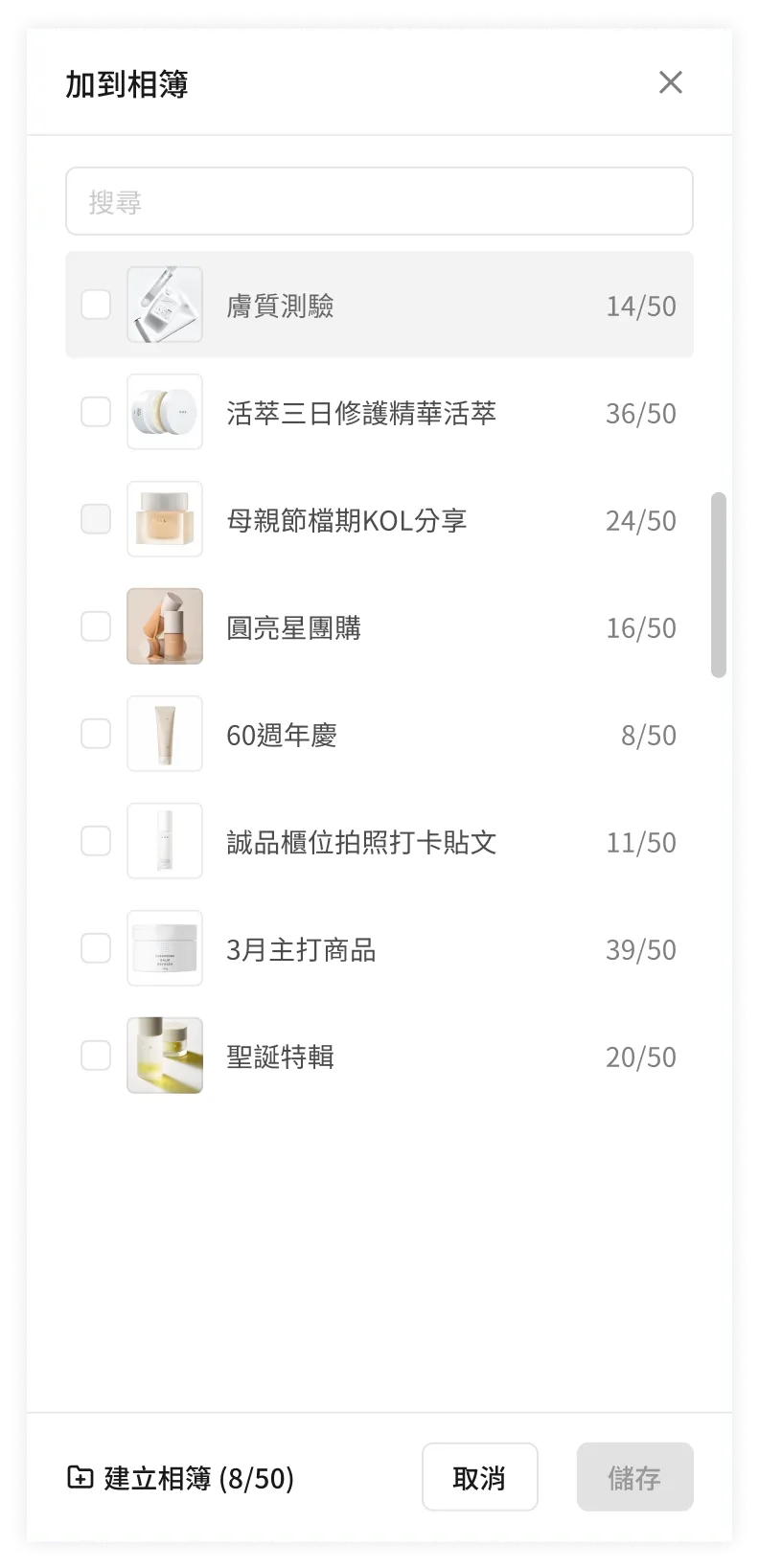
- After clicking "Add to Album," the album list will appear on the right side of the screen. You can also click "Create Album" if no suitable album exists.
- Select at least one album and click the "Add" button.
- After success, you can go to the album list to manage content or add albums to campaign pages.
-
Best Practices✨
We recommend splitting albums based on page purposes and avoiding mixing them.- Why: An IG gallery component on a Campaign Star page can only correspond to one album. Adjustments made to post content within the Campaign Star editor will affect ALL IG gallery components using that same album.
- Example: If Page A and Page B both use "Album X" containing posts A,B,C,D,E, and you hide Post A or change the order in Page A, Page B will reflect those same changes.
FAQ
➤ I've connected my Instagram account, why can't I see any posts in AMP?
Due to Instagram API rate limits, the system does not sync posts immediately upon a successful connection. However, every store is synced once per day. Please check back between 1 to 24 hours after connecting to see your posts.
➤ Why can't the AMP backend find old Hashtag posts?
Due to Instagram API limitations, the system can only sync Hashtag posts published after you have completed account authorization in the AMP backend. Posts published before the connection cannot be retrieved.
➤ How often does the AMP backend update with new posts?
It updates once daily. Please note:
- Syncing will not occur immediately after a connection or new hashtag tracking is set, but it will happen daily.
- Once synced, data will not update automatically (captions, likes, and comments remain as they were at the time of the sync).
➤ How often does the AMP backend update existing post content?
There is no automatic update mechanism for posts already in AMP. However, if the post author is the "Instagram account connected to AMP," you can manually re-sync the post in the single post view to get the latest data.
➤ If I disconnect my Instagram account, will my tracked hashtags be saved?
No. Hashtag query quotas are tied to the specific Instagram account. Once disconnected, your hashtag tracking history will be cleared, returning to the initial empty state.
➤ Can I set rules to automatically add posts matching certain criteria to an album?
This is not currently supported. Posts must be manually selected and added to albums.
Updated 8 months ago