
Reverse Display Order of Elements on Specific Devices
Learn how to reverse the display order of rows and columns for desktop or mobile views to improve layout consistency and readability
💡 Use Case
On a webpage, the "Row" and "Column" elements in desktop view and mobile view are displayed in the same order by default.
For example:
-
Desktop version: Two columns in one row from left to right
Image 1 Text 1 Text 2 Image 2 
-
Mobile version: RWD breaks from left to right into one column per row
Image 1 ↩️ Text 1 Text 2 ↩️ Image 2

However, for layout consistency and readability, the ideal display order for mobile version would be:
| Image 1 ↩️ |
|---|
| Text 1 |
| Image 2 ↩️ |
| Text 2 |

This is where the newly launched "Display Order" control comes in handy!
🛠️ How to Use
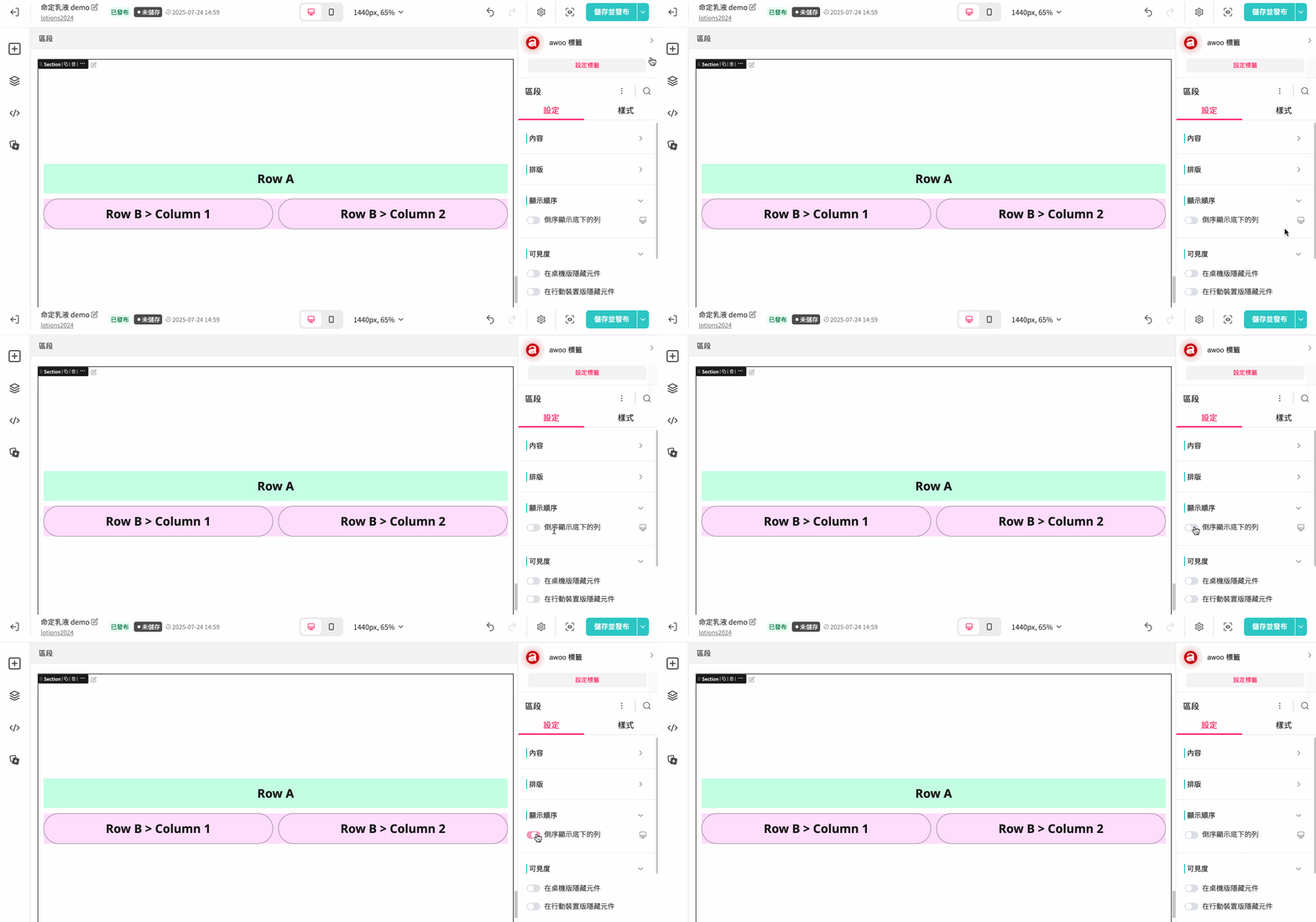
- Reverse Row Order:
- In the "Section" component, under the [Settings] tab, find the [Display Order] section
- You can enable the "Reverse rows below" feature separately for desktop view or mobile view to reverse the order of child Rows within this Section
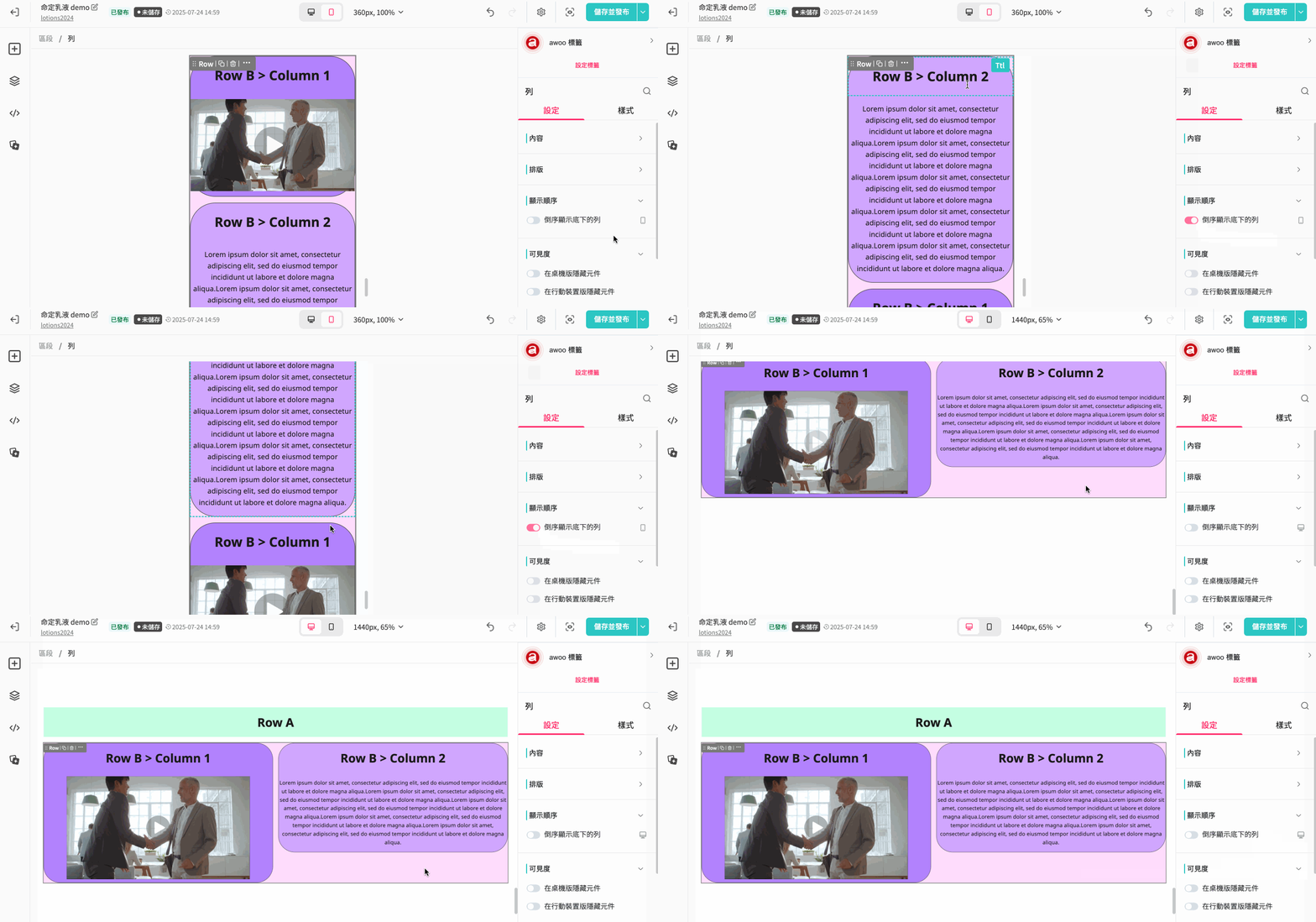
- Reverse Column Order:
- In the "Row" component, under the [Settings] tab, find the [Display Order] section
- You can enable the "Reverse columns below" feature separately for desktop view or mobile view to reverse the order of child Columns within this Row
Updated 8 months ago
Did this page help you?