
Page Editor Introduction
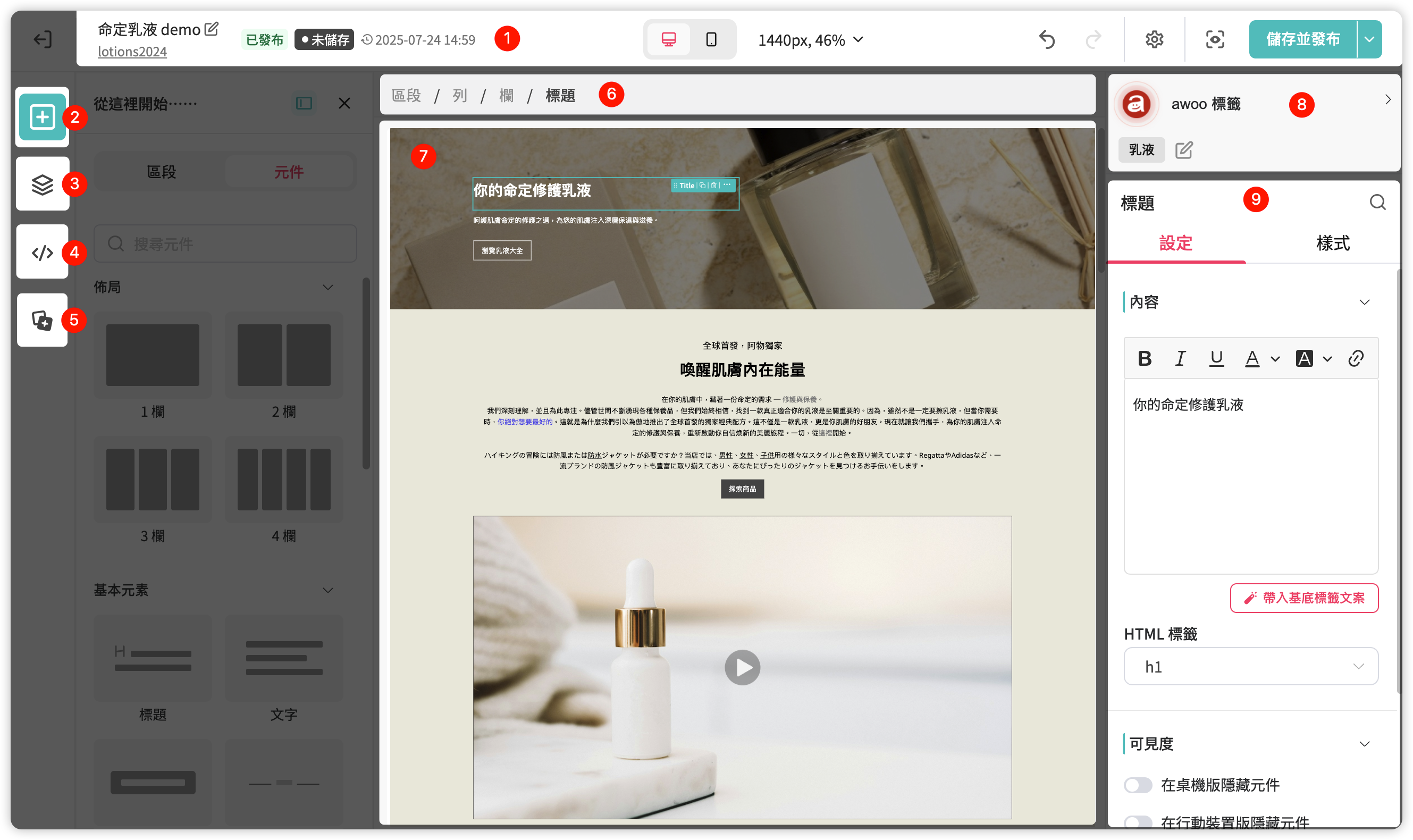
| Operation | Description |
|---|---|
| ⓵ Top Navigation Bar | ・View page status and last save time ・Switch between device modes or customize canvas width ・Set page name, dimensions, active time, SEO info, and auto-save function ・Save, preview, or publish page |
| ⓶ Add Components | View component options or system Section templates; click and hold to drag and add them to the canvas. ⚠️ If you are adding the first component to a blank canvas, please drag the component to the top of the canvas and wait for the blue positioning line to appear before releasing the mouse. |
| ⓷ Layer Tree | ・View the component structure of the entire page ・Drag, rename, copy, or delete specific components |
| ⓸ CSS Editor | Use CSS syntax to achieve advanced styling effects not yet supported by the component panel |
| ⓹ Template Library | View or apply templates; if it's a custom Section template, you can also edit it |
| ⓺ Breadcrumbs | After selecting a component, you can view its parent structure |
| ⓻ Canvas | The main area for editing page content; click on the canvas to switch between different components, and the right-side component settings panel will change accordingly |
| ⓼ Set Base Tags | Determine which AMP tags this section should be associated with, which will affect the settings of child components below |
| ⓽ Configure Component Details | In the [Settings] tab, decide what content the component should display; in the [Style] tab, decide how to display it |
Updated 8 months ago
Did this page help you?