
Campaign Management List
Create, search, and manage campaign pages in the Campaign Management list, and organize large numbers of campaign pages with up to 3 levels of folders.
Go to Campaign Star from the side menu of the AMP dashboard to open the Campaign Management list. Here you can create, search, and organize all your campaign pages, and use folders to group them by department, brand, purpose, or team.
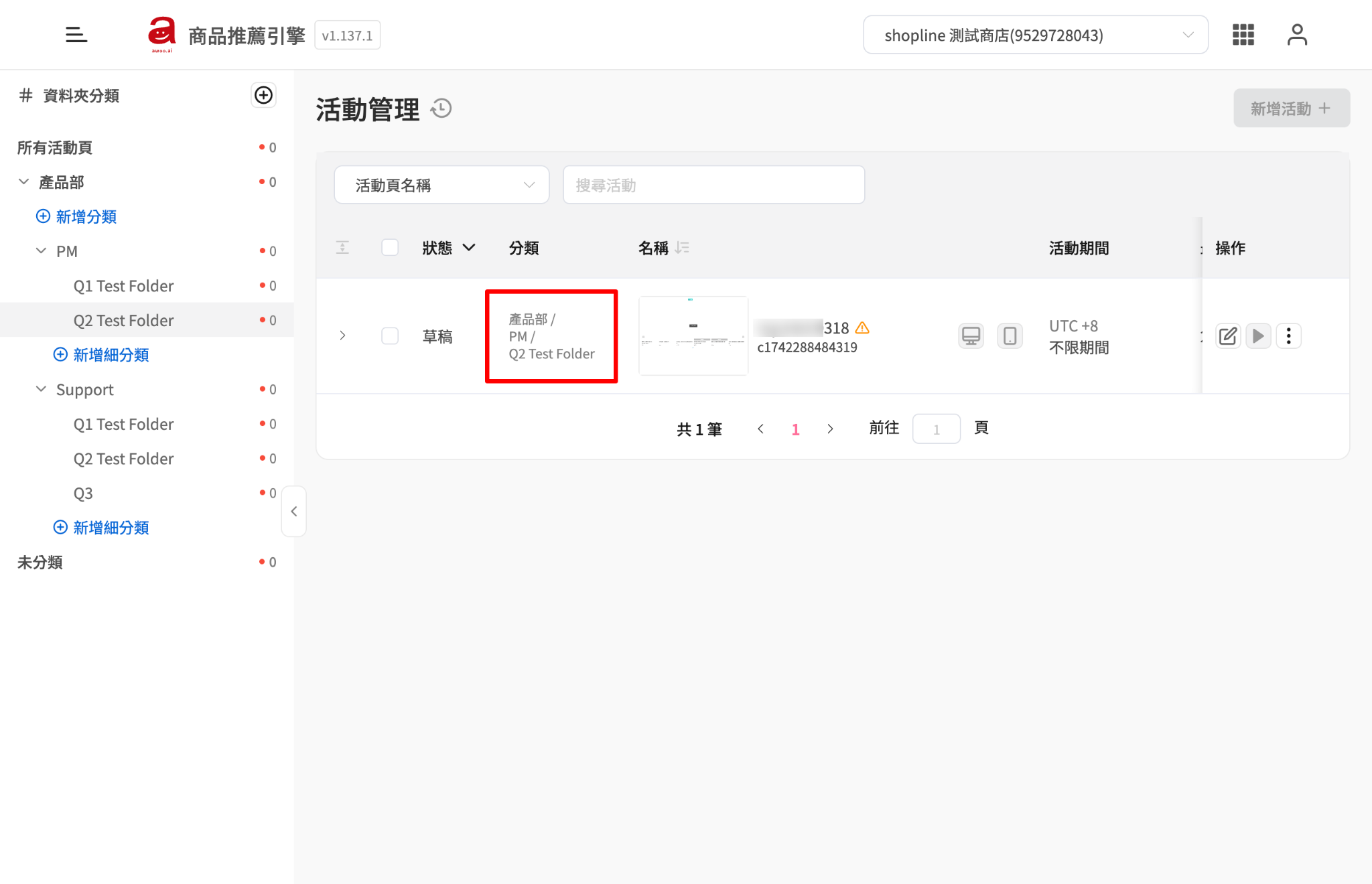
The screen has two areas:
- Left: Folders. Choose which scope to view. See Folders below.
- Right: Campaign page list. Shows the campaign pages in the current scope and lets you take actions on them.
📋 Campaign Page List
List Columns
| Column | Description |
|---|---|
| Status | The current status of the campaign page. Click the column name to filter. See Page Statuses for what each status means. |
| Category | The folder path where the campaign page is actually located, such as "Product / PM / Q2 Test Folder". Even in "All Campaign Pages" or search results, you can see where each campaign page is. |
| Name | The thumbnail, name, and Campaign Code of the campaign page. Click the column name to sort. |
| Campaign Period | The time zone and start/end time of the campaign. If no end time is set, it shows as unlimited. |
| Actions | Edit, publish, or unpublish the campaign page, plus a menu of more actions. See below. |
Search Campaign Pages
Above the list, first choose the field to search by (such as campaign page name), then enter a keyword.
The search scope follows the category currently selected on the left:
- All Campaign Pages: searches all campaign pages.
- Uncategorized: searches only uncategorized campaign pages.
- A regular folder: the scope depends on the "Include subfolders / Exclude subfolders" switch. See View Campaign Pages in a Folder.
View Basic Performance
Click the arrow on the far left of a campaign page to expand its basic performance data. For details, see View Campaign Page Performance.
Campaign Page Actions
| Action | Description |
|---|---|
| ✏️ Edit | Open the page editor to edit the campaign page content. |
| ▶️ Publish / ⏹️ Unpublish | Publish or unpublish the campaign page. See Save, Preview, Publish, and Unpublish Pages. |
| ︙ More actions | ● Preview: preview the campaign page on your website ● Duplicate: create a new campaign page with the same content ● Schedule: set the start and end time of the campaign ● Change Folder: move the campaign page to another folder ● View Detailed Data: view the performance report of the campaign page ● Delete: delete the campaign page |
Once a campaign page is unpublished, it cannot be restored or edited. To publish it again, use "Duplicate" to create a new campaign page with the same content, then publish the new page.
Create a Campaign Page
Click the "Add Campaign" button in the upper-right corner to create a new campaign page and open the page editor. To see which folder the new campaign page goes into, see Where Do New Campaign Pages Go?
📁 Folders
When you have many campaign pages, or several departments and teams manage them together, you can use folders to organize campaign pages and quickly narrow down what you see.
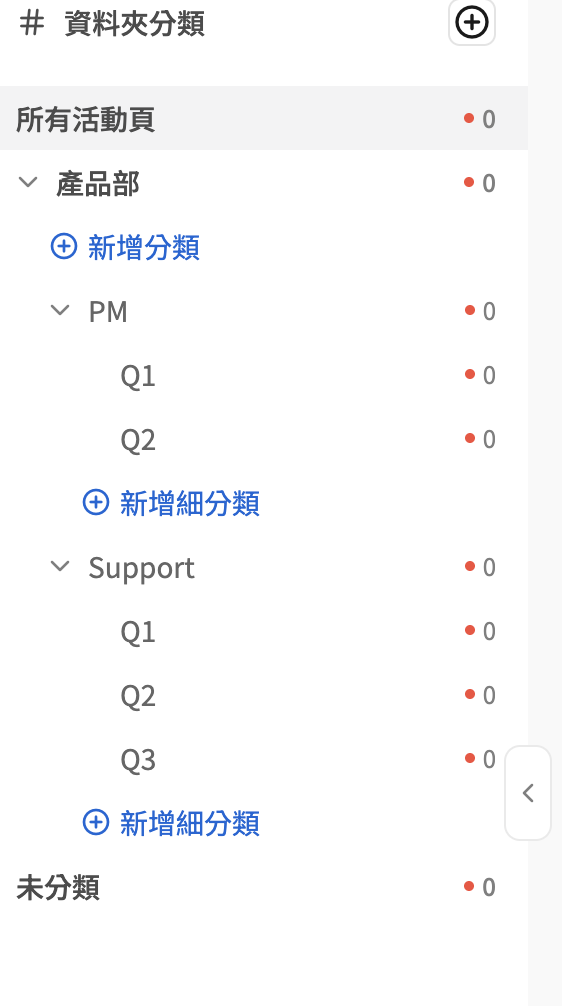
The categories on the left include:
- All Campaign Pages: an overview of every campaign page. This is a fixed system entry and does not represent where a campaign page is actually located.
- Regular folders: created by you, up to 3 levels. Campaign pages can be placed directly in a folder at any level.
- Uncategorized: campaign pages that are not in any folder yet. This is a fixed system entry and cannot be renamed or deleted.
Campaign Counts
The number next to the red dot on each category is the number of active campaigns in it. Hover over the number to see both active and inactive counts:
- Active: Scheduled + Live
- Inactive: Draft + Expired + Deactivated
The count of a regular folder includes campaign pages in all of its subfolders.
Add a Folder
- Click the ⊕ button next to "Folders" to add a first-level folder.
- Under a folder, click the add (sub)category link to add a second- or third-level folder. You cannot add folders under a third-level folder.
Folder name rules:
- Cannot be empty, up to 100 characters.
- Folders under the same parent cannot have exactly the same name, but folders under different parents can. Names are case-sensitive, so
Salesandsalescan both exist. - Folders are sorted by name automatically. Manual reordering is not supported.
Rename or Delete a Folder
- Regular folders can be renamed. The same name rules apply.
- A folder that still has subfolders cannot be deleted, even if the subfolders contain no campaign pages. Delete the subfolders first.
- When you delete a folder without subfolders, its campaign pages are not deleted. They are all moved to "Uncategorized".
Change a Campaign Page's Folder
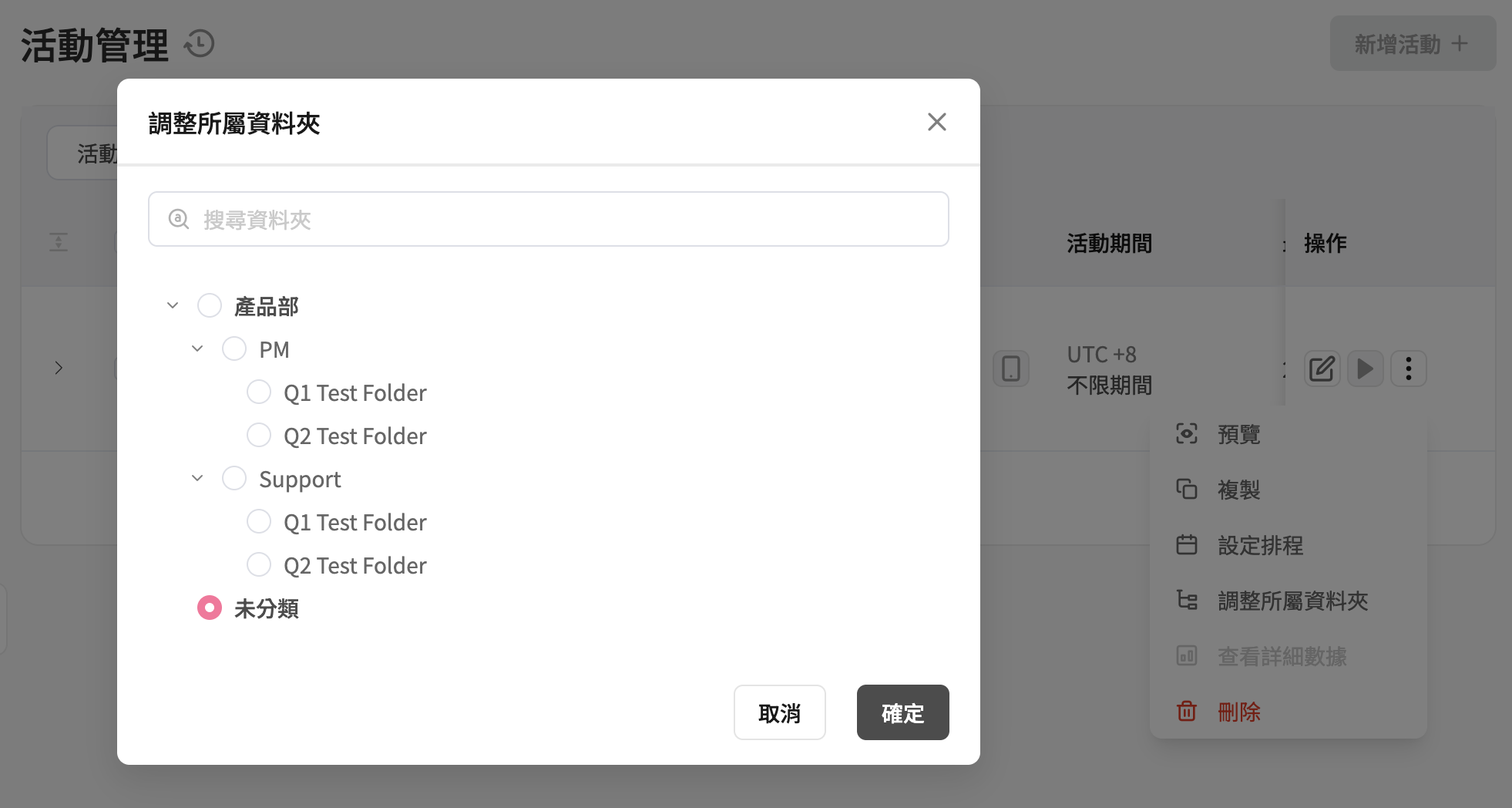
- One page: open the "︙" menu of the campaign page and choose "Change Folder".
- Multiple pages: select several campaign pages in the list, then use "Change Folder".
In the dialog, choose the destination folder (you can also choose "Uncategorized") and click "Confirm". The campaign page moves out of its original folder; no copy is created.
Please note:
When moving multiple pages at once, if any one of the campaign pages or the destination folder no longer meets the conditions, the whole batch fails. The system never moves only some of the pages. Refresh the page to get the latest data and try again.
View Campaign Pages in a Folder
Click a folder on the left to show its campaign pages on the right. If the folder has subfolders, you can switch the scope:
- Include subfolders (default): shows campaign pages in this folder and all of its subfolders.
- Exclude subfolders: shows only campaign pages placed directly in this folder.
Search follows the scope you choose. Folders without subfolders do not show this switch.
Where Do New Campaign Pages Go?
| How It Is Created | Location of the New Campaign Page |
|---|---|
| Created inside a regular folder | The current folder |
| Created in "All Campaign Pages" or "Uncategorized" | Uncategorized |
| Duplicated from an existing campaign page | The same folder as the source campaign page |
| Created from Visual UGC | Uncategorized |
FAQ
➤ Where are campaign pages that were created before folders were released?
They are all placed in "Uncategorized" first. The system does not categorize them automatically. You can use "Change Folder" to organize them into the right folders.
➤ Can one campaign page be in multiple folders?
No. A campaign page can only be in one folder, or in "Uncategorized", at a time.
➤ Can I move a whole folder under another folder?
Moving folders is not supported at the moment, and neither is reordering folders by dragging.
➤ Can my colleagues see the folders I create?
Yes. All users of the same store share the same folder structure. Who can add or edit folders and move campaign pages follows your existing Campaign Star permission settings.
Updated 1 day ago